

Module · Services
Exportation des dépenses
Exportation des dépenses
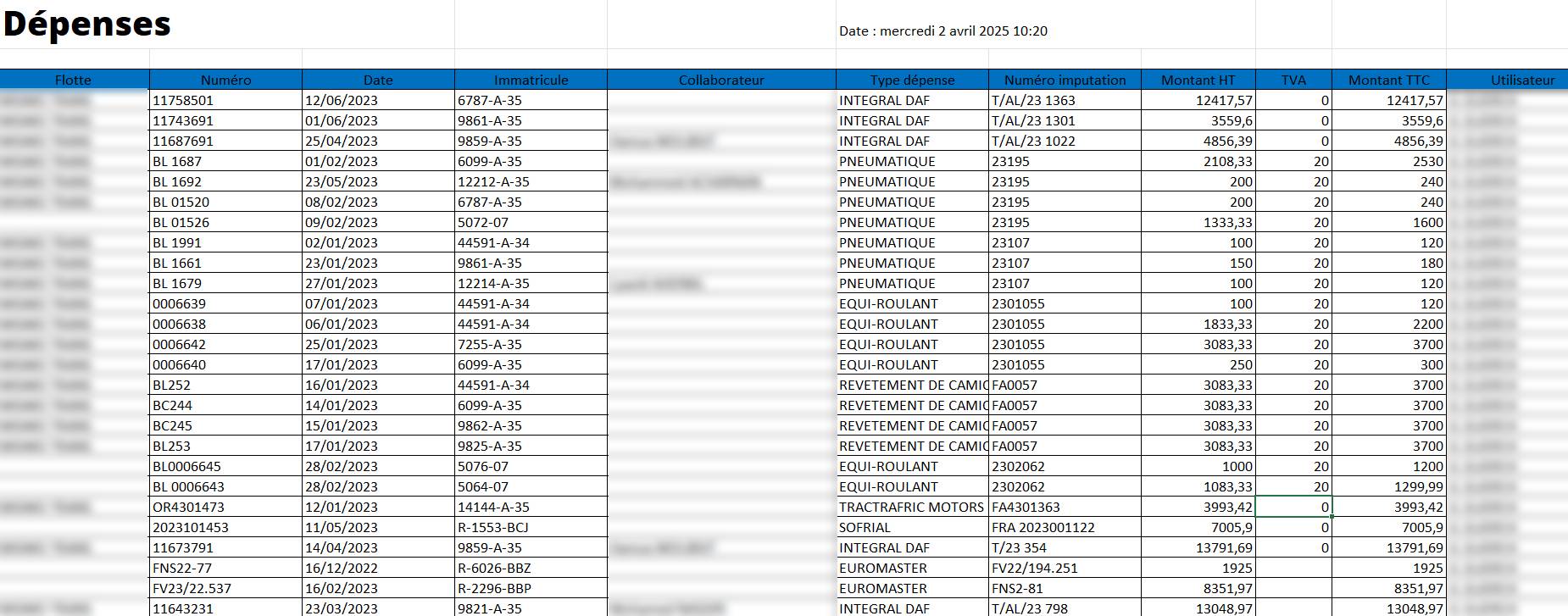
L’exportation des dépensespermet aux utilisateurs detélécharger et sauvegarderles données sous forme de fichier, facilitant ainsi le partage des informations et leur analyse externe. Cette fonctionnalité est essentielle pour laproduction de rapports financiers, lesuivi budgétaireet lesaudits comptables.
Étapes pour exporter la liste complète des dépenses
1⃣Accéder à la liste des dépenses→ Aller à l’interface "Dépenses".
2⃣Cliquer sur le bouton vert d’exportation→ Situé en haut à droite de l’écran, avec une icône Excel.

3⃣Téléchargement automatique→ Un fichier contenanttoutes les dépenses visiblesdans la liste est généré.
Exporter uniquement des dépenses spécifiques
Si vous souhaitez exporterune sélection de dépensesselon des critères spécifiques :
1⃣Utiliser les filtres en haut de la liste
-
Filtrer parvéhicule, collaborateur, type de dépense, date, etc.
-
Le tableau affichera uniquement les données correspondant aux critères sélectionnés.
2⃣Cliquer sur le bouton d’exportation -
Seules les lignes affichées après le filtrage seront exportées dans le fichier.
3⃣Télécharger et utiliser le fichier -
Le fichier généré peut être ouvert avec Excel ou d’autres outils d’analyse.
Avantages de l’exportation des dépenses
Facilité d’analyse→ Intégration dans des outils de gestion financière comme Excel.
Suivi et contrôle→ Production de rapports détaillés pour les gestionnaires et auditeurs.
Gain de temps→ Exportation rapide et personnalisable selon les besoins.
Cette fonctionnalité garantit unsuivi optimal des dépenseset unegestion efficace des coûts.