

Module · Services
Highway Management
Highway Management
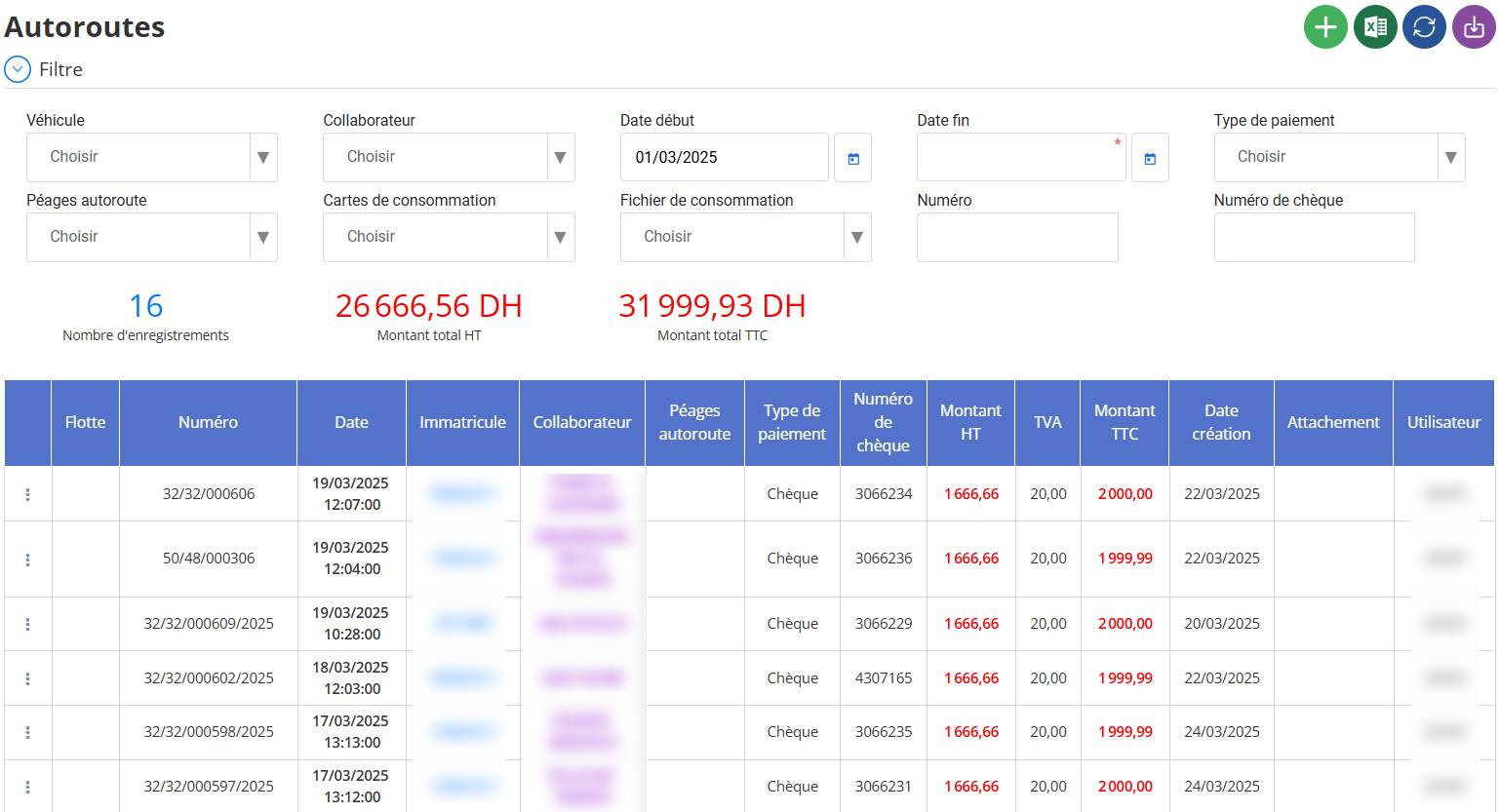
The interface“Highways”allows you to manage and track highway toll charges associated with fleet vehicles. It brings together essential information such as the vehicle concerned, the employee who used the motorway, the type of payment, as well as the amounts excluding taxes and all taxes included.
This interface facilitates the management of toll expenses by centralizing all transactions and allowing detailed cost analysis.
Adding and Editing Transactions
To display the add form:
Click on the“More” button (green icon)located at the top right of the interface.

This opens ablank formwhere you can enter the necessary information.
Completing the Addition Form
The form is divided into several sections:

Vehicle and Employee Information
vehicle: Select the vehicle concerned from the drop-down list.
Highway Designation
Number: Enter the transaction number (required).
Date and Time: Select the date and time of passing the toll.
Departure Toll: Choose the starting point.
Arrival Toll: Select the end point.
PaymentType: Choose the payment method used (check, card, cash, etc.).
Transaction Amount
Amount excluding tax: Enter the amount excluding taxes.
VAT: It is pre-filled by default at20%(modifiable if necessary).
Amount including tax: It will be calculated automatically after entering the amount excluding tax.
Adding a Proof (Optional)
Attachment: You can upload a supporting file by clicking on "Choose file".
Registration of the Transaction
Once the information is completed:
Click on“Save”to save the transaction.
Click on“Save & Add”if you want to add several transactions in a row.
Click on“Cancel”if you do not want to save.
Summary of Benefits
Quick and easy: Addition in a few clicks.
Guided entry: Well-defined fields to avoid errors.
Automation: Automatic calculation ofAmount including tax.
Archiving: Possibility of attaching a supporting file.
This process allows aefficient management of highway transactionsand makes it easier to track travel-related expenses.
Edit a Highway Transaction
Before editing a transaction, you must first access the list of records.
Access the “Highways” menuin the main interface.
The list of existing transactions is displayed in table form.
Select Transaction to Edit
Once in the list of transactions:
Find the linecontaining the transaction you want to modify.
Click on themenu options(icon"..."to the left of the line concerned).

Select“To modify”in the list of available actions.
The edit form opens with the current information pre-populated.
Edit Information
In the edit form, you can update the following information:
vehicle: Change or correct the associated vehicle.
Collaborator: Change the responsible driver.
Transaction number: Update number if necessary.
Date and Time: Change the date and time of passing the toll.
Departure Toll & Arrival Toll: Modify the places concerned.
PaymentType: Update the payment method (e.g. check, card).
Amount excluding tax, VAT & Amount including tax: Modify the amounts if necessary (theAmount including taxwill recalculate automatically).
Attachment: Add or replace a supporting file.
Save Changes
Once the changes have been made:
Click on“Save”to validate the changes.
Click on“Cancel”if you do not want to save the changes.
The updated data will be directly reflected in the transaction list.
Important Points to Remember
Quick and easy editingin just a few clicks.
Old data is overwritten instantly.
Automatic calculation of the Amount including taxafter modification of the tax or VAT.
Possibility to change or add proofas an attachment.
This process ensuresefficient and accurate updatedes transactions autoroutières pour une meilleure gestion des dépenses.
View a Highway Transaction
Consulting motorway transactions allows access to the details of recorded operations without modifying them. Here are the detailed steps to view a transaction:
To view recorded transactions:
Allez dans le menu "Autoroutes"dans l’interface principale.
La liste des transactions s'affiche sous forme de tableau.
Vous pouvez voir les numéros, dates, véhicules, collaborateurs, montants et types de paiementdirectement dans cette liste.
Filter Transactions (Optional)
Si vous recherchez une transaction spécifique, vous pouvez utiliser les filtresen haut de la page :
Véhicule: Sélectionnez un véhicule spécifique.
Collaborateur: Filtrez par conducteur.
Date Début / Date Fin: Recherchez des transactions sur une période donnée.
Type de paiement: Filtrer par mode de règlement (ex. Chèque, Espèces, Carte).
Numéro de transaction: Entrez un numéro spécifique pour une recherche rapide.
Cliquez sur "Filtrer"pour afficher les résultats correspondant aux critères sélectionnés.
View a Transaction in Detail
Once you have found the transaction to view:
Recherchez la ligne souhaitée dans le tableau.
Cliquez sur le menu d’options (icône "..." à gauche de la ligne).
Sélectionnez "Consulter"dans la liste des actions disponibles.

Un écran détaillé s’ouvre avec toutes les informations de la transaction(Véhicule, Collaborateur, Montant, Date, Péages, etc.).

This consultation allows you to see the transactions without any possible modification.