Module · Services
Service management
Service management
Service management allows the addition, consultation and modification of information relating to interventions carried out on vehicles. This functionality ensures precise monitoring of the services carried out, thus guaranteeing good maintenance of the vehicle fleet.
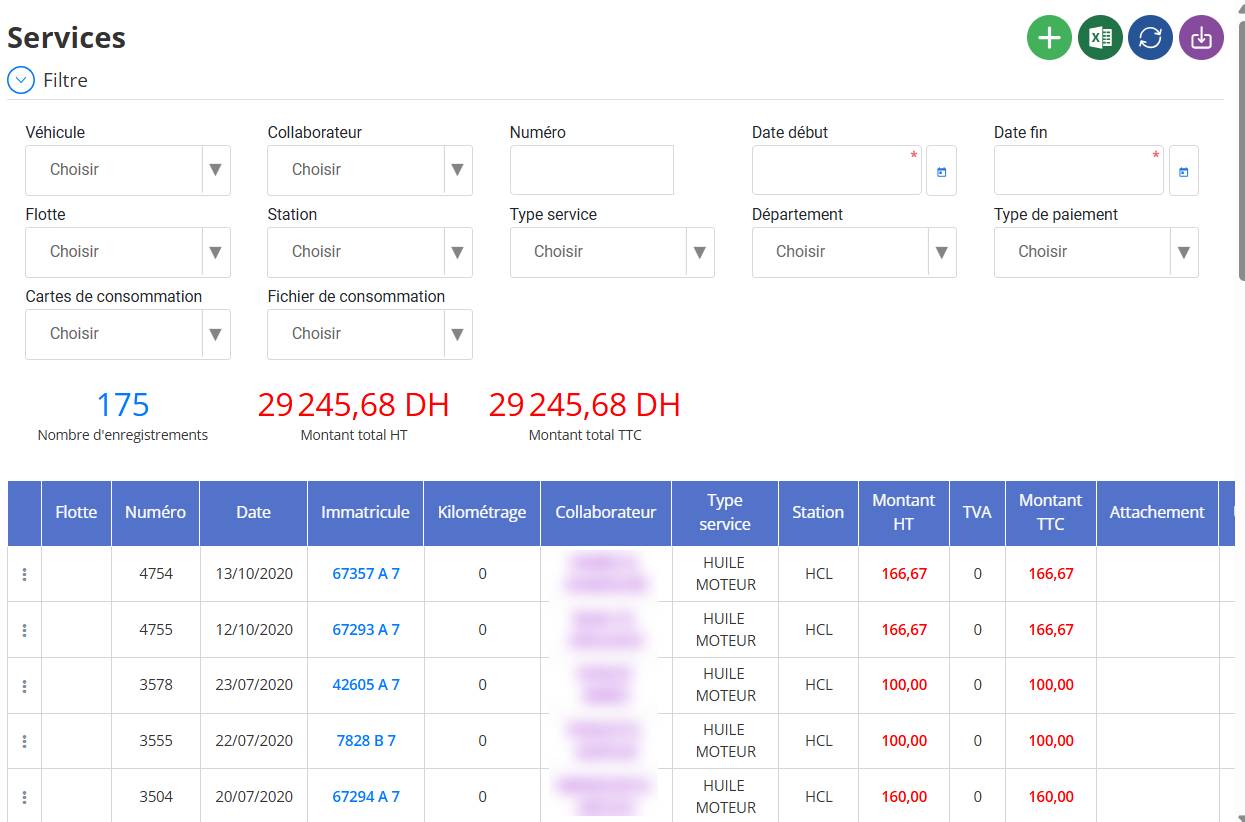
Registered services may include different operations, such as maintenance of fluids and lubricants, washing, or maintenance of mechanical components. Each service is associated with a vehicle, an employee, an intervention station and a detailed cost (amount excluding tax, VAT, amount including tax).
The interface displays a list of registered services, with indicators on the total number of operations and cumulative amounts. Users can also filter data and export records for better analysis and management.
Adding a new service
Start by navigating to the “Service Management” section, then click the green “+” icon to open the add form.

Adding a service allows you to record a service carried out on a vehicle, specifying the technical, financial and administrative details. Here are the steps to follow to add a service to the system:

In the fieldvehicle, choose the vehicle concerned by the service.
when a user selects avehicle, the fieldcollaboratorcan be filled automaticallyifThis vehicle is already assigned to a collaborator in the vehicle assignment interface.
Filling in general information
-
Number: Enter or automatically generate a unique number for the service.
-
Date: Select the service execution date.
-
Service: Choose the type of service performed (examples: ENGINE OIL, AXLE OIL, ANTIFREEZE, WASHING AND LUBRICATING, etc.).
-
Station: Indicate the location where the operation was carried out (example: HCL station).
-
Mileage: Enter the mileage of the vehicle during the intervention.
-
Time index: If applicable, enter the vehicle time index.
-
Department: Select the department concerned if necessary.
-
Imputation number: Add an accounting reference if required.
3. Definition of costs
-
Payment type: Indicate the method of payment (example: cash, transfer, credit card).
-
Amount excluding tax: Enter the amount excluding tax for the service.
-
VAT: By default, the VAT is entered at 20%, but it can be modified if necessary.
-
Amount including tax: The total amount with taxes will be calculated automatically.
4. Adding an Attached File
-
If necessary, attach a document by clicking on“Choose a file”and select the file to download (example: invoice, purchase order, etc.).
5. Validation and registration
-
Verify all information entered.
-
Click on“Save”to save the service.
-
If a modification is necessary before validation, click on“Cancel”to exit without saving.
This process ensures effective monitoring of services carried out on each vehicle, while guaranteeing rigorous management of costs and services.
View an existing service
Access the list of services
-
Go to the module"Services"where all records of services performed are displayed in tabular form.
Open actions menu
-
On the line of the service you wish to consult,click on the three dots (...),located to the left of the record number.

Choose the “Consult” option
-
A list of options is displayed, select“To consult”to view service details.
Viewing the consultation form
After clicking on“To consult”, HASdetailed formof the selected service opens, displaying all saved information:

-
Vehicle concerned
-
Collaborator (if assigned)
-
Date of service
-
Type of service performed(e.g. engine oil, antifreeze, washing, etc.)
-
Station where the service was performed
-
Mileage and hourly index (if applicable)
-
Cost of the service (Amount excluding VAT, VAT, Amount including VAT)
-
Attachment (if a document has been added)
Noted:
The form in consultation mode is read-only, it is not possible to modify the information directly.
If a modification is necessary, it will be necessaryclose the form and select the “Modify” optionin the three-dot menu.
This feature allows users to quickly view information about a service without the risk of accidental modification.
Steps to modify a service:
Access the list of services
-
Go to the module"Services"where all service records are displayed in tabular form.
Open actions menu
-
On the line of the service you wish to modify,click on the three dots (...)located to the left of the record number.
Choose the “Modify” option
-
A list of options is displayed, select“To modify”to open the form in edit mode.

Edit the necessary information
Once the form is open, you canupdate informationfollowing:
-
Vehicle concerned
-
Collaborator
-
Date of service
-
Type of service performed(e.g. engine oil, antifreeze, washing, etc.)
-
Station where the service was performed
-
Mileage and hourly index
-
Amount excluding VAT, Amount including VAT
-
Attachment (if necessary)
Save changes
-
Once you have made the changes, click on the“Save” buttonen bas du formulaire pour valider les changements.
Remarks :
Changes are immediately saved and updated in the list of services. Some information may be locked depending on the user's access rights. If a mistake is made, you can always reopen the "Edit" option and correct the information.
Cette fonctionnalité permet aux utilisateurs d’ajuster ou corrigerdes informations sur les services réalisés pour garantir une gestion précise et à jour des prestations.

