
Module · CMMS
Import/Export Quote
Import/Export Quote
Quote management is facilitated by advanced bulk import and export data features, allowing rapid integration and structured tracking of estimates.
Bulk Quote Import provides a quick and reliable method to add multiple quotes simultaneously using a preformatted file. This feature simplifies the onboarding process, significantly reduces manual entry time, and ensures consistent and accurate data updating. It is particularly suitable for companies managing a large volume of quotes, allowing them to concentrate on strategic tasks while ensuring the consistency of information.
Quote export is an essential tool for centralizing and organizing key information in standardized files, such as CSV or Excel. This capability allows an overview of quotes issued, estimated costs and details associated with projects or interventions. This exported data facilitates communication between different internal departments and with external partners, while providing increased transparency for optimized management.
These two functionalities combined allow smooth and efficient management of quotes, ensuring complete traceability and structured organization of estimation processes.
Bulk import of quotes
Bulk import of quotes provides users with an efficient method to add multiple quotes simultaneously into the system using a preformatted file. This feature is particularly useful for companies or establishments that manage a large volume of quotes and want to integrate them quickly while minimizing errors.
By uploading a file containing all the necessary information about each quote, this option greatly simplifies the adding process. It reduces the time spent on manual entry and ensures fast and accurate data updating. This way, managers can focus on higher value-added tasks, while maintaining an up-to-date and consistent quote database.
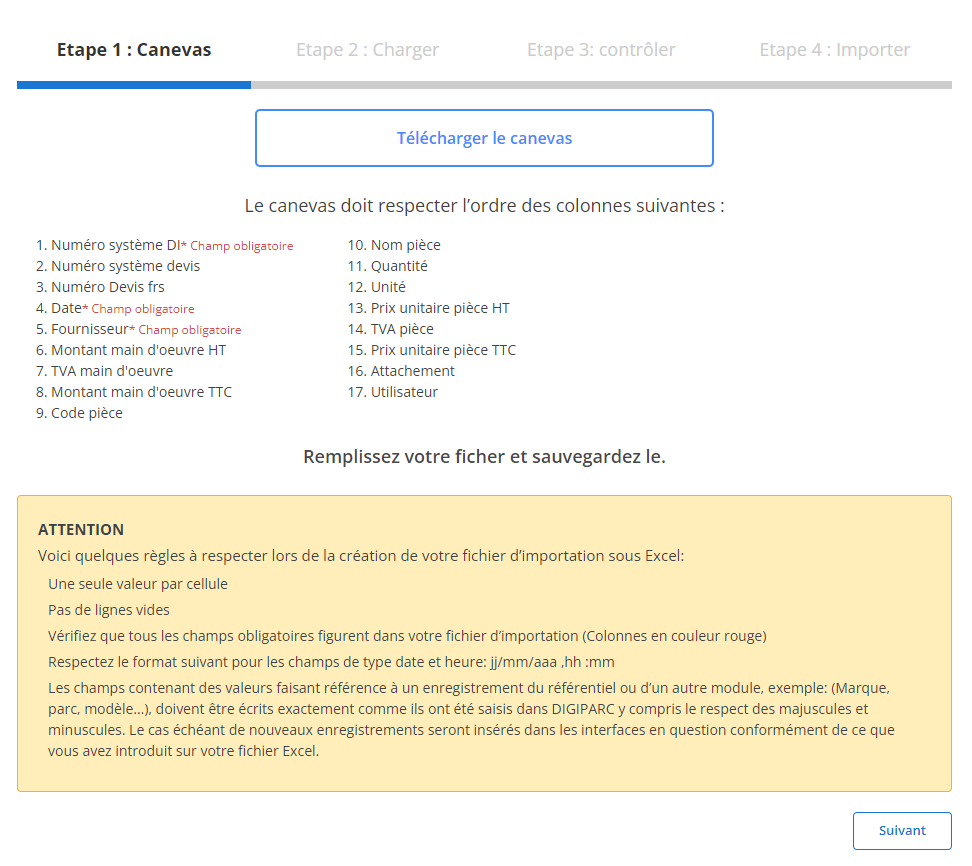
Step 1: Download and prepare the template file
Before you start importing, you need to download a template file designed specifically for this operation. This file contains predefined columns that must be respected to ensure a smooth and error-free import. Here are the steps to follow to prepare this file:
-
Download the template file:
The model file is accessible through the system interface. It contains all the columns needed for import.
-
Respect the order of the columns:
- DI No.
- System No.
- Number
- Date
- Quantity
-
Prepare your file:
- Make sure there is only one value per cell.
- Avoid blank lines in the middle of the file.
- Verify that the dates follow the required format (dd/mm/yyyy).
- Complete all required fields for each row to avoid errors during import.
Step 2: Load the quotes file
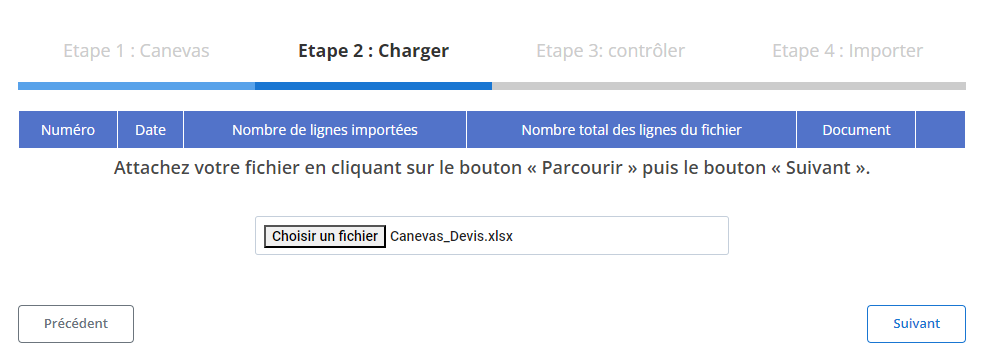
Once your template file is correctly completed, you can move on to loading the data into the system.
-
Select file:
Click the button“Browse”to locate the template file on your computer, then select it.
-
Start loading:
Once the file is selected, click“Following”to start the process. The system will analyze the contents of the file to verify its conformity and prepare the data.
-
Data Summary:
- A summary table will display the total number of rows and the rows ready to import.
- This allows you to validate the content before continuing.
Step 3: Verifying the imported data
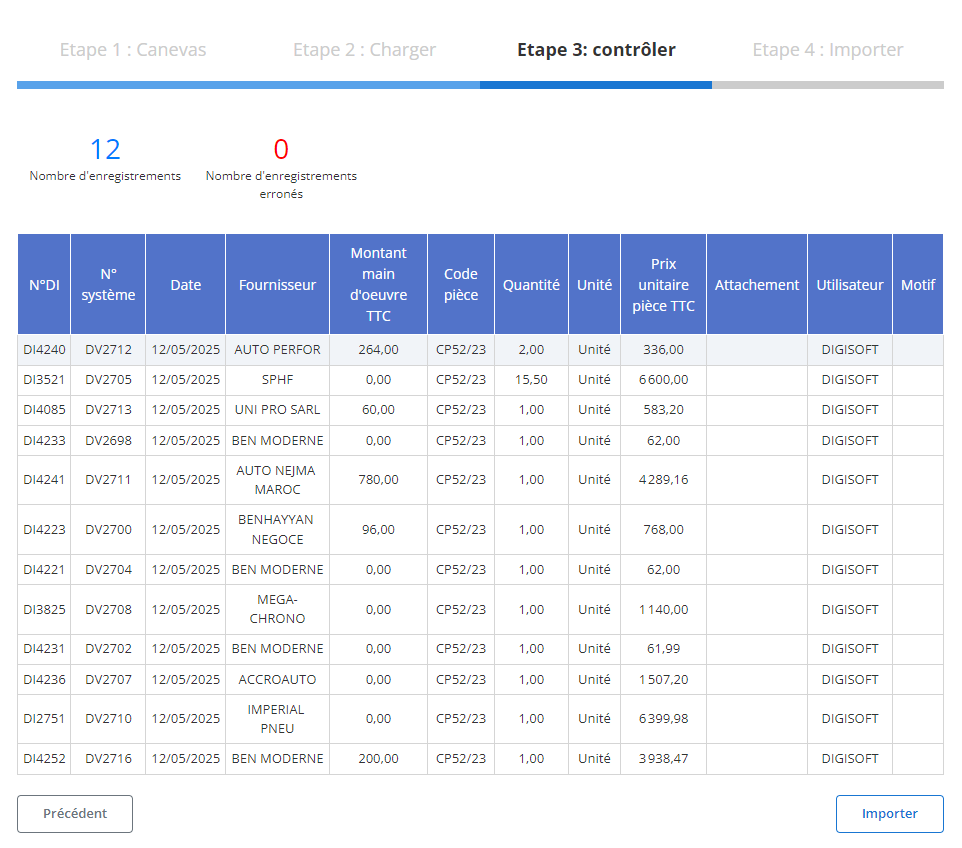
After loading, a summary table will be displayed with all the data from the file. This step is crucial to check and correct any errors.
-
Error checking:
- The system will highlight any errors, such as mandatory fields not filled in (e.g.:DI No., System No., Date, GoldQuantity) or incorrect formats (e.g.: date format).
- You will need to correct these errors before finalizing the import.
-
Validation of correct data:
- Rows without errors will be marked ready for final import.
- You can check key fields such as:
- DI No.
- Date
- Supplier
- Part code
- Part name
- Quantity
- Unit price including tax
- And other relevant information related to the quote.
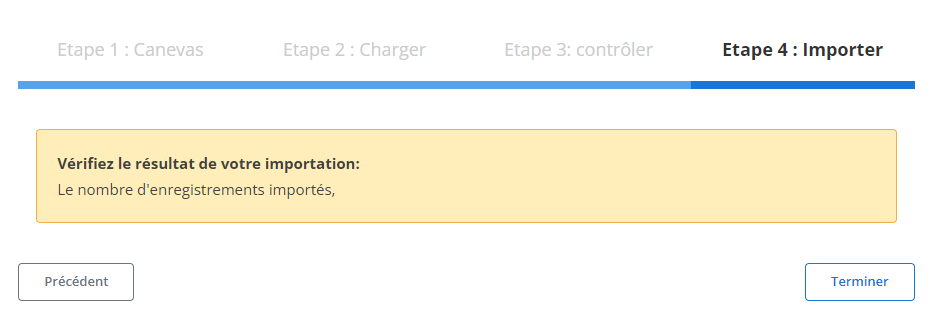
Step 4: Finalize the import of quotes
Once the data has been verified and corrected, proceed with the final import.
-
Click “Import”:
This action will validate the addition of quotes in the system.
-
Import confirmation:
A confirmation message will be displayed to indicate that the import was successful, and that all data has been integrated correctly.
Data export: Quote
Exporting quote-related data is an essential tool for efficient and structured management of cost estimation and tracking processes. By centralizing all relevant information in a standardized format, such as CSV or Excel, this functionality facilitates communication between the different departments of the company, as well as with external partners. It offers a clear and complete vision of the quotes issued, the estimated costs, and the details associated with the interventions or projects in progress.
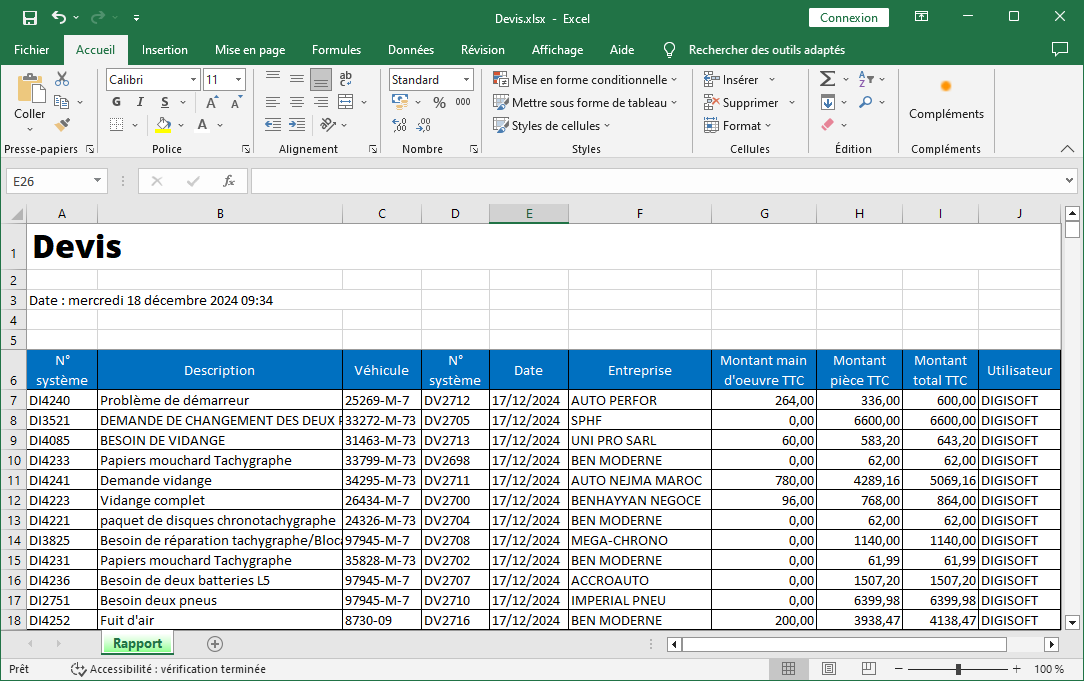
The data included in the quote export files is organized into columns, providing a clear and comprehensive view:
-
System No.: This unique number identifies each quote, ensuring perfect traceability and simplifying research.
-
Description: Provides a concise but detailed description of the subject of the quote, whether it is an intervention, a repair, or a specific project.
-
vehicle: Mentions the vehicle concerned by the quote, allowing precise monitoring of operations linked to each element of the fleet.
-
System number (linked reference): Links the quote to other systems or elements for interconnected and consistent management.
-
Date: Indicates the date of creation or validation of the quote, essential for monitoring deadlines and management cycles.
-
Business: Mentions the name of the company or service provider that issued the quote, thus facilitating the comparative analysis of partners.
-
Labor amount including tax: Specifies the total cost of labor included in the quote, providing transparency on this often critical aspect of interventions.
-
Amount including tax: Indicates the total cost of parts needed, allowing accurate tracking of consumables and inventory.
-
Total amount including tax: Gives the overall cost of the estimate, including labor and parts, for a summary and immediate vision of planned expenses.
-
User: Identifies the person who created or validated the quote, reinforcing traceability and accountability.
With this functionality, managers can make informed and strategic decisions, while ensuring efficient and sustainable resource management. Exporting quotes is not limited to simple data extraction; it becomes a real lever for improving the overall performance of the company.