

Module · CMMS
Import/Export Commands
Import/Export Commands
Purchase order management is optimized thanks to bulk import and data export functionalities, allowing rapid integration and structured monitoring of supplies.
Bulk Import of Purchase Orders provides a convenient solution for adding multiple records to the system simultaneously using a preformatted file. This feature significantly reduces the time spent on manual entry while minimizing errors. Particularly useful for companies processing a large volume of purchase orders, it ensures that information is updated quickly and accurately, allowing managers to focus on strategic tasks while ensuring consistent and reliable management.
Exporting purchase order data, with or without part details, allows information to be structured and centralized in standardized files such as CSV or Excel. This capability facilitates order tracking, expense management, and communication between different internal and external stakeholders. Exported data provides a clear and comprehensive view of operations, thereby optimizing decision-making and collaboration.
These import and export tools ensure smooth management of purchase orders, increasing the accuracy and efficiency of procurement processes.
Bulk import of purchase orders
Bulk import of purchase orders provides users with an efficient method to add multiple purchase orders simultaneously into the system using a preformatted file. This functionality is particularly advantageous for companies or establishments managing a large number of purchase orders, wishing to integrate them quickly and reduce the risk of errors.
By uploading a file containing all the necessary information on each purchase order, this option greatly simplifies the adding process. It reduces the time spent on manual entry and ensures fast and accurate data updating. Managers can thus focus on higher value-added tasks, while ensuring efficient and consistent management of purchase orders.
Step 1: Download and prepare the template file
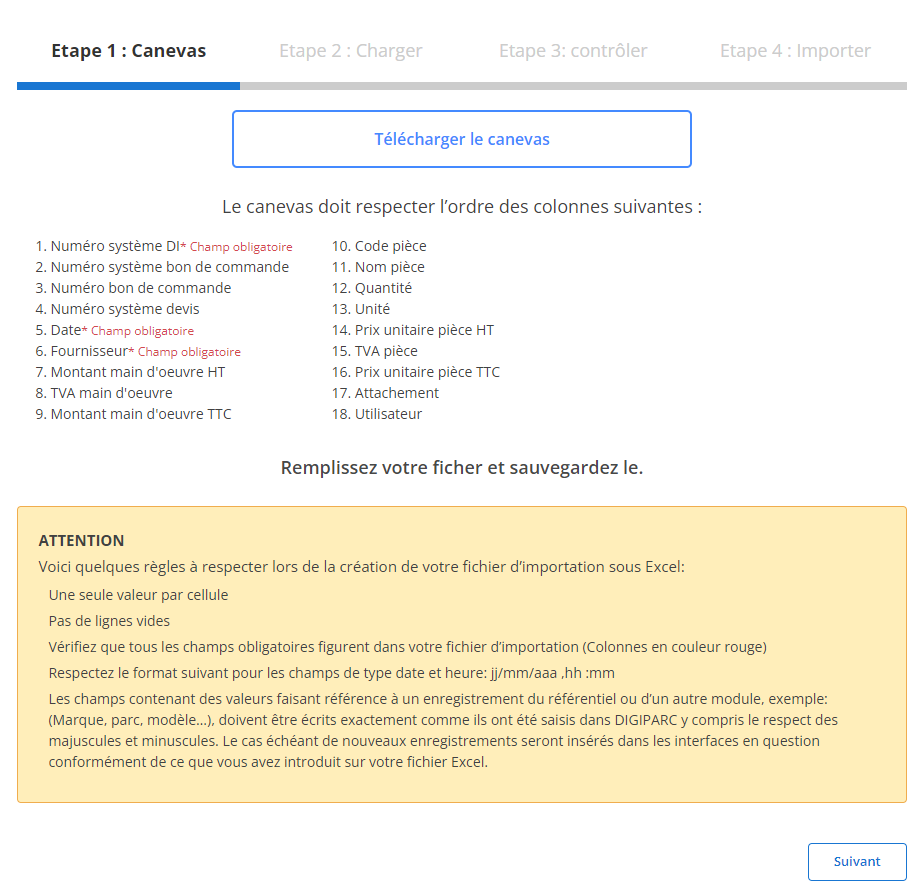
Before you start importing, it is essential to download a template file specifically designed for this operation. This file contains predefined columns that must be respected to ensure a smooth and error-free import. Here's how to prepare the file:
-
Download the template:
The template file is easily accessible from the system interface. It includes all the columns essential for import.
-
Respect the order of the columns:
The fieldsobligatoryare as follows:
- DI No.
- System No.
- Number
- Date
- Quantity
-
Prepare your file:
- Complete each column completely and accurately.
- Make sure there is only one value per cell.
- Avoid blank lines in the middle of the file.
- Verify that the dates follow the expected format (dd/mm/yyyy).
- Complete all required fields to avoid errors during import.
Step 2: Load the purchase order file
Once the template file is properly prepared, you can proceed to load the data into the system.
-
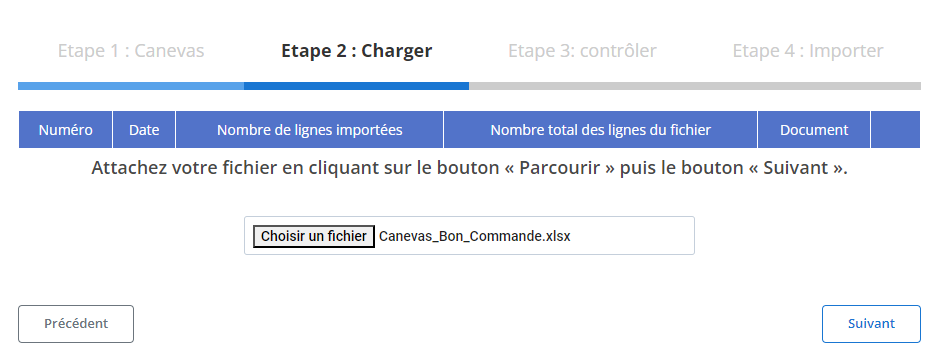
Select file:
Click the button“Browse”to locate the template file on your computer, then select it.
-
Start loading:
Once the file is selected, click“Following”to start the data loading process. The system will analyze the file to detect any anomalies and prepare the information for validation.
-
Data Summary:
A summary table will be displayed on the screen, indicating the total number of rows and the rows ready to be imported. This step allows a first validation before going further.
Step 3: Verifying the imported data
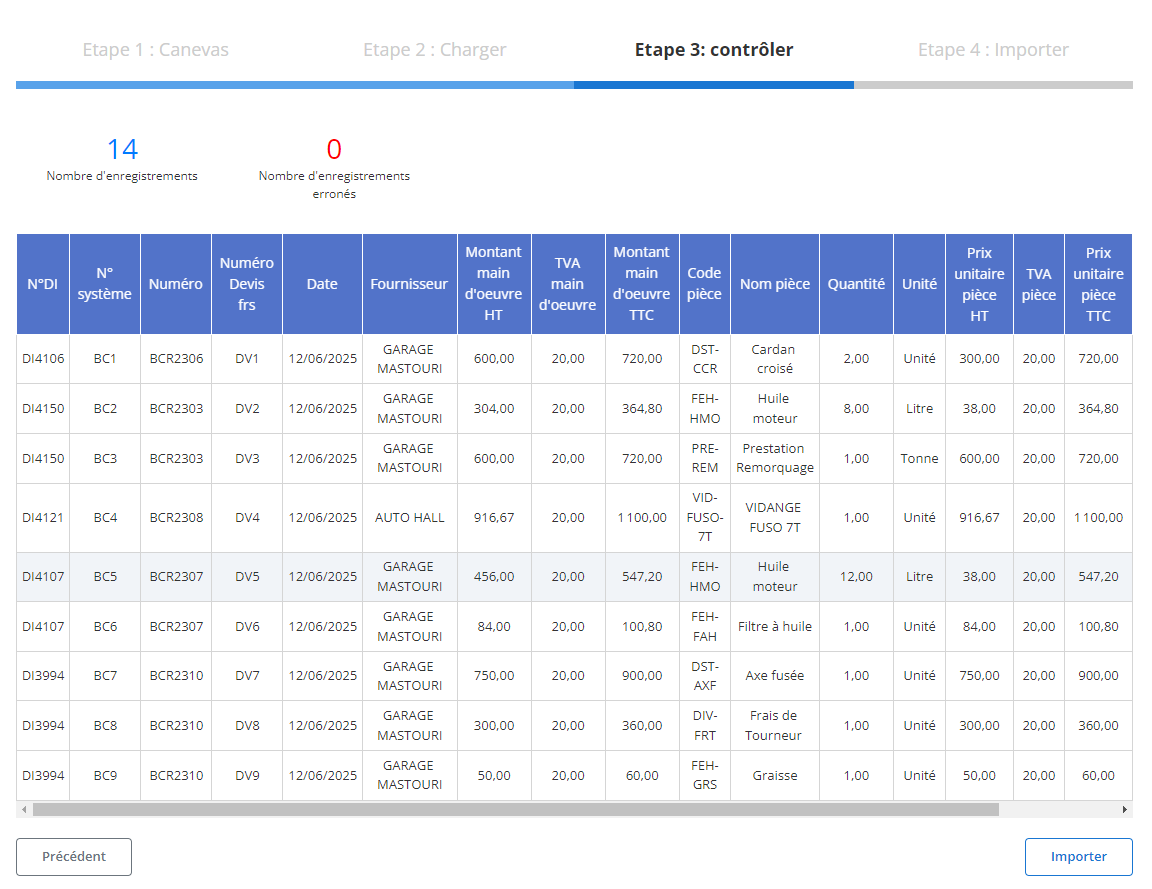
After loading, a summary table detailing all the records in the file will be displayed. This step is essential to check the conformity of the data and correct any errors.
-
Error checking:
- The system will highlight detected errors, such as mandatory fields not filled in (DI No., System No., Date, GoldQuantity) or incorrect formats (e.g. invalid date).
- You will need to correct these errors before you can finalize the import.
-
Validation of correct records:
- Rows without errors will be marked as ready for final import.
- You can review key information for each purchase order, such as:
- DI No.
- Date
- Supplier
- Labor amount excluding tax
- Quantity
- Unit price including tax
- User
Step 4: Finalize the import of purchase orders
Once all data is verified and corrected, you can finalize the import process.
-
Click “Import”:
Validate the addition of purchase orders in the system.
-
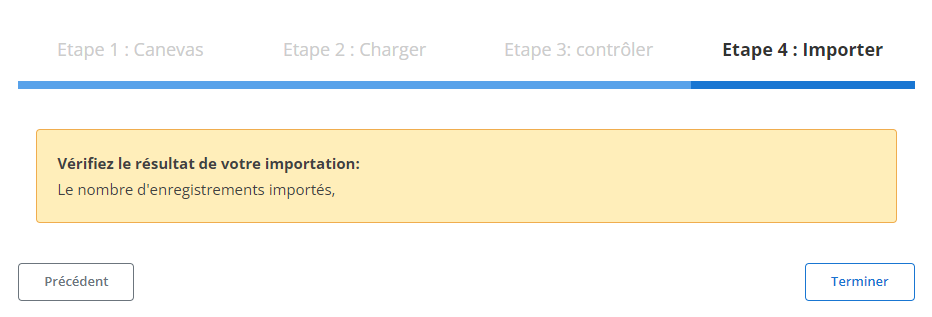
Import confirmation:
A confirmation message will appear on the screen, indicating that the import was successful. All data will be added correctly to the database.
Data export: Purchase orders and purchase orders with part details
Exporting purchase order data is a cornerstone for structured procurement and spend management. This functionality allows you to centralize and organize all information related to purchase orders in standardized files such as CSV or Excel. By providing easy access to this data, it optimizes order tracking, cost management, and collaboration between internal and external stakeholders.
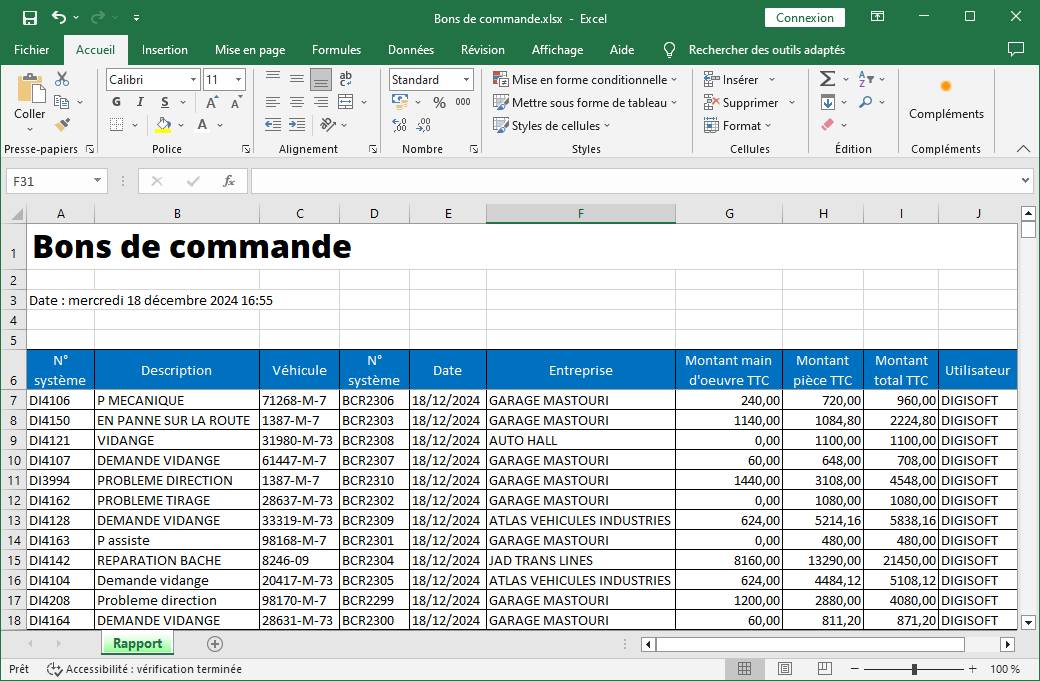
Purchase Order Table:
The included columns allow clear and complete order tracking:
- System No.: Identifies each purchase order uniquely to ensure perfect traceability.
- Description: Summarizes the purpose of the purchase order, whether it is an intervention, a purchase of equipment, or a specific service.
- vehicle: Specifies the vehicle concerned, if applicable, for consistent management of interventions or parts linked to the fleet.
- System number (linked reference): Establishes a connection with other elements of the system, ensuring interconnected management.
- Date: Indicates the date of creation or approval of the purchase order, essential for tracking deadlines.
- Business: Mentions the supplier or service provider concerned, facilitating comparative analyses.
- Labor amount including tax: Gives the total cost of labor included in the order.
- Amount including tax: Specifies the total cost of the parts associated with the order.
- Total amount including tax: Provides a summary view of overall expenses.
- User: Identifies the person who created or validated the voucher, reinforcing accountability and traceability.
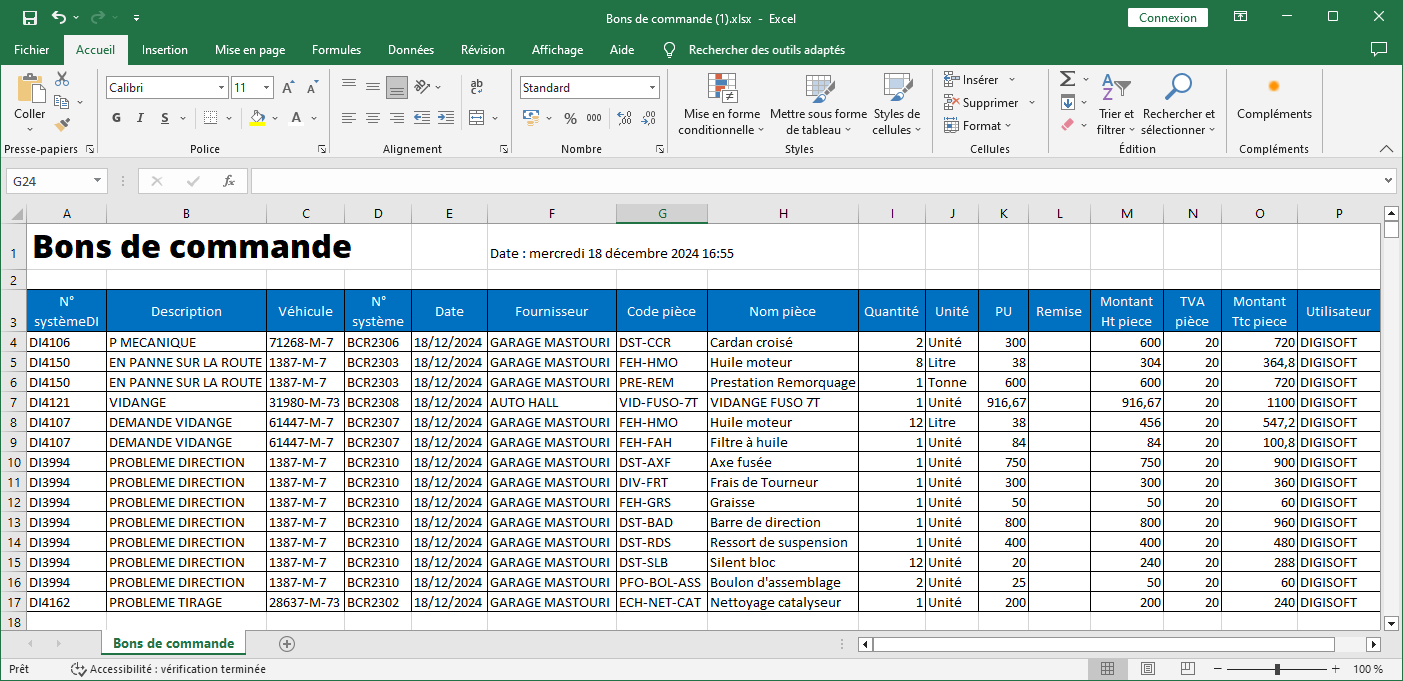
Purchase Order Table with Part Details:
For a more detailed view, the following columns are added:
- System numberDI: Single reference for vouchers including part details.
- Supplier: Specifies the entity that provided the parts or services.
- Part code: Specific identifier of each part included in the order.
- Part name: Clear designation of the part concerned.
- Quantity: Number of units ordered, essential for inventory management.
- Unit: Unit of measurement used to quantify the part (e.g.: unit, liter, kilogram).
- PU (Unit Price): Cost of each part before taxes or discounts.
- Discount: Percentage or amount of reduction applied.
- Amount excluding tax per piece: Total excluding taxes for each piece.
- VAT piece: Amount of tax applicable to each part.
- Amount including tax per piece: Total all taxes included per item.
This functionality goes beyond simple data extraction: it becomes a strategic tool to improve purchasing processes, reduce costs, and strengthen collaboration between all stakeholders involved.