Module · CMMS
Import/Export Interventions
Import/Export Interventions
La gestion des interventions est simplifiée grâce aux fonctionnalités d'importation en masse et d'exportation des données, permettant une centralisation efficace et un suivi optimal des opérations de maintenance.
L'importation en masse des interventions constitue une solution rapide et fiable pour intégrer simultanément plusieurs interventions dans le système à l'aide d'un fichier préformaté. Cette fonctionnalité est particulièrement adaptée aux entreprises gérant un volume important d'interventions, leur permettant de réduire considérablement le temps de saisie manuelle tout en minimisant les erreurs. En garantissant une mise à jour rapide et cohérente des données, cette méthode facilite le suivi et la gestion des interventions, tout en laissant aux gestionnaires le temps de se concentrer sur des tâches à forte valeur ajoutée.
L'exportation des données liées aux interventions, avec ou sans détails sur les pièces, offre un outil stratégique pour analyser les performances, optimiser la gestion des véhicules et planifier les interventions futures. Les données sont générées dans des formats standards tels que CSV ou Excel, permettant un accès rapide et simplifié aux informations critiques. Ces fichiers exportés facilitent également la collaboration entre les différentes parties prenantes, assurant une transparence et une prise de décision éclairée.
En combinant ces outils d'importation et d'exportation, la gestion des interventions devient plus fluide, précise et structurée, favorisant une optimisation des coûts et des ressources.
Exportation des Données : Interventions et Interventions avec Détails Pièce
L'exportation des données relatives aux interventions est un outil stratégique pour optimiser la gestion des véhicules, des coûts et des prestataires. Elle permet aux entreprises de centraliser les informations, d’analyser les performances et de planifier les interventions futures de manière structurée. En générant des fichiers dans des formats standards comme CSV ou Excel, cette fonctionnalité garantit un accès rapide et simplifié aux données critiques.
Tableau des Interventions :
Les colonnes suivantes permettent une gestion exhaustive des données :
- N° système: Identifie de façon unique chaque intervention pour assurer une traçabilité parfaite.
- Description: Résume l'objet de l'intervention, qu’il s’agisse d’une réparation spécifique, d’une maintenance préventive, ou d’un contrôle périodique.
- Véhicule: Identifie le véhicule concerné, facilitant le suivi des interventions au niveau de la flotte.
- Facturation: Indique si l’intervention a été facturée, renforçant le contrôle des dépenses.
- N° système (référence liée): Assure un lien avec d'autres éléments ou documents du système.
- Date début: Mentionne la date de démarrage de l’intervention, essentielle pour suivre les délais et planifier les tâches.
- Kilométrage: Enregistre le kilométrage du véhicule au moment de l’intervention, permettant d’analyser l’usure et de prévoir les futures opérations.
- Entreprise: Identifie le prestataire ayant réalisé l’intervention, facilitant les analyses comparatives.
- Montant main-d’œuvre TTC: Précise le coût total de la main-d’œuvre engagée pour l’intervention.
- Montant pièces HT: Donne le total hors taxes des pièces utilisées.
- Montant pièce TTC: Fournit le total des pièces toutes taxes comprises.
- Montant total TTC: Offre une vue synthétique des dépenses globales, incluant main-d’œuvre et pièces.
- Utilisateur: Mentionne la personne ayant enregistré ou validé l’intervention, garantissant la traçabilité.
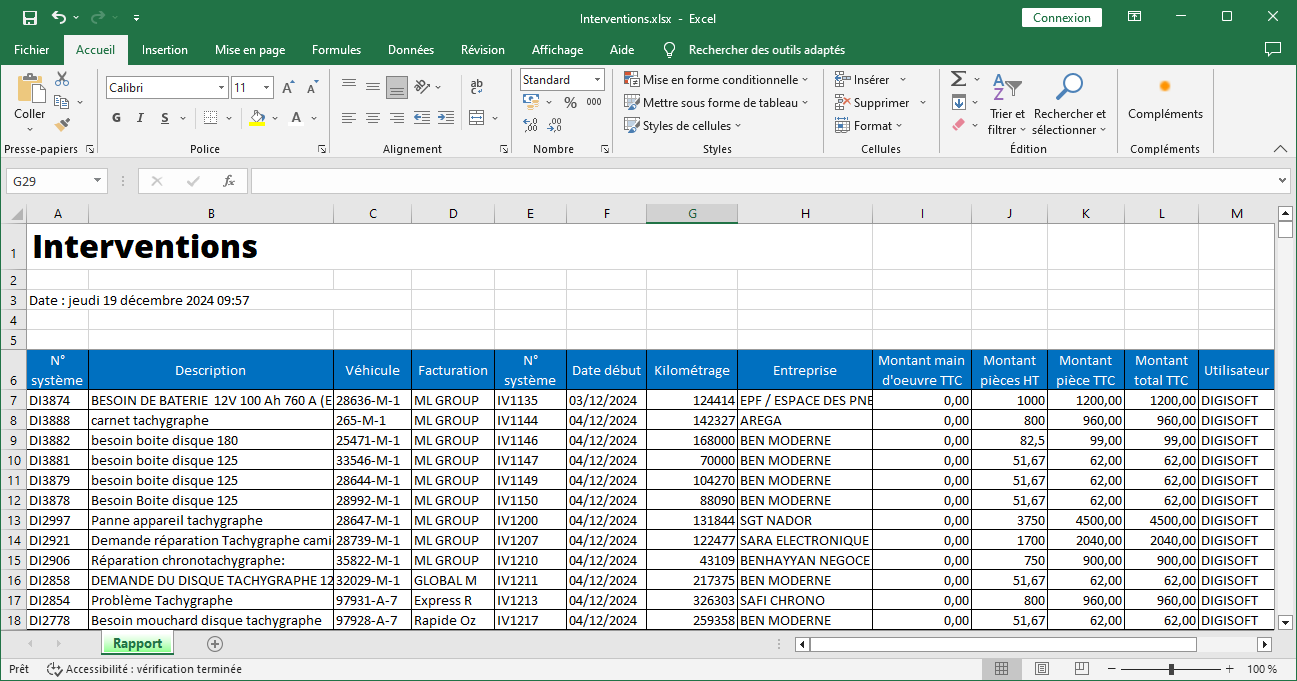
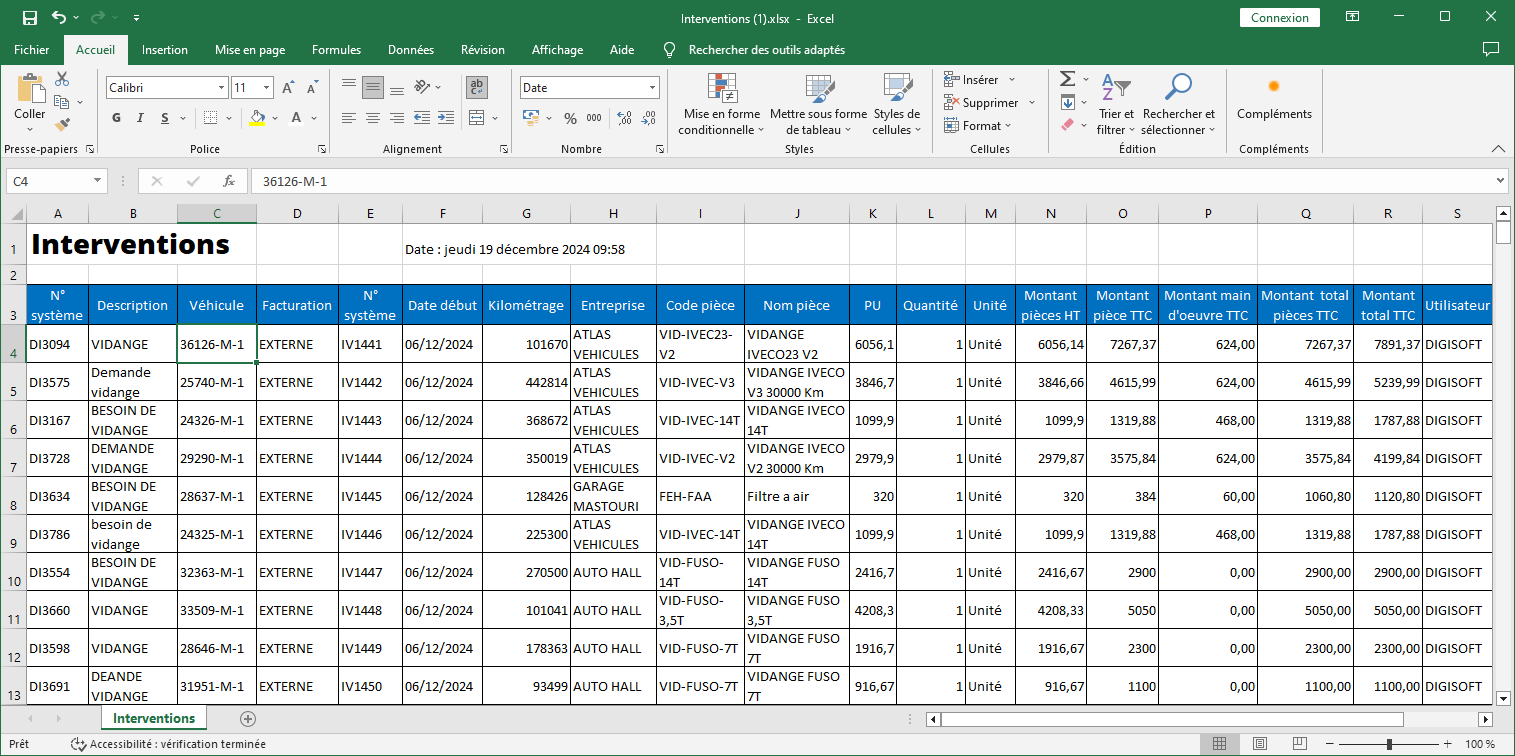
Tableau des Interventions avec Détails Pièce :
Les informations supplémentaires suivantes enrichissent l'analyse :
- Code pièce: Identifiant unique de chaque pièce utilisée dans l’intervention.
- Nom pièce: Désignation précise de la pièce concernée.
- PU (Prix Unitaire): Coût unitaire de chaque pièce avant taxes ou remises.
- Quantité: Nombre d’unités consommées pour chaque pièce.
- Unité: Unité de mesure (par exemple : unité, litre, kilogramme).
- Montant pièces HT: Total hors taxes des pièces, pour chaque ligne.
- Montant pièce TTC: Total toutes taxes comprises des pièces, par élément.
- Montant main-d’œuvre TTC: Coût total de la main-d’œuvre, ajoutant une dimension essentielle à l’analyse financière.
- Montant total pièces TTC: Total des coûts des pièces, regroupées.
- Montant total TTC: Coût global de l’intervention, incluant la main-d’œuvre et les pièces.
En résumé, cette fonctionnalité d'exportation s'impose comme un outil essentiel pour une gestion rigoureuse, transparente et stratégique des interventions, permettant aux entreprises de maximiser leur efficacité opérationnelle tout en minimisant les coûts et les risques.
Importation en masse des interventions
L'importation en masse des interventions offre aux utilisateurs une méthode efficace pour ajouter plusieurs interventions simultanément dans le système en utilisant un fichier préformaté. Cette option est particulièrement avantageuse pour les entreprises ou les établissements qui gèrent un grand nombre d’interventions et souhaitent les intégrer rapidement et sans erreurs.
En permettant de télécharger un fichier contenant toutes les informations nécessaires sur chaque intervention, cette fonctionnalité simplifie considérablement le processus d’ajout. Elle réduit le temps consacré à la saisie manuelle de données et garantit une mise à jour rapide des interventions dans le système. Ainsi, les gestionnaires peuvent se concentrer sur des tâches stratégiques tout en assurant que les données opérationnelles restent précises et à jour.
Cette méthode d'importation est intuitive et permet de s'assurer que toutes les interventions sont ajoutées de manière cohérente et selon les normes du système. Elle favorise une gestion efficace et optimisée de toutes les interventions, facilitant leur suivi et leur mise à jour régulière.
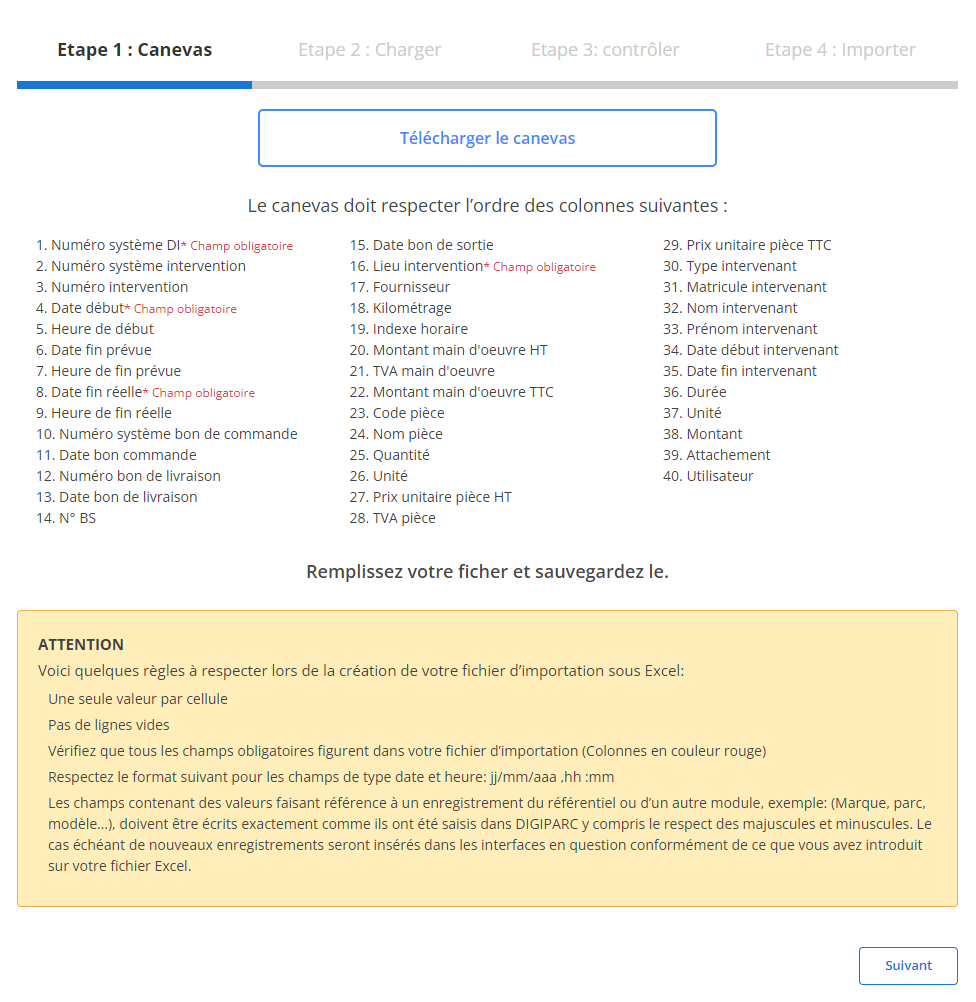
Étape 1 : Télécharger et préparer le fichier modèle
Avant de commencer l'importation, il est essentiel de télécharger un fichier modèle spécialement conçu pour cette opération. Ce fichier contient des colonnes prédéfinies qui doivent être respectées pour garantir une importation fluide et sans erreur. Voici comment préparer le fichier :
-
Téléchargez le modèle:
Le fichier modèle est disponible via l’interface du système. Il contient toutes les colonnes indispensables à l’importation.
-
Respectez l’ordre des colonnes:
Leschamps obligatoiressont :
- N° DI
- N° système
- Numéro
- Date début
- Quantité
-
Préparez votre fichier:
- Remplissez chaque colonne de manière complète et précise.
- Assurez-vous qu’il n’y ait qu’une seule valeur par cellule.
- Évitez les lignes vides au milieu du fichier.
- Vérifiez que les dates respectent le format attendu (jj/mm/aaaa).
- Remplissez tous les champs obligatoires pour éviter des erreurs lors de l’importation.
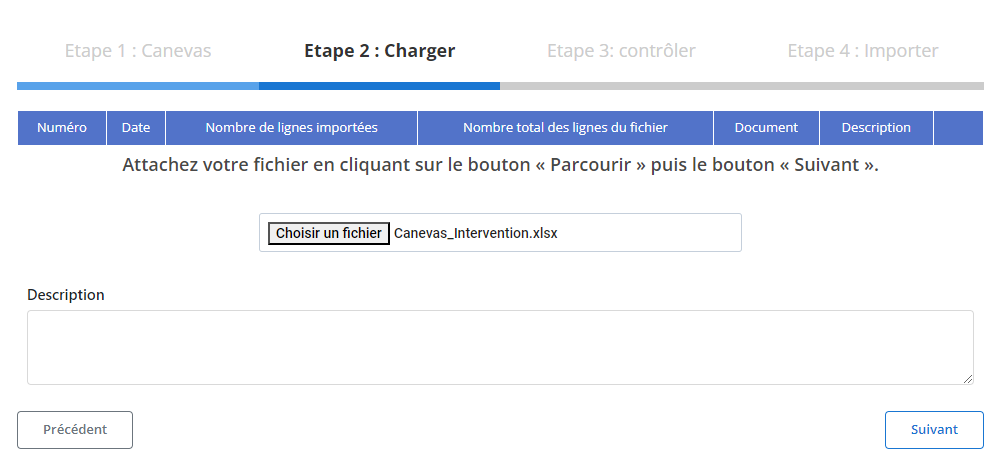
Étape 2 : Charger le fichier des interventions
Une fois le fichier modèle correctement préparé, vous pouvez procéder au chargement des données dans le système.
-
Sélectionnez le fichier:
Cliquez sur le bouton"Parcourir"pour localiser le fichier modèle sur votre ordinateur, puis sélectionnez-le.
-
Lancez le chargement:
Une fois le fichier sélectionné, cliquez sur"Suivant"pour démarrer le processus de chargement des données. Le système analysera le fichier pour détecter toute anomalie et préparer les informations pour validation.
-
Récapitulatif des données:
Un tableau récapitulatif s'affichera à l’écran, indiquant le nombre total de lignes et les lignes prêtes à être importées. Cette étape permet une première validation avant d’aller plus loin.
Étape 3 : Vérification des données importées
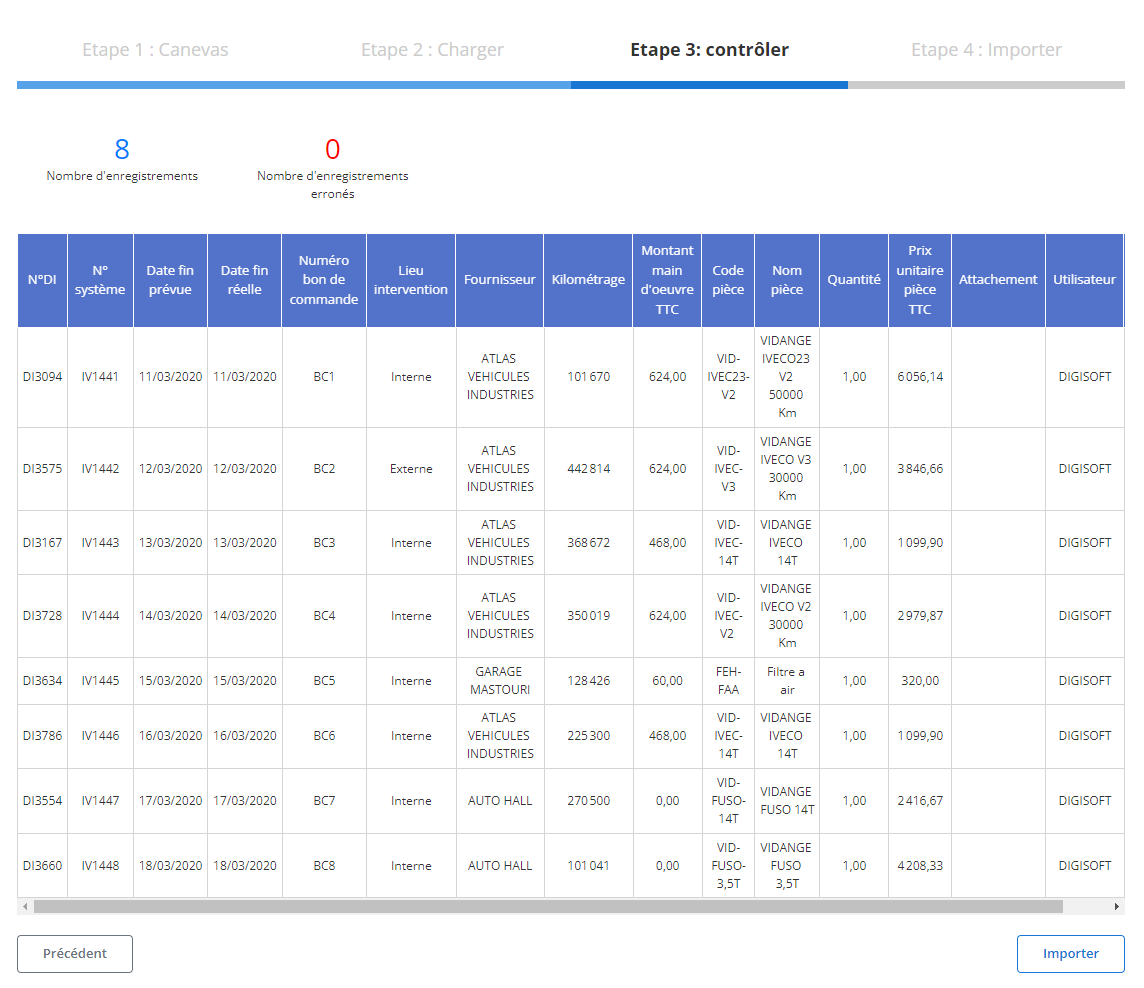
Après le chargement, un tableau récapitulatif détaillant tous les enregistrements du fichier s’affichera. Cette étape est essentielle pour vérifier la conformité des données et corriger les éventuelles erreurs.
-
Contrôle des erreurs:
- Le système mettra en évidence les erreurs détectées, comme des champs obligatoires non remplis (N° DI, N° système, Date début, ouQuantité) ou des formats incorrects (par exemple, date invalide).
- Vous devrez corriger ces erreurs pour pouvoir finaliser l’importation.
-
Validation des enregistrements corrects:
- Les lignes sans erreur seront marquées comme prêtes pour l’importation finale.
- Vous pouvez examiner les informations clés pour chaque intervention, telles que :
- Date début
- Fournisseur
- Montant main d’œuvre HT
- Prix unitaire pièce TTC
- Nom intervenant
- Durée
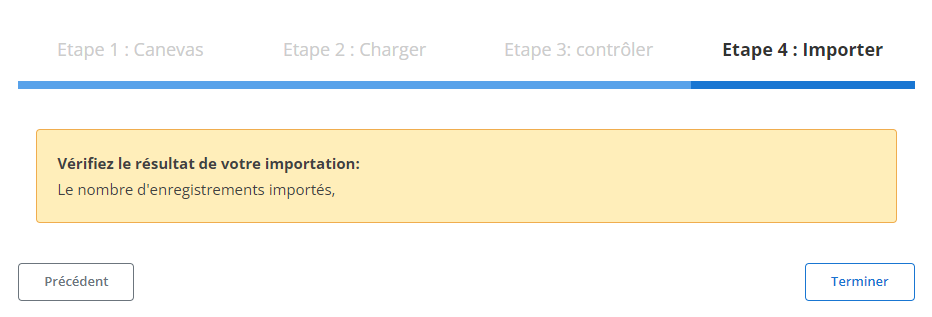
Étape 4 : Finaliser l’importation des interventions
Une fois toutes les données vérifiées et corrigées, vous pouvez finaliser le processus d’importation.
-
Cliquez sur "Importer":
Validez l’ajout des interventions dans le système.
-
Confirmation d’importation:
Un message de confirmation apparaîtra à l’écran, indiquant que l’importation a été effectuée avec succès. Toutes les données seront ajoutées correctement dans la base.