Module · GPS
Speed Alert
Speed Alert
Introduction
The Speed Exceeding Alert interface constitutes an essential tool for managing road safety within the vehicle fleet. It is specifically designed to provide detailed and intuitive reporting on speeding incidents, allowing fleet managers to monitor, analyze and act on employee driving behavior.
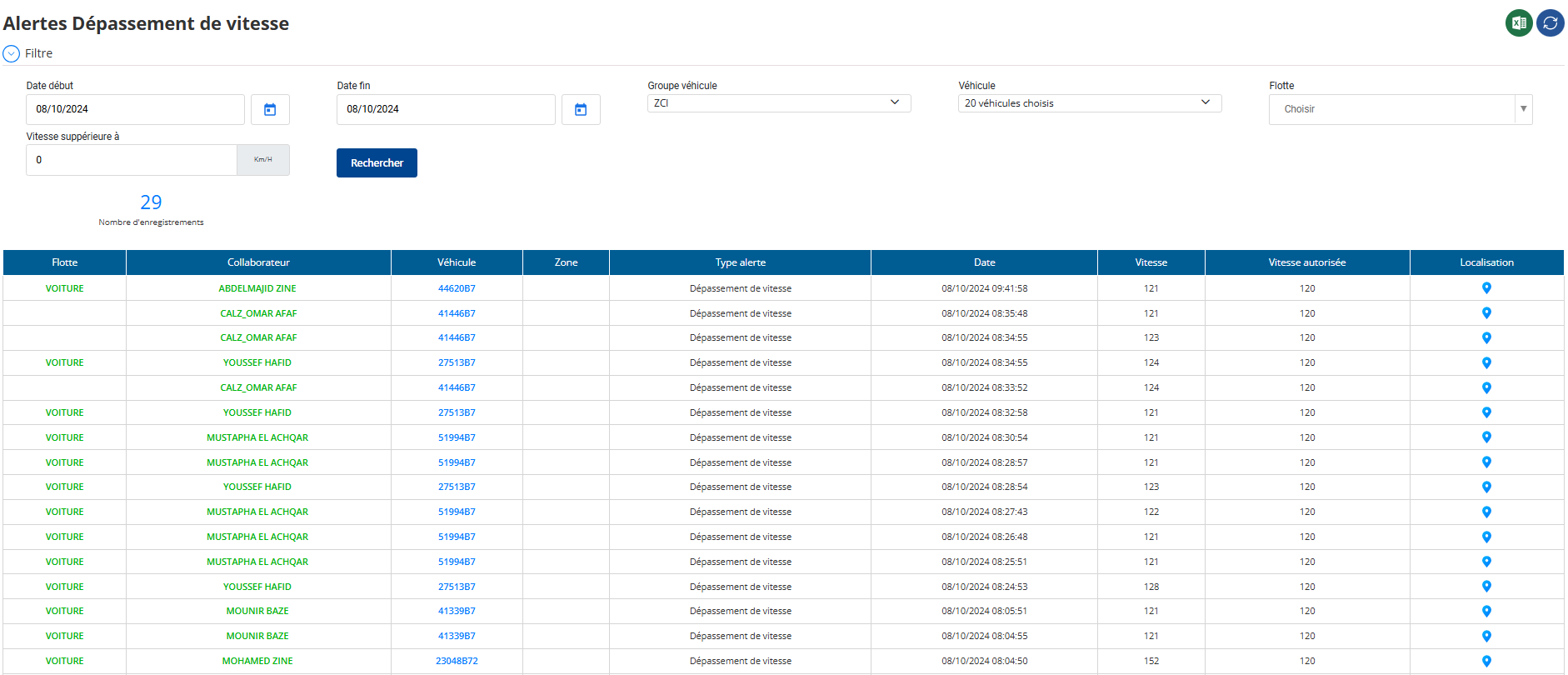
Filtered
The filter functionality in the speeding alert interface allows precise and rapid search for violations.

Here are the main elements of this functionality:
-
Start Date and End Date: These fields allow the user to define a time range for viewing alerts. By specifying a start date and an end date, it is possible to review violations over a specific period of time, helping to better understand trends and plan corrective actions.
-
Group of Vehicles: This option allows you to filter alerts according to a specific group of vehicles. This allows users to focus their attention on a set of vehicles, making it easier to evaluate the performance of distinct groups within the fleet.
-
vehicle: This feature allows you to select a particular vehicle to obtain details on its violations. This is particularly useful for managers who want to track the driving behaviors of a specific vehicle.
-
Fleet: Users can also sort alerts by fleet, allowing each fleet's performance to be analyzed individually. This helps identify fleets with recurring speeding issues.
-
Speed Greater Than: This filter field allows you to define a speed threshold. Users can thus select alerts relating only to speed violations that exceed a certain limit, allowing them to focus on the most serious infractions.
By combining these different criteria, the filter functionality offers an intuitive and efficient user experience, facilitating the analysis of driving behaviors and thus contributing to better management of road safety within the organization.
Functionality of the Information Table after Filtering
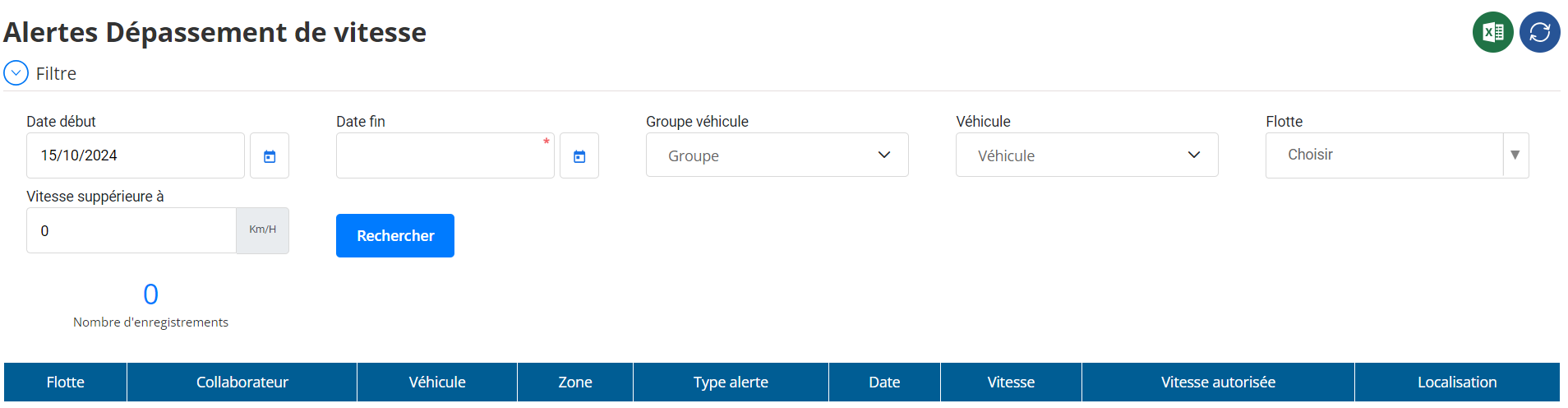
Once the filter criteria are applied and the search executed, the informative table presents the alerts as data organized in clear and relevant columns. These columns provide a useful overview of incidents and make it easier to track and analyze violations. Here is the description of the columns displayed:
-
Fleet: Displays the name of the fleet to which the vehicle belongs, allowing incidents to be easily classified and identified by fleet.
-
Collaborator: Indicates the name of the driver or person responsible for the vehicle at the time of the violation, which facilitates individual monitoring of driving behavior.
-
vehicle: Mentions the registration or identification code of the vehicle involved, facilitating rapid identification of vehicles with overtaking alerts.
-
Area: Specifies whether the violation occurred in a specific geographic area. This helps assess whether certain locations require increased control measures.
-
Alert Type: Indicates the nature of the offense, here it is the“Overspeeding”, but this column could potentially display other types of alerts (like rest time exceeded).
-
Date: Displays the exact date and time of the violation, allowing precise analysis and chronological tracking of events.
-
Speed: Shows the speed recorded at the time of the violation, which helps to measure the deviation from the authorized limits.
-
Allowed Speed: Specifies the maximum speed allowed in the area where the violation took place, allowing comparison with the actual speed of the vehicle.
-
Rental: Indicates the geographic position (latitude/longitude or an address) where the incident was detected, facilitating a more detailed analysis of the context of the offense.
This table provides a comprehensive and detailed view of recorded speed violations, allowing managers to make informed decisions. Thanks to its organized structure, it becomes easy to identify problematic trends, target vehicles and drivers for further monitoring, and optimize corrective actions.
Filter Formatting and Excel Export functionality
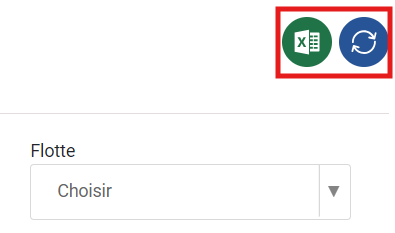
The speed alert interface offers advanced filter formatting and data export to Excel, allowing precise search and efficient use of information. Here are these features in detail:
1. Filter Formatting Feature
The filter allows you totarget and refine resultsdisplayed in the table based on custom criteria. Here are the available formatting options:
-
Start Date & End Date:
Allows you to select a specific period to display only alerts recorded between these two dates. This helps in analyzing a specific time range. -
Group of Vehicles:
You can filter alerts by vehicle group. This is particularly useful for large fleets comprising several categories of vehicles (trucks, service cars, etc.). -
vehicle:
Select a specific vehicle to view its alert history. This field is useful for analyzing the behavior of a particular vehicle in detail. -
Fleet:
This filter allows you to select one or more fleets to only display incidents relating to vehicles belonging to these fleets. -
Speed Greater than:
By entering a value here, you only display alerts where vehicles have exceeded a given speed, making it easier to track serious violations.
2.Excel Export Feature
Once the results are filtered,exporting to Excelallows you to use data flexibly to:
- Archiving: Maintain a history of alerts outside the system, for legal or compliance purposes.
- Analysis: Use advanced analysis tools in Excel to identify trends or generate custom reports.
- Sharing: Facilitate communication with other teams or managers via an easily shareable file.

