Module · Purchasing
Management of purchase requests
Management of purchase requests
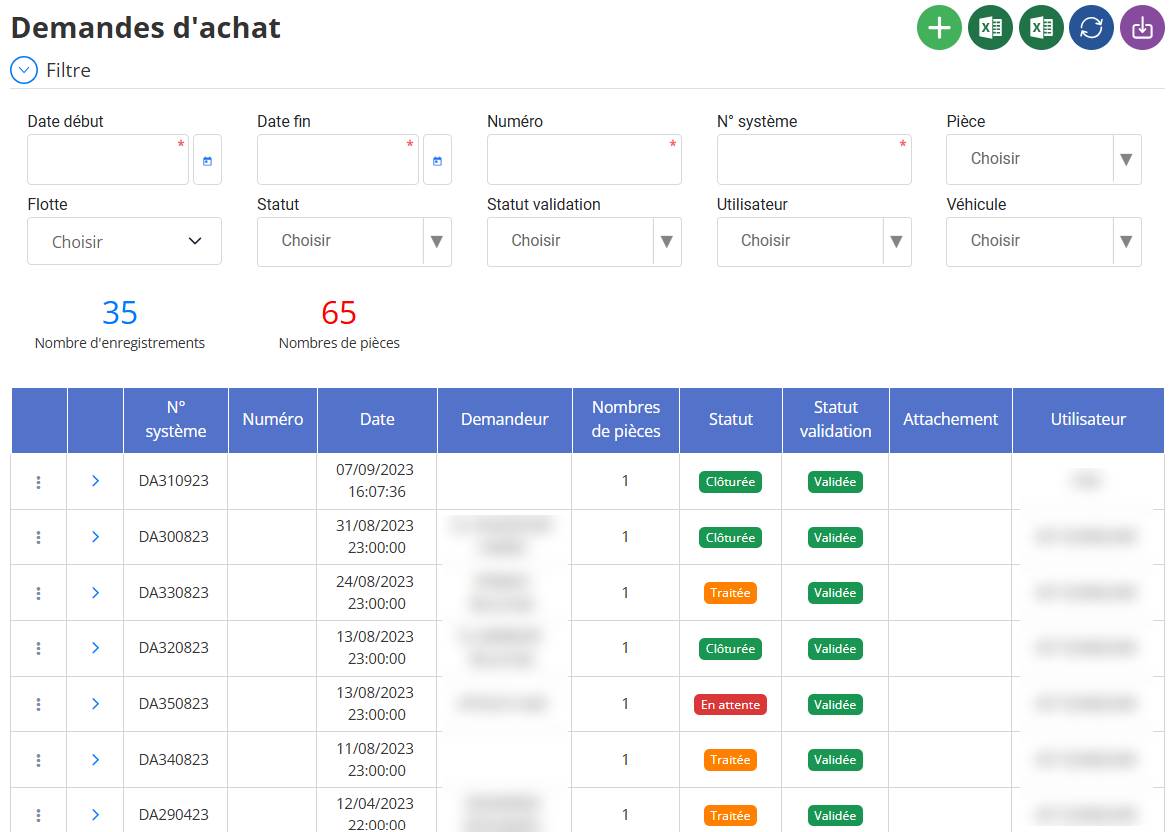
The “Purchase Request Management” interface appears to centralize the management of acquisition requests, with functionality for adding, modifying and deleting information.
Adding is done via a “+” icon, editing and deleting is via expanding the table rows, but this can vary.
The interface includes filters, a table with columns like system number, date, status and indicators like number of requests.
Adding a new purchase request
To add a request, click the green "+" icon in the header.

The user appears to be asking for an explanation on how to add a purchase request, with two possibilities:
- A request linked to an intervention request, where the "Intervention request number" field is filled with a number from an existing intervention request.
- A normal request, where this field remains empty, and only other fields like items or parts are populated.

Identify the existing intervention request and note its "Number" (for example, IR123).
- Access the "Purchase Request Management" interface and click on the "+" icon to add a new request.
- In the form, look for a field called "Intervention request number" or similar.
- Fill in this field with the intervention request number (IR123).
- Complete other required fields, such as date, requester, and optionally the items to be purchased. If the system allows it, you can inherit the parts list from the service request.
- Submit the form to create the purchase request.
- Assumption:The “Intervention request number” field in the purchase form allows you to directly link the request to an intervention, making monitoring easier. This seems consistent with practice.
Normal purchase request
- Access the "Purchase Request Management" interface and click on the "+" icon to add a new request.

- In the form, leave the “Intervention request number” field empty, because there is no link with an intervention request.
- Complete other required fields, such as date, requester, items or parts to be purchased, quantities, units, and any necessary comments or attachments.
- Submit the form to create the purchase request.
Examples of normal requests:
- Buy 5 tires for a fleet vehicle.
- Order 10 oil filters for a workshop.
- Acquire office equipment such as pens and notebooks for staff.
- Assumption:For normal requests, the absence of a link with an intervention request simplifies the form, and the user concentrates on the purchase details.
Conclusion
The process of adding a purchase request depends on the scenario: for a request linked to an intervention, the "Intervention request number" field is filled with the number of the existing request, while for a normal request, this field remains empty, and the user concentrates on the other details. These steps ensure effective management and clear traceability, relying on the interfaces provided and standard practices.
To consult
Objective: Allows you to view the details of a purchase request without modification.
Steps:
- Locate the purchase requisition in the table (for example, "DA310923").
- Click on the “Consult” button, often represented by a magnifying glass or an eye.
- A new window or page opens with details.

Duplicate
Objective: Create a copy of an existing request to modify certain aspects of it.
Steps:
- Select the request to duplicate.
- Click “Duplicate,” often indicated by two documents on top of each other.

- The system creates a new identical request, which you can then edit and save.
Objective: Generates a printable version for physical archiving or sharing.
Steps:
- Select the request to print.
- Click "Print," represented by a printer icon.

- The system displays a preview or PDF, then use the print dialog box to finalize.
Create a quote
Description: The "Create a quote" action allows you to generate a quote or estimate based on the selected purchase request ("DA310923"). This is often used in procurement processes to request prices or formal offers from suppliers.
Steps:
- Locate the entry “DA310923” in the table.
- Find the “Create Quote” button, fourth option, with a document icon with a plus sign.
- Click “Create Quote”.

- The system opens a form or page where you can create the quote based on the request details. You may need to select a supplier, add pricing details, or adjust other fields.

- Once the quote is ready, save it or submit it according to system requirements.