Module · Purchasing
Quote management
Quote management
The interfaceEstimateallows you to effectively manage commercial proposals from suppliers before validating an order. It facilitates the centralization and evaluation of the different offers received as part of the procurement process.
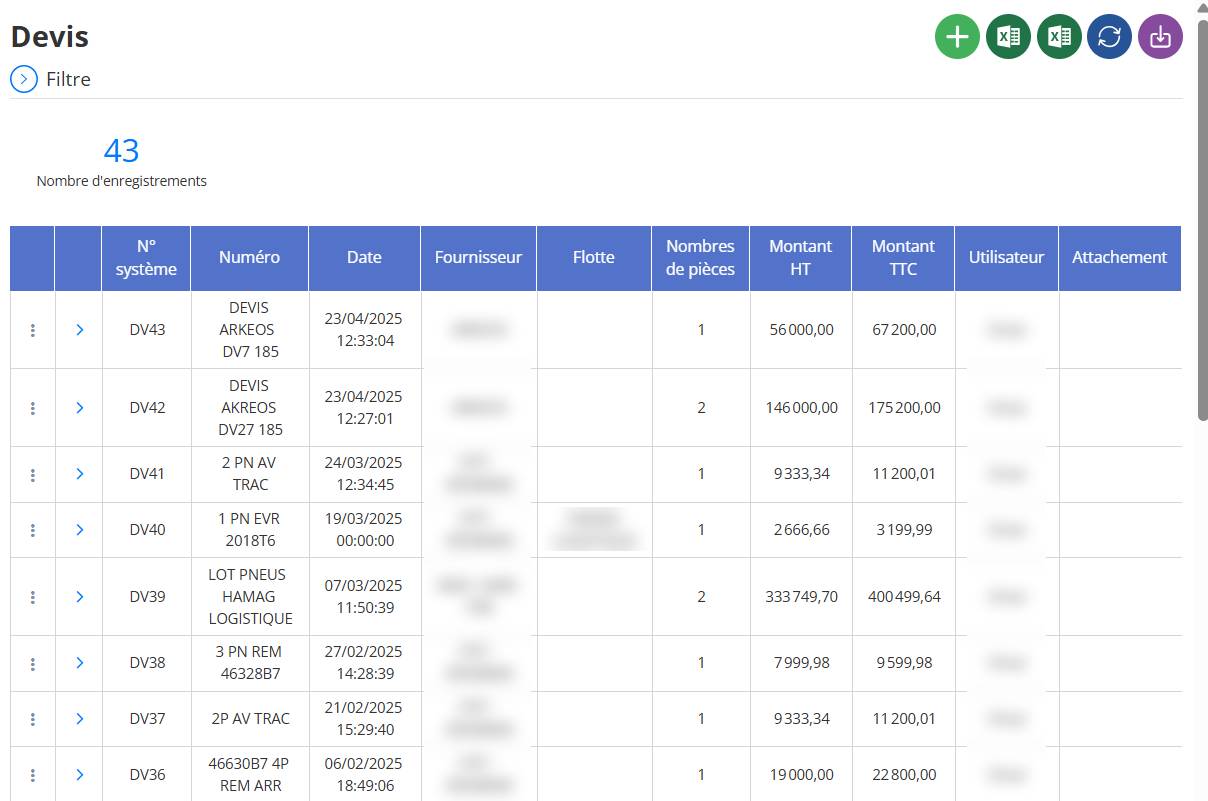
Main features:
-
Creation of supplier quotesby providing information related to the supplier, fleet and parts or services offered.
-
Detailed addition of part linesincluding: designation, quantity, unit, unit price, discount, VAT rate.
-
Automatic calculationamounts excluding VAT, VAT and VAT.
-
Tracking saved quoteswith history and traceability per user.
-
Quick actions available: view, duplicate, delete, print or generate a purchase order directly from a quote.
Objective:
Allows you to compare several supplier offers, optimize purchasing choices, and keep a complete history of commercial proposals received.
Add a quote
To create a new quote, follow the steps below:
1. Open the form
Click the button« + »located at the top right of the quotes interface. This opens theadd forma new quote.

2. Fill in the general information
In the form, complete the following mandatory fields:

-
Number: Quote reference.
-
Purchase request number: Select a linked request if existing.
-
Date: By default, today's date is selected. You can modify it if necessary.
-
Fleet: Choose the fleet concerned by the quote.
-
Supplier: Indicate the supplier issuing the quote.
-
Currency: Specify the currency used (MAD, EUR, etc.).
-
vehicle(optional): To be selected if the quote concerns a specific vehicle.
-
Attachment: You can attach a copy of the quote received (PDF, image, etc.).
-
How: Add any useful additional information.
3. Add the pieces
In the section" Pieces ", add the quote items:

For each line:
-
Select thepiececoncerned.
-
Choose theunit(PACKAGE, UNIT, etc.).
-
Enter itquantity.
-
Indicate theunit price.
-
Specify adiscountif applicable.
-
TEAamount excluding tax, VAT, AndVAT includedare calculated automatically.
Click on the green button to validate the line, or on to delete it.

You can add multiple lines by clicking the button“+” greenat the top right of the section.
4. Save the quote

Once all the information has been entered, click“Save”to save the quote. If you want to cancel the operation, click“Cancel”.
Consult a quote
To access the details of an existing quote, follow these steps:
1. Access the list of quotes
From the main interface ofEstimate, you see thelist of all saved quoteswith columns like:
-
System No.
-
Number
-
Date
-
Supplier
-
Number of pieces
-
Amount excluding tax / tax included
-
User, etc.
2. Open quote options
To the left of each quote line, click the buttonwith three vertical points (⋮)to bring up a context menu.

3. Click on “Consult”
In the menu, click" To consult "to view all details of the selected quote.
4. Visualize information
Once opened, you can view:
-
General quote information (number, supplier, date, etc.)
-
The list of parts with quantities, prices, amounts excluding tax/tax included
-
Any attached files (such as the original PDF quote)
-
Comments added
Noted:In consultation mode, the fields arenot editable. This is a read-only view.

