

Module · Finance
Exportation des traites fournisseurs
Exportation des traites fournisseurs
L’exportation des traites fournisseurs consiste à extraire les données enregistrées dans le système sous forme de fichier, généralement au format Excel (.xlsx), pour une utilisation hors ligne. Cela inclut des informations comme le numéro de paiement, la date d’échéance, le fournisseur, la banque, et d’autres détails, facilitant le partage avec d’autres départements (comme la comptabilité ou l’audit) ou l’analyse dans des outils externes. L’interface fournit des icônes intuitives pour lancer cette exportation, avec une option de rafraîchissement pour garantir des données à jour.
L’interface des traites fournisseurs présente un tableau détaillé des traites enregistrées, avec des options de filtrage et d’exportation. Voici les éléments principaux observés :
- Titre et En-tête :La page est intitulée "Traites fournisseurs", indiquant clairement sa fonction de gestion des effets de commerce fournisseurs.
- Options de Filtrage :Un bouton "Filtre" en haut à gauche ouvre un panneau avec plusieurs champs, bien que non détaillés ici, probablement incluant des critères comme la date, le fournisseur ou le statut. Cela permet de personnaliser la vue avant l’exportation.
Compte des Enregistrements :Sous les filtres, le nombre "52" est affiché avec "Nombre d’enregistrements", indiquant 52 traites listées après application des filtres, ce qui peut influencer les données exportées.

Options d’Exportation et Rafraîchissement :En haut à droite, deux icônes sont présentes :
- Une icône verte Excel pour exporter les données au format Excel.

- Une icône de rafraîchissementpour mettre à jour la liste.

Cliquez sur l’icône Excel pour initier le processus d’exportation. Cette action générera automatiquement un fichier au format Excel (.xlsx) contenant les données des traites fournisseurs visibles dans la liste.
Télécharger le Fichier :
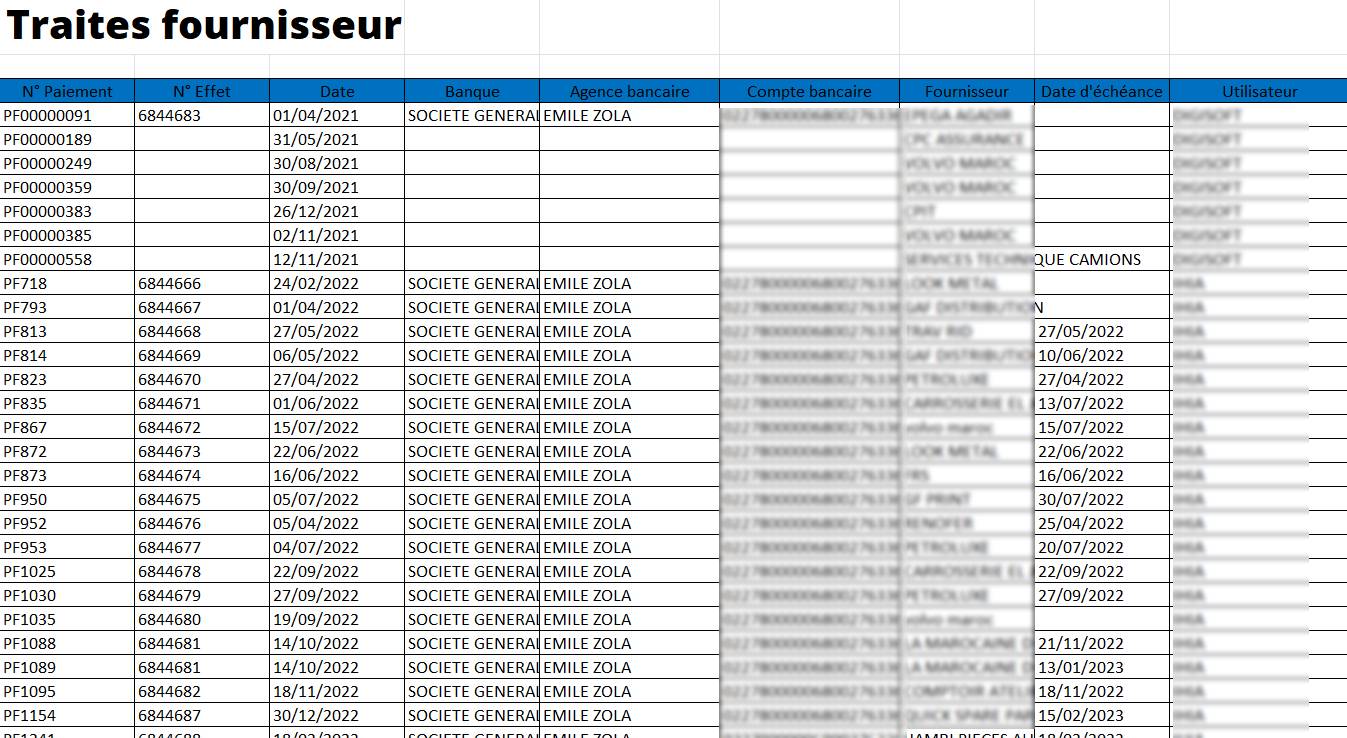
Une fois l’exportation lancée, le système vous permettra de télécharger le fichier Excel généré. Vous pouvez le sauvegarder sur votre ordinateur ou tout autre appareil pour une utilisation ultérieure. Le fichier sera probablement nommé automatiquement, par exemple, "Traites_Fournisseurs_Export_20250319.xlsx", et sera téléchargé dans le dossier de téléchargements par défaut.