Module · Finance
Gestion Transactions
Gestion Transactions
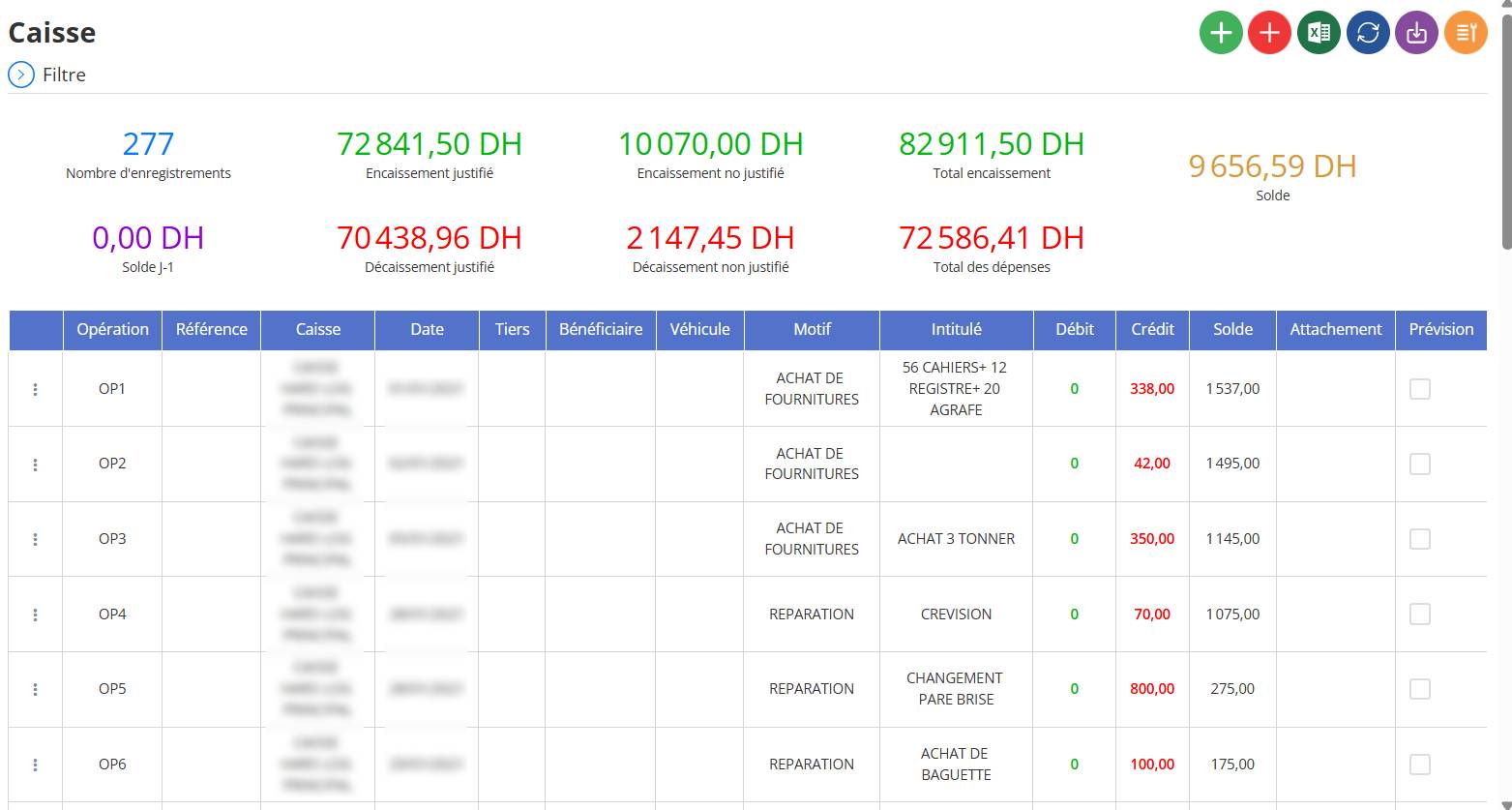
The Cash Transaction Management functionality is an essential module of a financial management system, designed to enable comprehensive management of cash transactions, including adding, modifying and deleting financial records. This functionality is crucial for businesses wishing to track cash flow, manage collections (receipts) and disbursements (expenses), and ensure traceability of operations. Based on the analysis of the interface provided and the user's information, here is an exhaustive description of its operation, its components and its usefulness.
“Receipt Entry” button
The cash register management interface allows you to addcollections(entrance of money) anddisbursements(outflow of money). Here's how to proceed for each type of operation.
Adding a receipt (Money entry)
A receipt corresponds to a sum of money received and recorded in the cash register.
Steps to add a cashout:
Click on the green “+” buttonlocated at the top right of the interface.

Complete the collection form:
-
Reference: Enter a unique number to identify the operation.
-
Box: Select the cash register concerned by the collection.
-
Date: Indicate the date of collection.
-
Third party: Choose the customer or entity that made the payment.
-
Beneficiary: Person or service who receives the collection.
-
Pattern: Specify the reason for the collection (e.g.: payment of an invoice, reimbursement, etc.).
-
Amount: Enter the amount received.
-
Support document (optional): Add an attachment as proof (invoice, receipt, etc.).
Validate the recordingby clicking on"Save".
L’encaissement apparaît immédiatement dans la liste des transactions avec le montant dans la colonne"Speed".
“Disbursement Entry” button
A disbursement corresponds to a sum of money spent and recorded in the fund.
Steps to add a disbursement:
Click on the red “-” buttonlocated at the top right of the interface.

Complete the disbursement form:
-
Reference: Enter a unique number to identify the operation.
-
Box: Select the cash register concerned by the money outflow.
-
Date: Indicate the date of disbursement.
-
Third party: Select the supplier or entity receiving the payment.
-
Beneficiary: Name of the person or department that made the expense.
-
Pattern: Specify the reason for the disbursement (e.g. purchase of supplies, repair, reimbursement, etc.).
-
Amount: Enter the amount spent.
-
Support document (optional): Attach a supporting document (invoice, receipt, etc.).
-
Validate the recordingby clicking on“Save”.
-
The disbursement appears immediately in the transaction list with the amount in the column"Credit"(in red).
Noted:
-
Once recorded, the receipt or disbursement directly impacts the cash balance.
-
A disbursement reduces the balance, while a receipt increases it.
-
Supporting documents are important to ensure the traceability of financial transactions.
Steps to edit a transaction:
Find the transaction to modifyin the list of recordings.
Click on the three dots “⋮”located to the left of the transaction line.

Select the “Modify” optionin the drop-down menu.
Update necessary informationin the form, such as:
-
Reference
-
Date
-
Amount
-
Third party
-
Pattern
-
Other details
-
Save changesto validate the transaction update.
Once edited, the updated transaction is displayed immediatelyin the list of recordings.

