Module · Finance
Management of check books
Management of check books
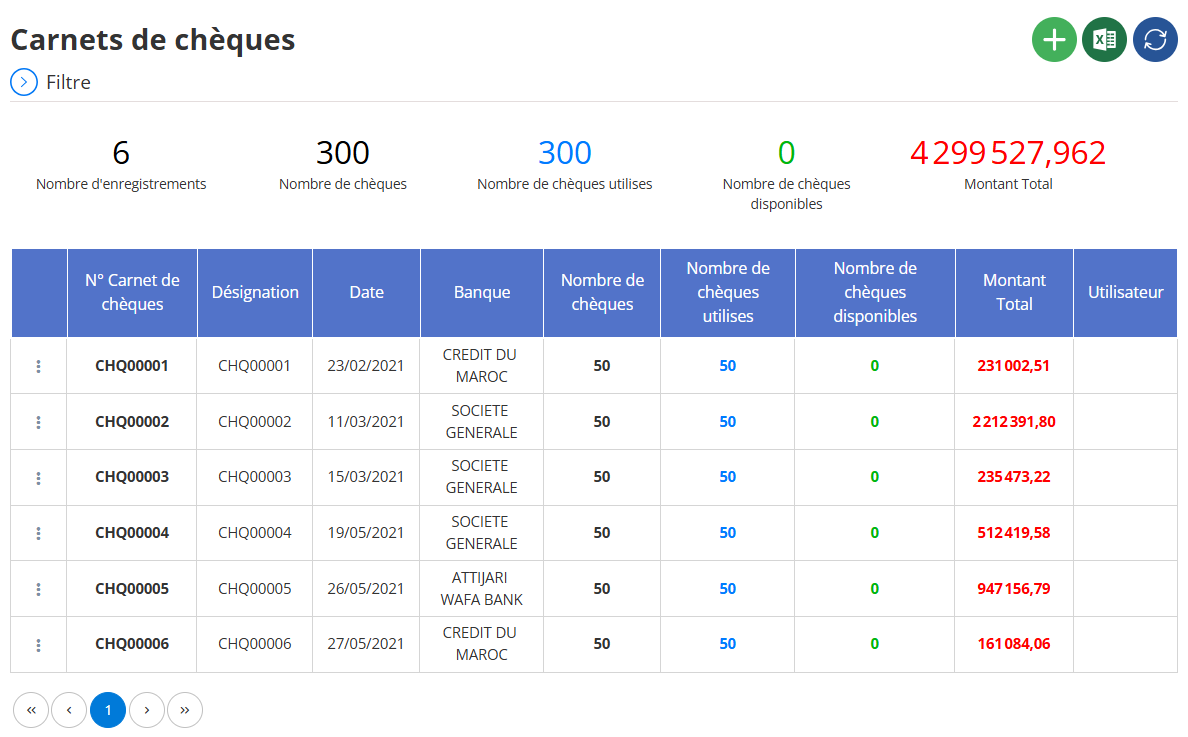
Check book management involves tracking the books issued by a bank, with details such as book number, associated bank, total number of checks, number used, number available, and total transaction amount. This feature allows you to add new books, update existing information (for example, marking checks as used), and delete obsolete books. It is particularly useful for accounting, cash management and audits.
Adding a new check book
Adding a check book involves creating a new entry in the system, with details like book number, associated bank, bank account, total number of checks, and other relevant information. This functionality allows users, such as accountants or financial managers, to maintain an up-to-date database, facilitating cash management and audits. The interface includes a structured form to capture this information, with required and optional fields.
To add a new checkbook, it seems you need to click the "+" button in the "Checkbooks" interface.

This will open a form where you can enter details like bank, bank account and number of checks.

Fill out the Form
The form includes fields like:
- Designation: Enter a name or label.
- Bank: Select the bank from a drop-down menu.
- Bank branch: Choose the agency.
- Bank account: Select the associated account.
- Number of checks: Indicate the total (mandatory field).
- Initial number: Enter the starting number of the checks.
- Date: Select the date via a calendar.
- Attachment: Attach a file if necessary.
- Description: Add additional notes.
Finalize the Addition
After filling in the fields, click "Save" to add the notebook. You can also click "Cancel" to close without saving.
Edit a checkbook
Check book management is crucial for businesses, particularly for tracking check usage, managing available inventory and ensuring transaction traceability. Editing a check book allows you to adjust information such as number, date, status, or other details, in response to errors, updates, or operational changes. This feature is particularly useful for accountants or financial managers wishing to maintain an up-to-date database.

Next to the identifier an icon consisting of three vertical dots (⋮) is visible, often called "more options". Clicking on this icon opens a drop-down menu, as shown in the image. This menu contains three options:
- To consult(with a magnifying glass icon): Allows you to view details without modification.
- To modify(with a pencil icon): Allows you to edit the information.
- DELETE(with a red trash can icon): Allows you to remove the notebook from the list.
Selecting the “Modify” Option:
- The user needs to click on the “Edit” option, which is second in the list, accompanied by a pencil icon. This action triggers the opening of a new window or a form dedicated to the modification.
Deleting a Notebook
Action :Probably via a context menu (click on "..." next to a notebook, "Delete" option).

Process :A confirmation may appear (for example, "Are you sure you want to delete?"), followed by a validation.
Result :The notebook is removed from the table, and the statistics are updated (for example, number of records changes to 5).
View a checkbook
The functionality of viewing a check book in a financial management system is essential to verify the current status of checks and ensure accurate management. This section explores the process, observations and implications in detail, drawing on analysis of the provided interface and user expectations.
Find the notebook in the list, click the three dots (⋮) next to it, then choose "View" to see the details.

Context and Significance
Viewing a checkbook allows users to monitor check usage, check balances, and ensure transactions are recorded correctly. This feature is particularly useful for accountants or financial managers who need to maintain an up-to-date view of financial instruments.
Viewing Details:
A window opens, displaying check book details, such as:
- Book number.
- Issue date.
- Associated bank.
- Total number of checks, used and available.
- List of individual checks with their numbers, dates, amounts and status.

