Module · Finance
Management of effects books
Management of effects books
Book of items management involves tracking records containing financial items, with details such as book number, associated bank, total number of items, number of uses, number available and total amount. This feature allows you to add new notebooks, update existing information (for example, marking effects as used), and delete obsolete notebooks. It is particularly useful for accounting, cash management and audits.
Interface Description
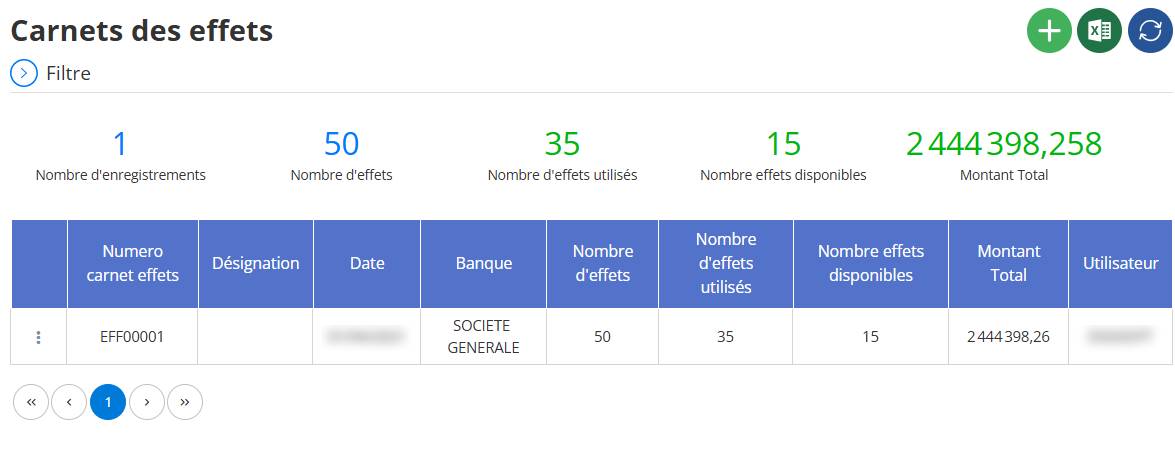
The Effects Notebooks interface presents a detailed table of saved notebooks, with options for filtering, adding, modifying, deleting and refreshing. Here are the main elements observed:
Header:The page is written "Carnets des bills", clearly indicating its function of managing financial bills. On the right, a horizontal toolbar contains three icons:
- A green “+” icon to add a new effects book.
- An Excel icon (probably blue, with an "X" logo on a grid) to export the data to Excel format.
- A refresh icon (blue circle with circular arrow) to update the list.
- Filter button:At the top left, a circular blue icon with a funnel ("Filter") opens a panel to apply search criteria, making it easier to customize the list.
- Summary Statistics:Below the header, five statistics are displayed in blue boxes
Adding an Effects Book
Access the Addition Form:Click the green "+" icon at the top right to open the add form. This opens an interface called "Effects Notebook" with sections for general information and details.

Fill in the Fields:

- Items book number:Enter a unique identifier (for example, EFF00002).
- Designation :Add a description or label (optional, empty in the example).
- Date :Select the date via a calendar (for example, 03/18/2025).
- Bank:Choose the bank from a drop-down menu (for example, SOCIETE GENERALE).
- Number of effects:Enter the total number of effects (for example, 50, required, marked with a star *).
- Other fields:Fill in fields like total amount or attach a file if necessary.
- Save:Click "Save" to add the new notebook to the list. A “Save & Add” option may be available to add multiple notebooks consecutively.
Editing an effects book
- Locate the Notebook:In the table, locate the notebook to modify (for example, EFF00001).
- Access the Context Menu:Click on the three vertical dots (⋮) next to the notebook. This opens a menu with options like "View", "Edit" and "Delete".

- Select “Edit”:Choose the "Edit" option, represented by a pencil icon. This opens a pre-populated form with the current details.
- Effectuer les Changements :Adjust the necessary fields, for example, change the number of effects used from 35 to 40, or change the bank.
- To safeguard :Click "Save" to apply the changes. A “Cancel” option allows you to close without saving.
Deleting an effects book
- Locate the Notebook:Locate the notebook to delete in the table (for example, EFF00001).
- Access the Context Menu:Click on the three dots (⋮) next to the notebook to open the menu.

- Select "Delete":Choose the "Delete" option, represented by a red trash can icon. A confirmation window appears, asking "Are you sure you want to delete this item?".

- Confirm Deletion:Click "Delete" in the pop-up window to remove the notebook. An “Undo” option allows you to go back.
- Check:After deletion, verify that the notebook has been removed from the list and that the statistics are updated (for example, number of records changes to 0).
Advantages and usefulness
- Traceability:Details like number, bank and date provide full transparency, essential for audits.
- Flexibility:Add, edit and delete options allow you to adapt the data to actual needs.
- Effective Management:Makes it easier to track bill inventory and prepare financial reports, especially with pagination to manage large volumes.
- Error Prevention:By clearly displaying the status (effects used and available), it helps to avoid the use of non-existent effects.
Good Practices
- Regular Verification:Check statistics regularly to ensure effects are being managed correctly.
- Using Filters:Apply filters to isolate specific notebooks, for example, those from a given bank or period.
- Export for Reports:Export data for detailed analyzes or monthly reports.
- Cautious addition:Make sure newly added notebooks are properly saved with all necessary information.

