Module · TMS
Quote management
Quote management
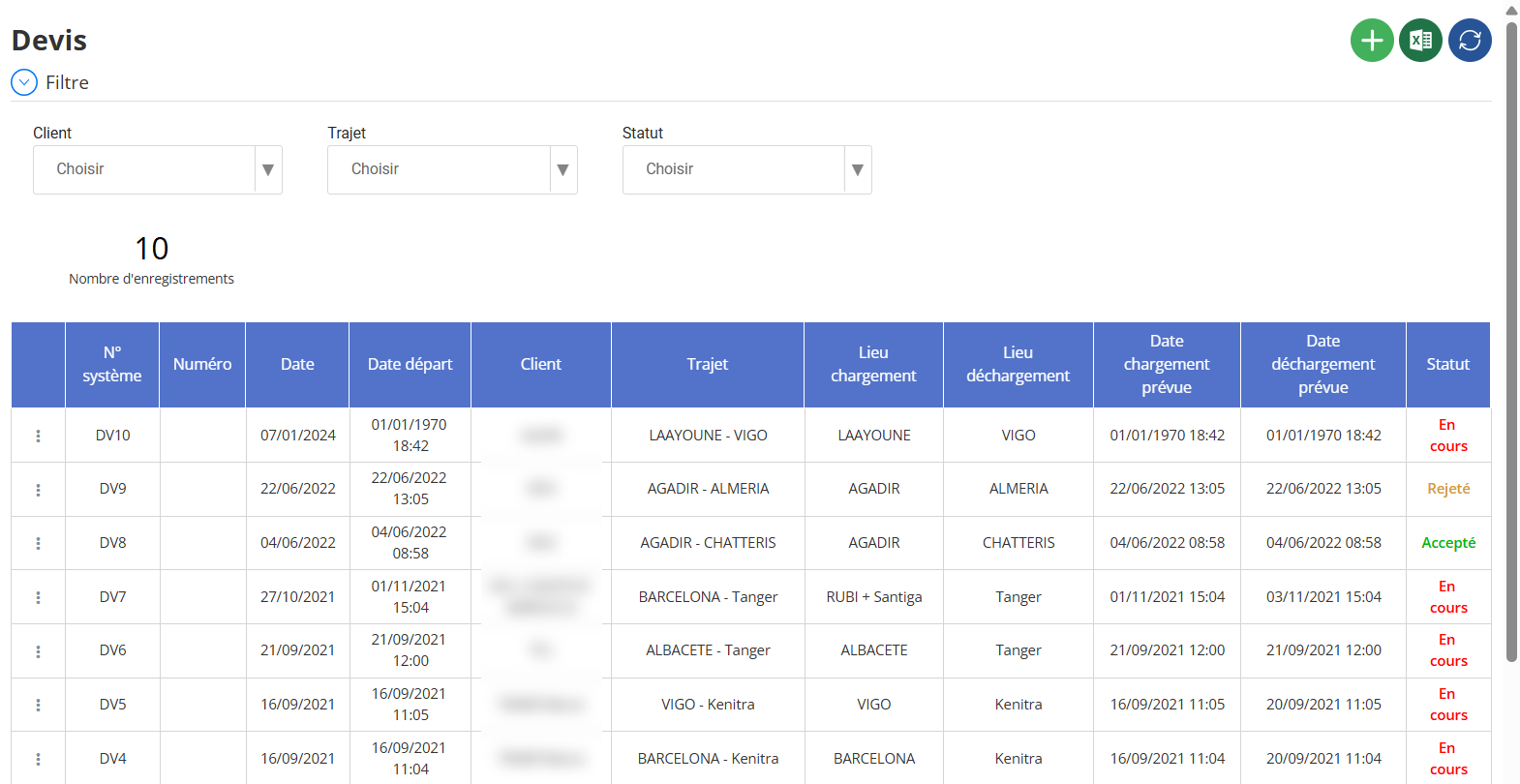
The “Quote” interface allows you to efficiently manage transport quote requests. It centralizes all commercial proposals, facilitating their monitoring, processing and history.
Add a quote
Adding a quote is done using a structured and complete form. Here are the steps to follow:

1. General Information
Complete the following fields:
-
Number
-
Date, Departure date
-
Customer(to be selected or created using the button)
-
road, Loading location, Unloading location(with possibility of addition via )
-
Expected loading date, Expected unloading date
-
Payment method, Amount, Due date
-
Excess, Downtime, Crew
-
Fees included: Activate or deactivate specific options (Boat, TMSA, T1, MRN)
Goods Section
Add information regarding the goods transported:

-
Reference, Designation, Client
-
Import/Export
-
Category, Quantity, Unit, Unit Price (PU)
-
Gross weight, Number of packages/pallets, Dimensions
-
Temperature, Floor meter, Stackable/Non-stackable
Click on thegreen buttonto add a new merchandise line.
Journeys section
Specify the journeys linked to the quote:

-
Departure / arrival location
-
Departure date
-
Tractor, Trailer, Container
-
Driver, Driver helper
-
Driver / driver assistance bonus
Also click here on thegreen buttonto add a route.
Once all fields are completed:
Click on“Save”to validate the addition of the quote.
Edit a Quote
Modifying a quote allows you to correct, update or adjust the information previously entered, depending on changes in customer demand, costs or transport conditions.

Steps to follow:
Access the quote list
-
From the main menu, clickEstimate.
-
The list of existing quotes is displayed with their main information (number, customer, date, status, etc.).
Find the quote to modify
-
Use the filters at the top of the page (Customer, Trip, Status) to refine your search.
-
Identify the desired quote from the list.
Open options
-
Click the buttonactions (︙)to the left of the quote concerned.
-
A context menu appears.
Select “Edit”
-
Click onTo modifyin the drop-down menu.
-
The edit form opens with all quote data pre-populated.
Que peut-on modifier ?
You can adjust all sections of the quote:
General information:
-
Numberof the quote
-
Dateof creation
-
Customer, Journey, Loading/unloading location
-
Scheduled dates(loading, unloading, departure, etc.)
Financial information:
-
Payment method
-
Amount excluding tax
-
Due date
-
Franchise
-
Downtime
-
Crew
Goods Details:
-
Add/edit goods
-
Quantity, unit, weight, number of pallets or packages
-
Specific conditions: temperature, stackability, etc.
Journeys:
-
Add or modify the different steps
-
Assignment of tractor, driver, trailer, container…
Save changes
-
Once you have made the changes, clickthe save button(floppy disk icon or “Save” button depending on the interface).
-
A confirmation message appears to indicate that the quote has been successfully updated.
Important notes:
-
A quoteaccepted or rejectedMay be subject to modification restrictions depending on system configuration.
-
Modifying a quote canimpact the generated documents(transport order, invoices), it is therefore important to ensure the consistency of the modified data.
Deleting a Quote
The deletion functionality allows you to eliminate a quote that has become obsolete, erroneous or canceled. It is reserved for users withadministration or modification rights.
Steps to delete a quote:
Access the quote list
-
From the main menu, clickEstimate.
-
All saved quotes are displayed in a table (with the columns: number, customer, route, status, etc.).
Identify the quote to delete
-
Use the filters (Customer, Trip, Status) to refine your search.
-
Locate the quote you want to delete in the list.
Open actions menu
-
Click the button︙located to the left of the quote.

-
A context menu appears.
Click on “Delete”
-
In the drop-down menu, click the optionDELETE.
-
Aconfirmation windowappears to prevent accidental deletion.
Confirm deletion
-
Cliquez sur Ouiou Confirmerpour valider la suppression.

-
The quote is immediately removed from the list.
Precautions and notes:
-
Si le devis a déjà été accepté, transformé en commande ou facturé, la suppression peut être verrouilléeou nécessiter des droits spécifiques.

