

Module · TMS
Travel Management
Travel Management
The “Travels” interface is a detailed view of all trips recorded for the transport of goods. It is clearly structured and allows precise monitoring of each mission carried out, with key information on journeys, customers, drivers, amounts, etc. and adding a new trip to consulting and modifying existing trips. It offers a global, intuitive and structured view of all trips recorded in the system.
Main travel table
|
Field |
Description |
|
Number |
Unique trip number |
|
Departure date |
Date the trip started |
|
Arrival date |
Expected or actual date of arrival |
|
Customer |
Customer name (displayed in green) |
|
road |
Place of departure and arrival of transport |
|
Category |
Category or nature of transport |
|
Tractor |
Registration of the towing vehicle used |
|
Trailer |
Associated trailer number |
|
Driver |
Name of driver responsible for the trip |
|
Services |
Details of services performed |
|
Montant HT / TTC |
Amounts of services excluding tax and all taxes included |
|
Type of service |
Nature of service |
|
Type of journey |
Specifies whether it is a Outward or Return journey |
Financial details of travel
|
Field |
Description |
|
Typical reference |
Reference of the trip or operation |
|
Distance |
Distance traveled |
|
Closing date |
End or validation date of the trip |
|
How |
Free field for comments or observations |
|
Invoice number |
Travel invoice number |
|
Amount |
Invoice amount |
|
Currency |
Currency used (MAD, EUR, etc.) |
|
Status |
Progress status of the trip (e.g.: In progress, End of unloading) |
|
Billing Status |
Billing Status: Billed or Not Billed |
|
Attachment |
Allows you to add or view travel-related files |
|
User |
Name of the user who entered or managed the transaction |
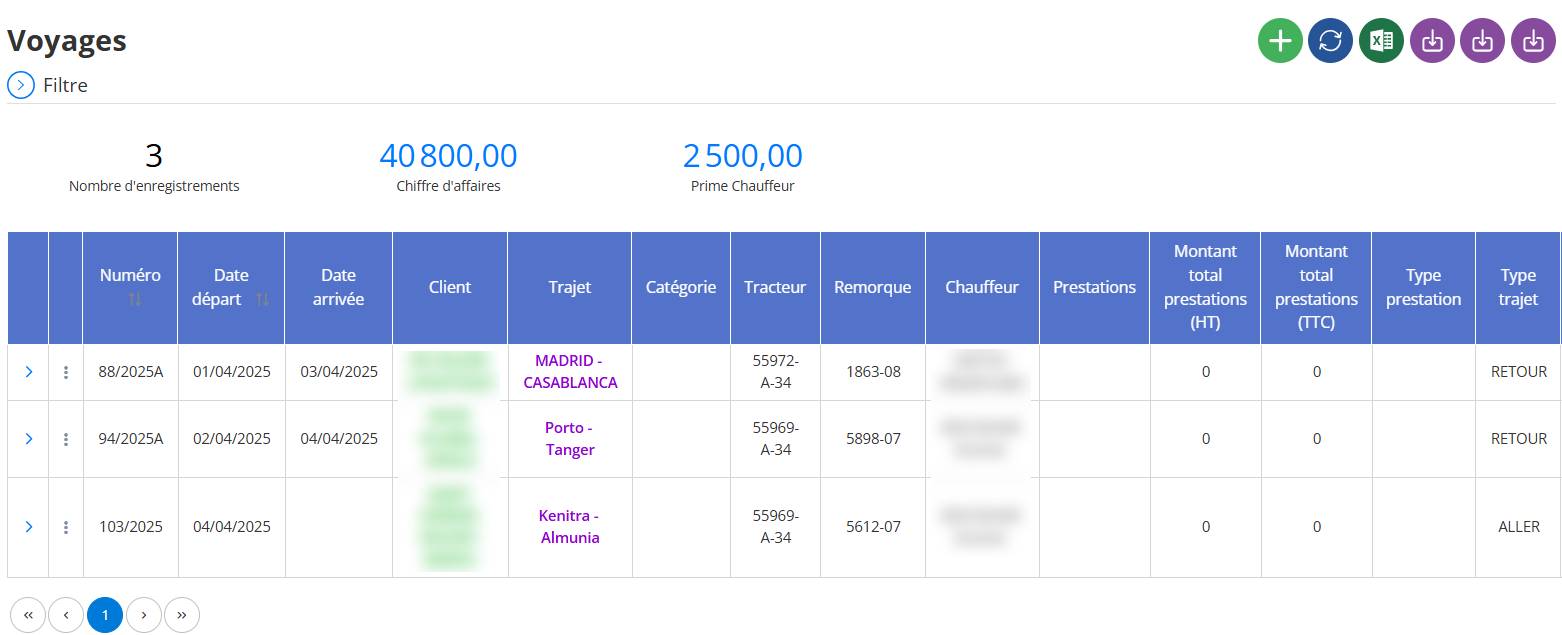
Main features
-
Add a new tripvia the green button
+. -
Refresh listtravel (blue button).
-
Export datato Excel.
-
Import travel records.
-
Import trip details.
-
Import shipping charges
-
View details, modify or delete each trip via the context menu (three-dot icon).
Indicators at the top of the interface

-
Number of records: total of trips listed (e.g.: 3).
-
Turnover: total amounts generated by travel.
-
Driver Bonuses: total amount of bonuses granted to drivers.
Add a trip
Step 1: Click on the “+” button

From the interfaceTravel, click on the green button+at the top right of the screen. This opens afull formallowing you to add all the details relating to a new trip.
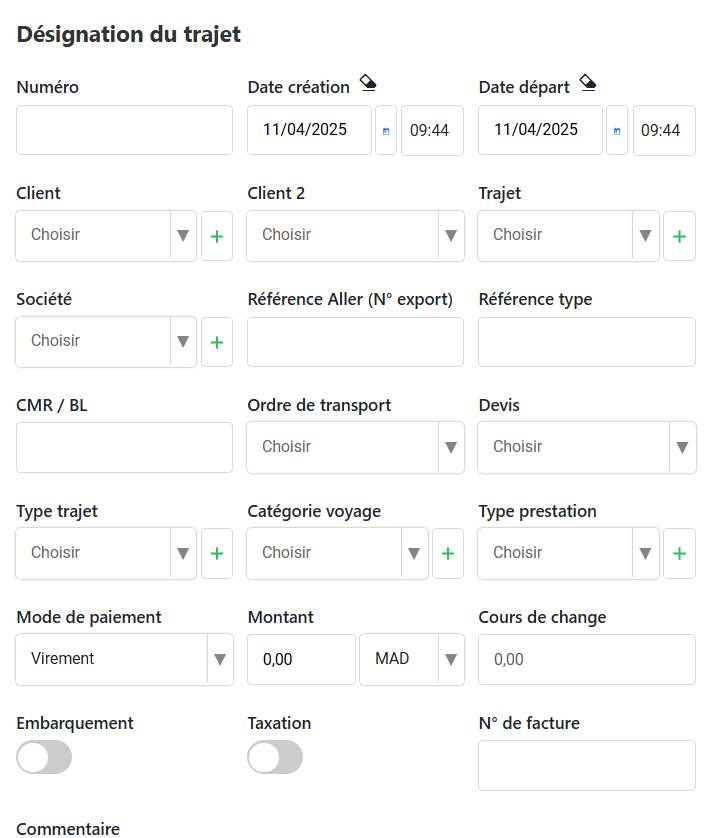
1. General information
This first part concerns travel identification and administrative information:
-
Number: Unique travel code.
-
Creation date: Date on which the trip is recorded in the system.
-
Departure date: Planned start date of the journey.
-
Customer / Customer 2: Selection of the associated client(s).
-
road: City of departure and arrival.
-
Company: The company responsible for transport management.
-
Reference Go (export number): Export reference, if applicable.
-
Typical reference: Type of reference used.
-
CMR / BL: Transport document number (Consignment note or Delivery note).
-
Transport order: Reference linked to the mission order.
-
Estimate: Possibility of linking the trip to a quote already created in the quote interface.
-
Type of journey: Choice between “Go” or “Return” journey.
-
Trip category: Type of transport (local, international, etc.).
-
Type of service: Nature of the service (transport, subcontracting, etc.).
-
Payment method: Method used for payment.
-
Amount: Amount associated with the service.
-
Exchange rate: Exchange rate if the transaction is made in another currency.
-
Activation buttons: Possibility of activating the optionsEmbarquementet Taxationselon le besoin.
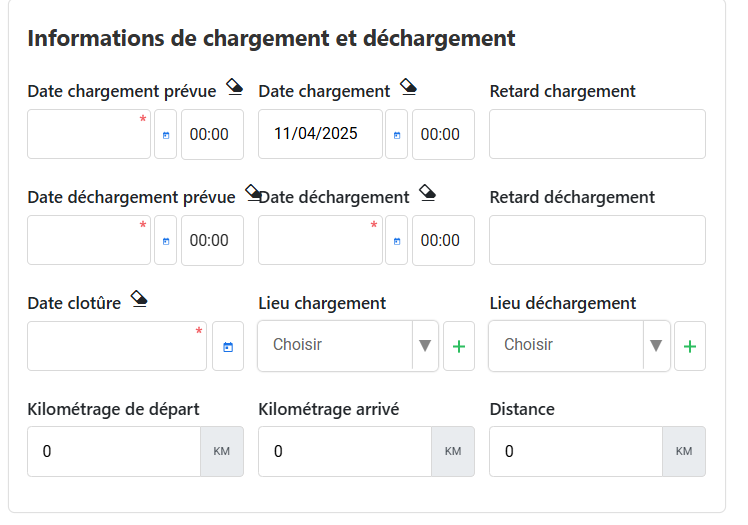
2. Loading and unloading information
This section provides information on the stages of logistics:
-
Date de chargement prévue et réelle.
-
Retard de chargement si applicable.
-
Date de déchargement prévue et réelle.
-
Retard de déchargement si applicable.
-
Date de clôture du voyage.
-
Lieu de chargement et lieu de déchargement.
-
Kilométrage au départ et à l’arrivée.
-
Distance totale parcourue.
3. Sender / Recipient Information
Pour chaque voyage, vous pouvez enregistrer :

-
Le nom de l’expéditeur et du destinataire.
-
Le numéro de document CMR / BL.
-
Les dates prévues et réelles de chargement et de déchargement.
-
Les retards éventuels.
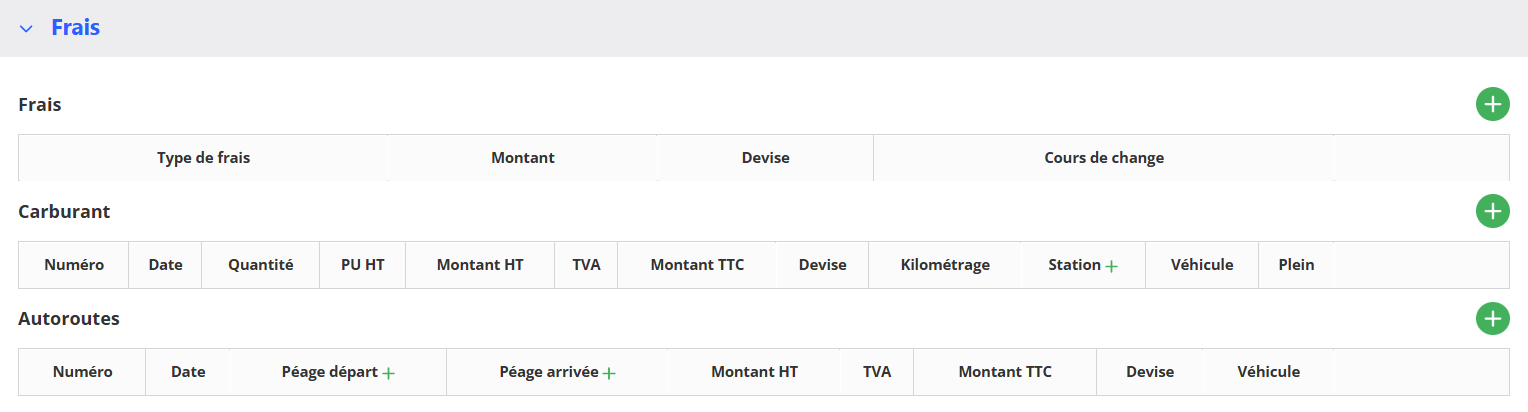
4. Fees
You can add several types of expenses associated with the trip:
-
Type de frais (ex. : carburant, autoroute, douane…).
-
Montant.
-
Devise utilisée.
-
Cours de change si nécessaire.
Dedicated sections also allow you to enter:
-
Les frais de carburant.
-
Les frais d’autoroutes.
5. Harbor
This section is only used if the transport involves maritime passage. It contains specific information related to port operations.

6. Customs clearance
Useful for international travel, this section allows you to enter details related to the customs posts crossed, with dates and associated documents.

7. Forwarder
You can enter information regarding the freight forwarder associated with the trip:

-
Name, telephone, city, primary contact.
-
Dates for filing and delivering documents.
-
Name, telephone, city, primary contact.
-
Dates for filing and delivering documents.
8. Goods
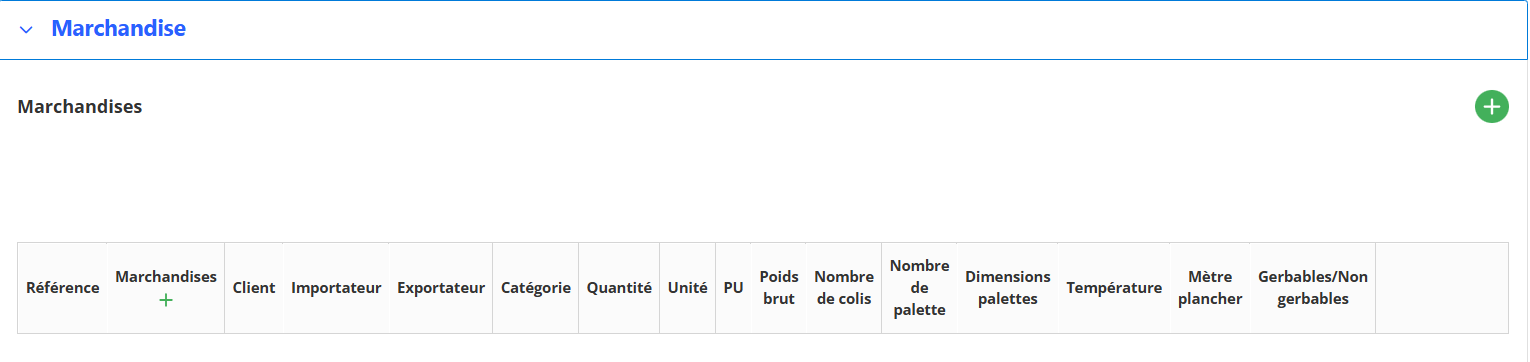
You can record the details of the goods transported:
-
Reference and designation.
-
Customer, importer, exporter.
-
Quantity, unit, gross weight, number of packages or pallets.
-
Dimensions, temperature, floor meters.
-
Information on stacking (stackable or not).
It is possible to add several merchandise lines.
9. Journeys
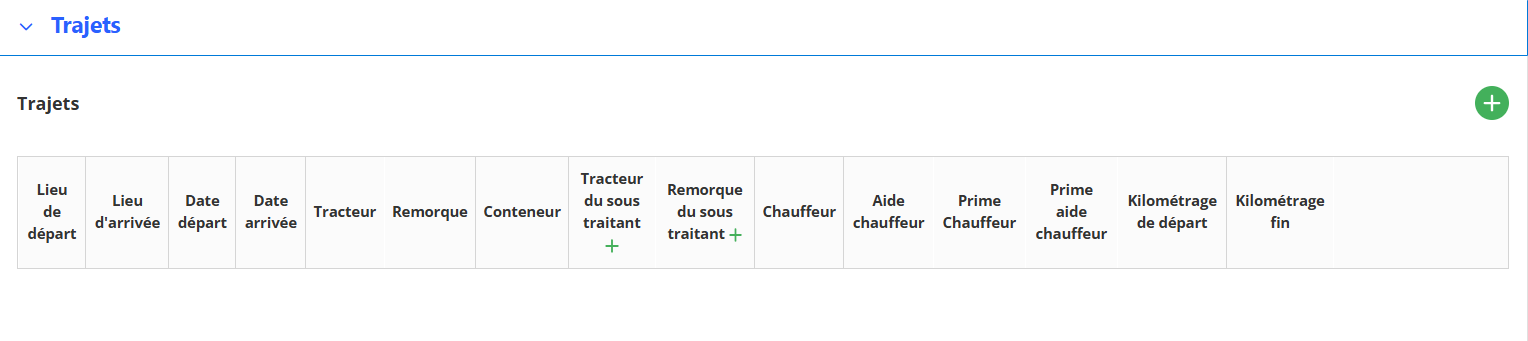
The last section allows you to enter the detailed routes of the trip:
-
Place of departure and arrival.
-
Departure and arrival dates and times.
-
Tractor, trailer, container used.
-
Subcontracted vehicles or equipment if applicable.
-
Main driver and assistant driver.
-
Bonuses awarded.
-
Mileage for each trip segment.
You can add several trips for the same trip.
Finalizing the recording
Once all the travel information has been entered in the different sections of the form, you have two options:

-
Cliquer sur le bouton « Enregistrer » pour sauvegarder les données du voyage actuel.
-
Ou cliquer sur le bouton « Enregistrer et ajouter un nouveau voyage » si vous souhaitez directement passer à la création d’un autre voyage sans revenir à la liste.
These actions ensure that the trip is captured in the system and available for further consultation, modification or tracking.
Changing a trip
To modify an already existing trip in the travel management module, follow the steps below:
Steps to follow:
-
Accédez à la liste des voyages :
Depuis l’interface principale, vous verrez le tableau listant les voyages avec leurs détails (numéro, date, client, etc.). -
Ouvrir le menu d’action :
À gauche de chaque ligne de voyage, cliquez sur l’icône à trois points verticaux (︙)pour faire apparaître le menu contextuel. -
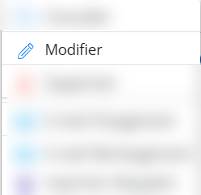
Choisir “Modifier” :
Dans le menu déroulant qui s’affiche, cliquez sur Modifier.
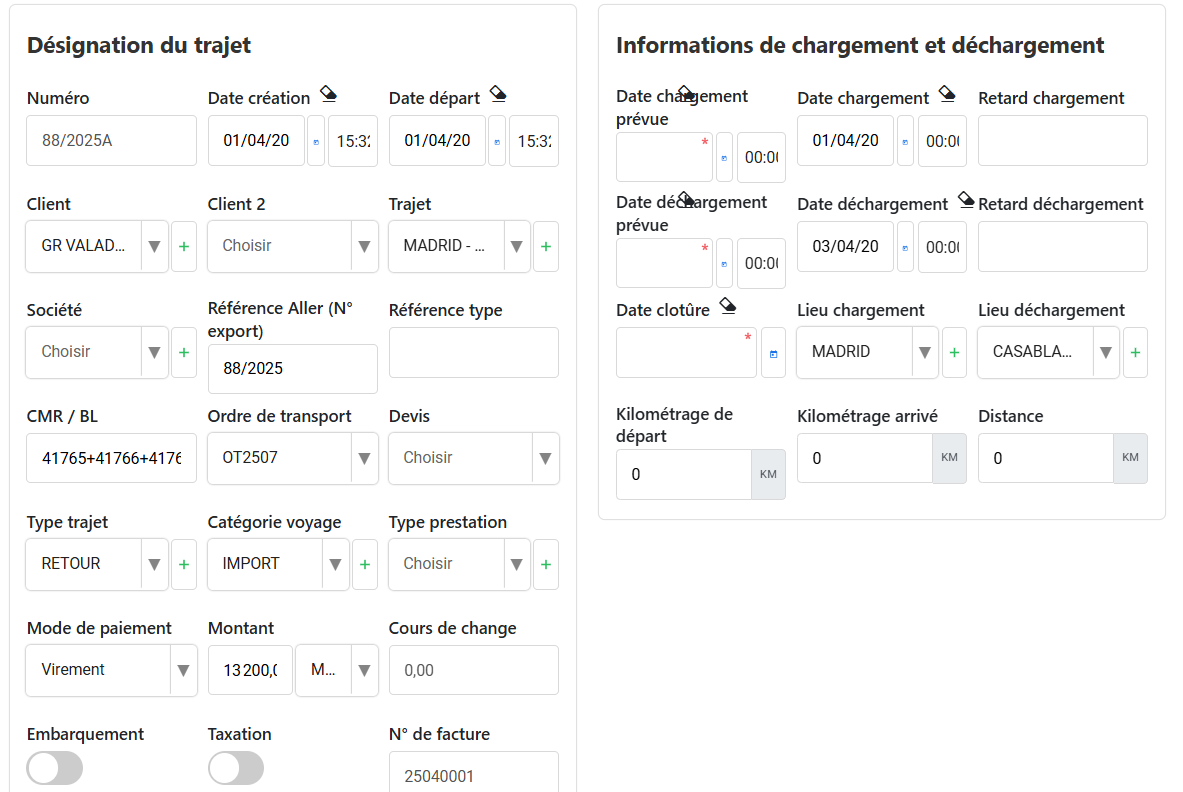
Formulaire de modification :
Un formulaire s’ouvrira avec les champs pré-remplis contenant les données du voyage sélectionné.
Vous pouvez y modifier :
Enregistrer les modifications :
Une fois les champs modifiés selon vos besoins, cliquez sur le bouton “Enregistrer”en bas du formulaire.
Result :
The trip will be updated in the main table with the new information entered.
Consultation of a trip
La consultationpermet d’afficher tous les détails d’un voyage sans risquer de modifier accidentellement les données. C’est une vue en lecture seule idéale pour les vérifications ou la supervision.
Steps to view a trip:
-
Accéder à la liste des voyages :
Depuis l’écran principal de l’interface “Voyages”, vous verrez tous les enregistrements de voyages avec les informations principales (numéro, date, client, chauffeur…). -
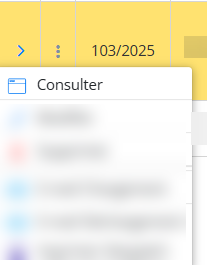
Ouvrir le menu d’action :
À gauche de chaque ligne, cliquez sur le bouton ︙ (trois points verticaux)pour afficher les options disponibles. -
Cliquer sur “ Consulter” :
Sélectionnez l’option “Consulter”dans le menu déroulant.
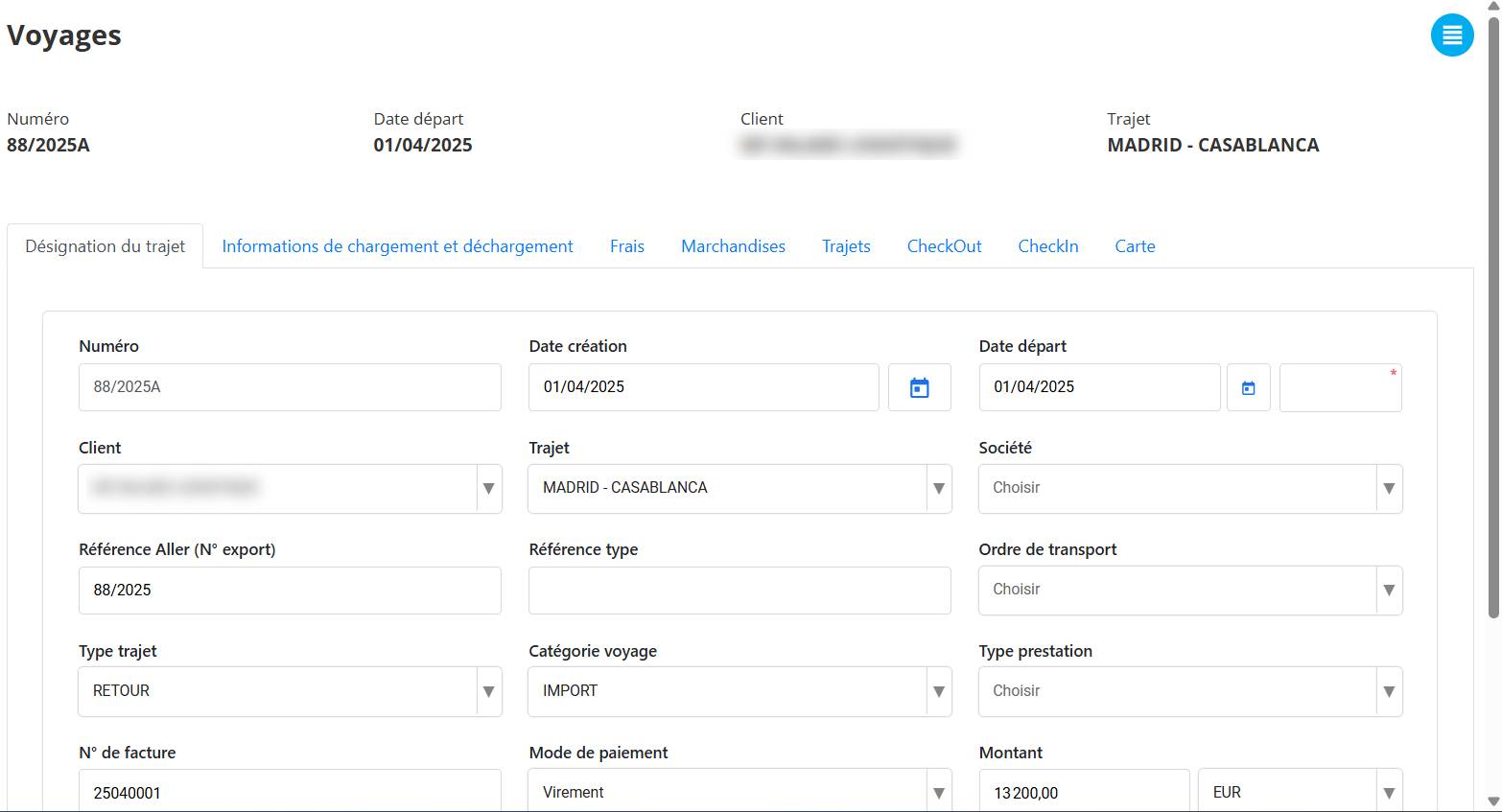
Content of the consultation sheet:
Une fois dans l’interface de consultation, vous verrez une fiche détailléedu voyage sélectionné, organisée en plusieurs sections :
Deleting a trip
La suppressionpermet d’effacer un voyage définitivement du système. Cette opération est réservée aux utilisateurs ayant les droits nécessaires, car elle est irréversible.
Steps to delete a trip:
-
Accéder à la liste des voyages :
Sur la page principale, la liste des voyages est affichée sous forme de tableau avec les détails de chaque enregistrement. -
Ouvrir le menu d’action :
À gauche de la ligne du voyage à supprimer, cliquez sur l’icône ︙ (trois points verticaux)pour afficher le menu contextuel. -
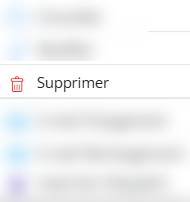
Sélectionner “ Supprimer” :
Dans la liste des options, cliquez sur “Supprimer”.
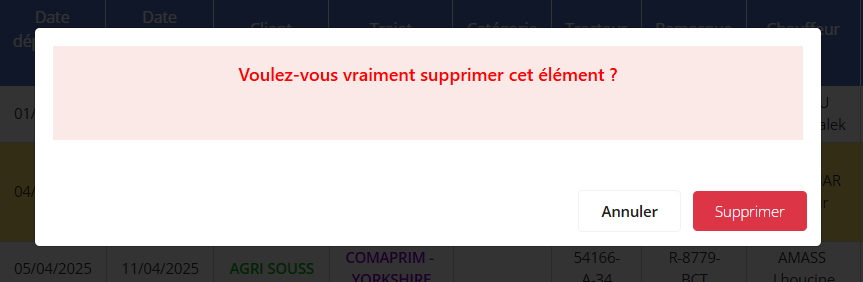
Confirmer la suppression :
Une fenêtre de confirmation s’ouvre pour éviter toute suppression accidentelle. Cliquez sur “Supprimer” ou “Annuler”si vous êtes sûr de votre action.
Attention :
-
Une fois supprimé, le voyage ne pourra pas être récupéré.
-
All related information (customer, driver, services, amounts, etc.) will also be lost.
-
Cette action peut être restreinte à certains rôles utilisateurs(ex. : administrateurs).
Utility :
La suppression permet de nettoyer les données, retirer les tests ou les erreurs de saisie, ou annuler un voyage qui n’a finalement pas eu lieu.