Module · TMS
Invoice Management
Invoice Management
The interfaceInvoicesallows you to centrally manage all invoices generated from travel. It provides simple access foradd, modify, view or delete invoices, while making it easier to track amounts and payments.
Creating an invoice in the “Invoices” interface allows you to group one or moretrips completed but not yet invoicedfor onespecific customer. The system makes this easy by automatically filtering eligible trips based on the selected customer.
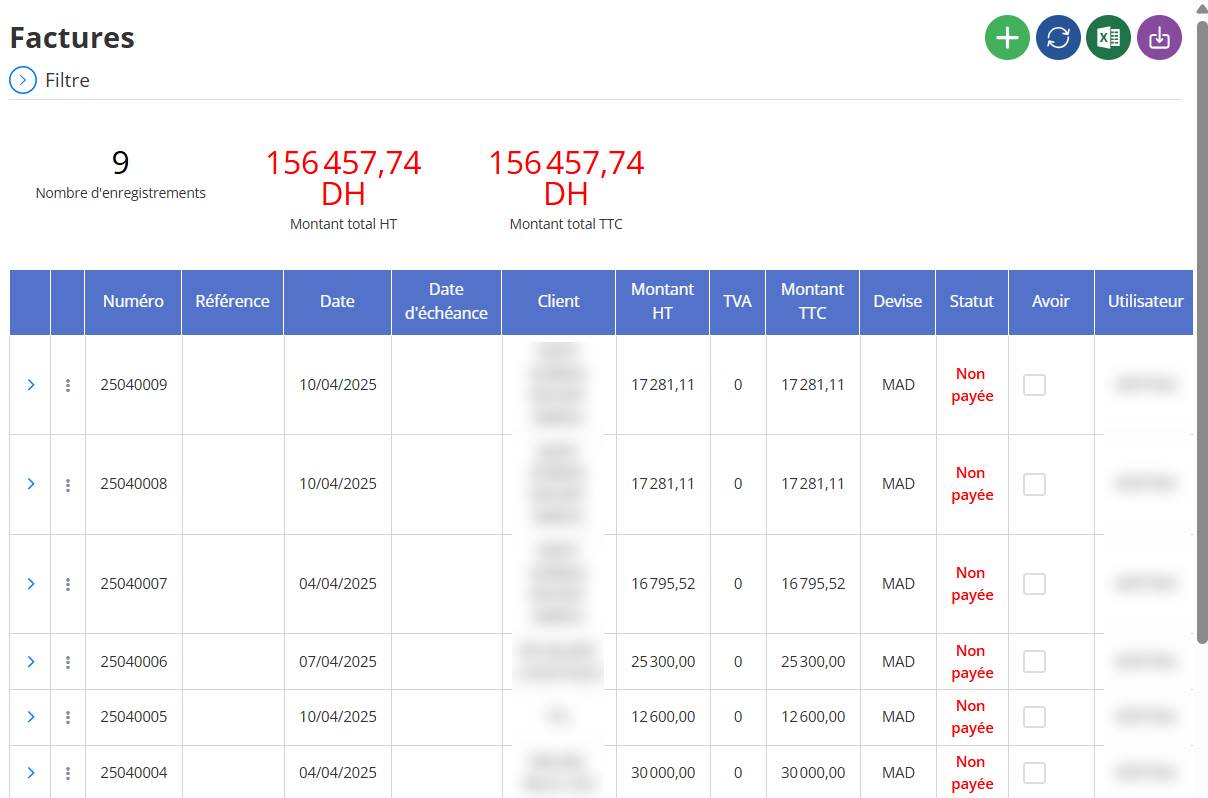
Adding a new invoice
Steps to follow:
-
Click on the Add button(icon at the top right of the “Invoices” interface).
This will open theinvoice creation form.
1. Complete the invoice information:
| Field | Description |
|---|---|
| Reference | Unique invoice reference (automatically generated or entered manually). |
| Date | Invoice creation date. |
| Customer | Select the relevant customer. Once the customer has been chosen, all trips not yet invoiced linked to this customer will be automatically displayed at the bottom of the form. |
| Due date | Payment deadline. |
| Detail | Additional information on the invoice. |
2. Enter the amount information:
| Field | Description |
|---|---|
| Amount excluding tax | Total amount excluding taxes (automatically calculated based on selected trips). |
| VAT | Applicable VAT rate. |
| Amount including tax | Amount all taxes included (automatically calculated). |
| Payment method | Choose: Transfer, Cash, etc. |
| Currency | Default: MAD. |
| Bank account | Choose the account to receive the payment. |
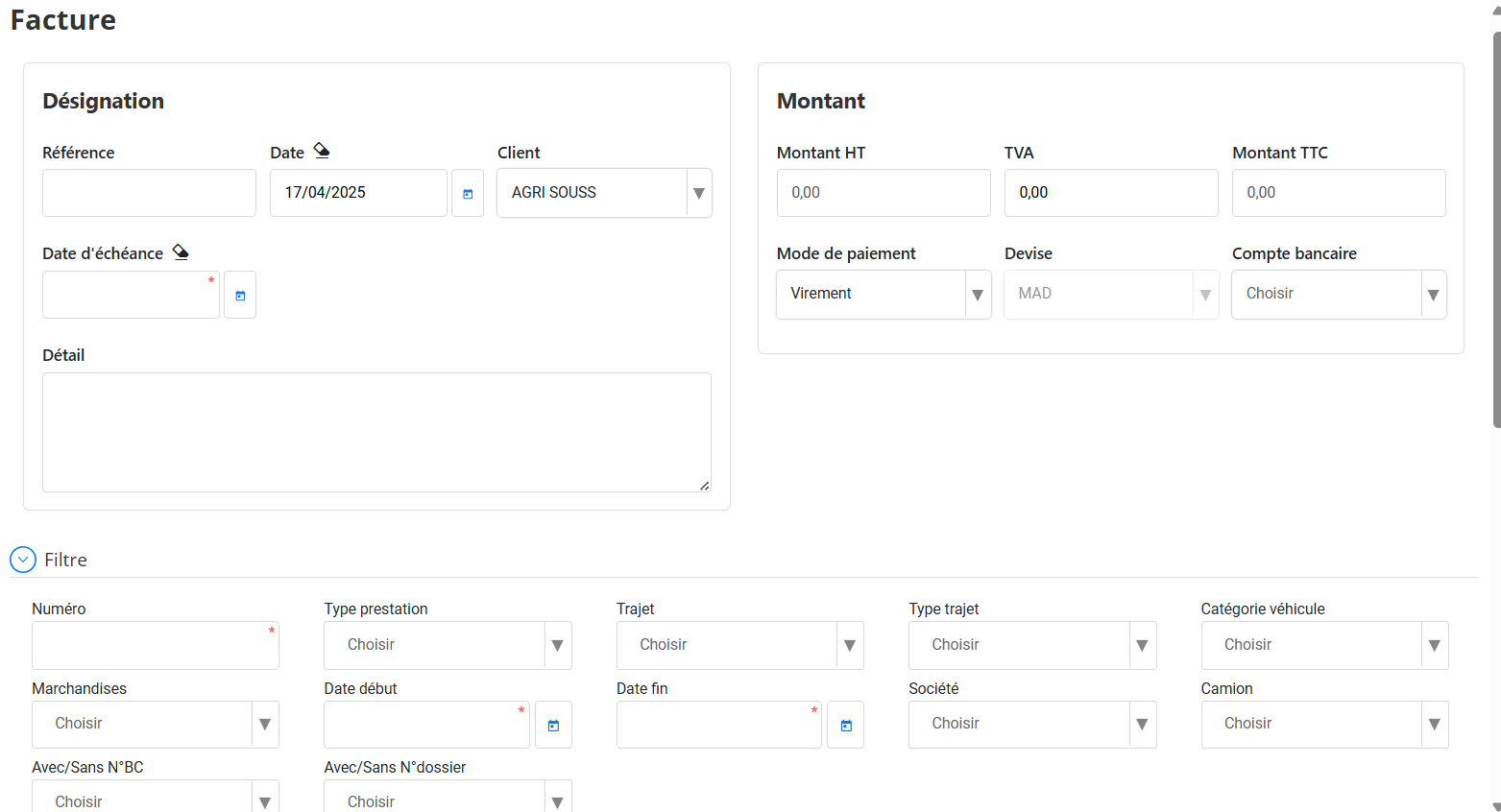
3. Filter trips to bill:
You can refine the list of trips displayed using the available filters:
Number, Type of service, Route
Trip type, Goods, Vehicle category
Start date / End date
Company, Truck
With/Without BC No. or File No.
4. Select the trips to bill:

At the bottom of the form, a list of unbilled trips for the selected customer is automatically displayed.
Action Detail
Check the trips you want to include in the invoice.
The Amount column displays the amount of each trip.
You can modify the exchange rate if necessary (for foreign currencies).
5. Save the invoice:
Once all fields are completed and trips selected, click the Save button.
A confirmation message will be displayed if the registration is successful.
After recording:
Billed trips will automatically be marked as “Billed” in their status.
They will no longer appear in the list of trips to be invoiced.
You can view the invoice at any time from the main list.
Additional functionality:
If you want to add a new invoice immediately afterwards, you can click "Save and add new".
Edit an existing invoice
The invoice management interface also allows you tomodify an invoice already created, whether to correct information, adjust amounts, or add/delete trips.
Steps to follow:
1. Access the list of invoices
-
From the main menu, go to the sectionInvoices.
-
A list of all saved invoices is displayed (with number, date, customer, amount...).
2. Select the invoice to modify

-
Search for the desired invoice using the filters available if necessary (customer, date, reference, etc.).
-
Click the button“To modify”or on thepencil iconto the left of the invoice line.
3. Changing information
Once in the modification form, you can:
Edit the following fields:
| Editable field | Detail |
|---|---|
| Reference | Change the reference if necessary |
| Date / Deadline | Update dates |
| Detail | Add comments or additional information |
| Payment method | Change the chosen method (Transfer, Cash, etc.) |
| Currency / Bank account | Adjust if necessary |
Edit billed trips:
-
You canadd or remove trips:
-
Ticka new trip not yet invoiced to add it to the invoice.
-
Unchecka trip already selected if you wish to remove it from the invoice.
-
-
The amounts are recalculated automatically.
All trips shown are thosenot yet billedfrom the same customer. Trips already billed in other invoices are not visible.
4. Save Changes
-
After making the desired changes, click“Save”.
-
An update confirmation is displayed.
After modification:
-
The invoice is updated with the new data.
-
Added trips move to“Invoiced” status.
-
Trips deleted from the invoice are returned to“Not billed” statusand may be included in another invoice.
Delete an invoice
It is possible to delete an invoice saved in the system, under certain conditions. This action allows you to completely cancel the invoice and release the trips associated with it.
Steps to delete an invoice:
1. Access the list of invoices
-
Depuis le menu principal, ouvrez la section Factures.
-
The list of all existing invoices is displayed with their details (reference, customer, amount, status, etc.).

2. Select the invoice to delete
-
Search for the invoice concerned (via filters if necessary).
-
Cliquez sur le bouton “Supprimer”ou sur l’icône poubelle située sur la ligne de la facture.
Attention: Vérifiez bien les informations de la facture avant suppression, car cette action est irréversible.
3. Confirmation of deletion
-
Une fenêtre de confirmations’affiche pour valider votre action.
-
Cliquez sur “Oui”ou “Confirmer”pour procéder à la suppression.
Après suppression :
-
La facture est définitivement supprimée du système.
-
Tous les voyages liés à cette factureseront automatiquement mis à jour avec le statut “Non facturé”.
-
These trips become available again for future billing.

