

Module · TMS
Management of transport orders
Management of transport orders
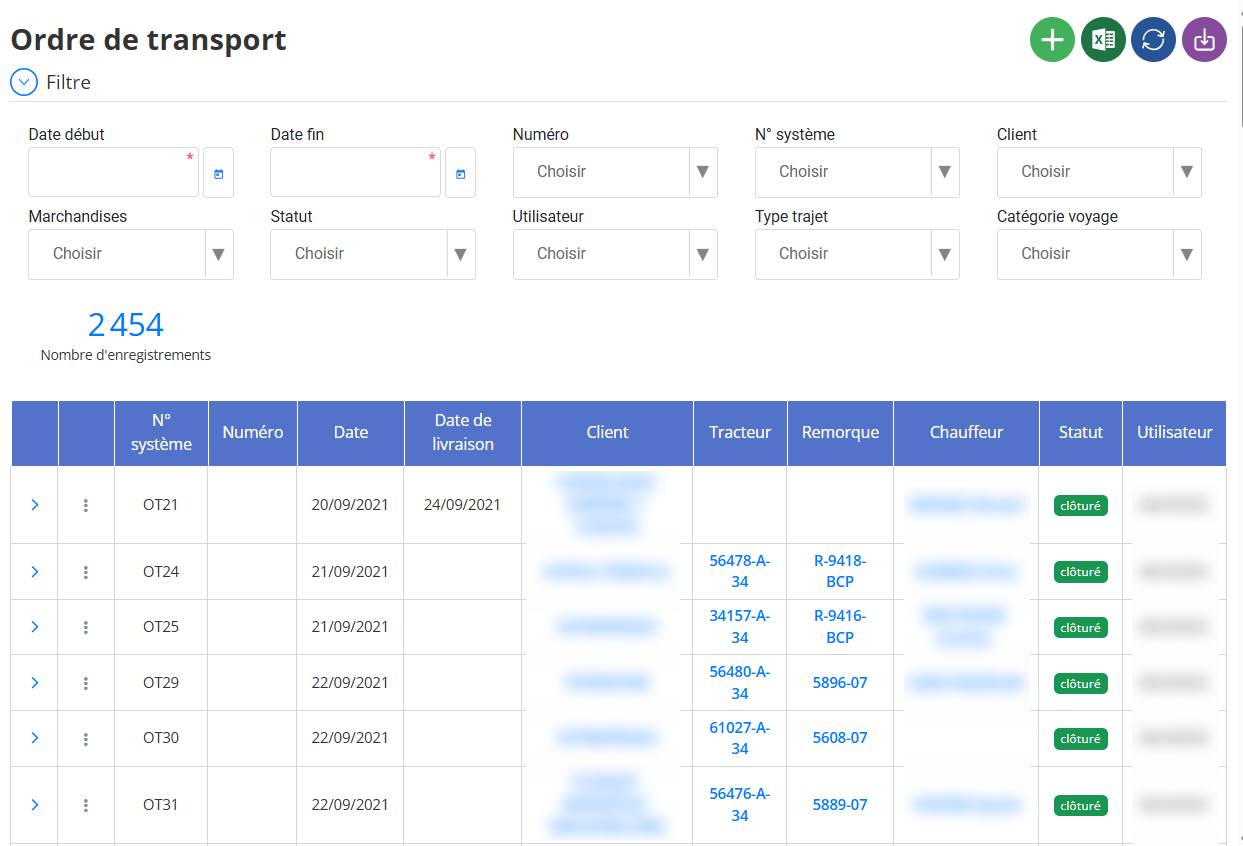
This interface allows you tomanage intuitively and centrallyall transport orders, whether in preparation, in progress or closed. It gives the possibility ofcreate, modify, view and deletea transport order while visualizing essential data such as customers, drivers, tractors, trailers, etc.
Adding a transport order
The addition of atransport orderis done through aform structured in several sections. It allows you to enter all the information necessary for logistics management: general data, goods, journeys, and freight forwarders. Here are the details:
1. Informations générales

This section contains the mandatory basic elements to fill in to create an order:
-
Numéro: Identifiant de l'ordre (généré automatiquement ou saisi manuellement).
-
Date: Date de création ou de départ de l’ordre.
-
Client: Customer benefiting from transport.
-
Route: General description of the planned route.
-
Type of journey: Example: national, international, round trip...
-
Travel category: Allows you to classify the type of transport (eg: refrigerated, express, groupage, etc.).
-
How: Free area to add internal notes or specific remarks.
2. Goods
This part allows you to addone or more goodsto transport. Each addition includes several detailed fields:

-
Reference
-
Merchandise
-
Customer
-
Import
-
Export
-
Category
-
Quantity+ Unit(e.g. kg, ton, unit, etc.)
-
Unit price (PU)
-
Big weight
-
Number of packages
-
Number of pallets
-
Pallet dimensions
-
Temperature(useful for fresh products)
-
Floor meter(space occupied in the vehicle)
-
Stackable / Non-stackable: Check boxes according to the characteristics.
-
Button“Register Merchandise”to save.
-
Button“Add”allows you to add several merchandise lines.
3. Journeys
An order can containone or more journeys. Each journey must contain the following information:

-
Departure location
-
Place of arrival
-
Departure date
-
Arrival date
-
Tractor
-
Trailer
-
Container(if applicable)
-
Subcontractor's tractor
-
Subcontractor trailer
-
Driver
-
Driver help
-
Driver bonuses
-
Driver assistance bonus
-
Starting mileage
-
End mileage
-
Button“Add”to insert multiple trips in a single order.
4. Freight forwarders
This section allows you to add the freight forwarders involved in the operation. You can recordone or more freight forwarderswith the following information:

-
Forwarding agent(name or company)
-
Phone
-
city
-
Contact(person's name)
-
Filing date(date on which the documents or goods are deposited)
-
Paper delivery date(date of return of papers or documents)
-
Button“Save Forwarder”.
-
Button“Add”to register multiple forwarders.
Finalization
Once all sections are completed:
-
Click on the button“Save”at the bottom of the form to validate the order.
-
If required fields are missing, an error message is displayed.
-
After saving, the transport order appears in thelist of orders.
Steps to modify a TO
Access the list of OTs:
Search for the OT to modify:
You can filter or scroll the list to find the relevant TO (for example:OT21, OT24, etc.).
Open actions menu:
-
To the left of the OT line, click on the iconwith three vertical points(⋮).

Choose the “Modify” option:
-
In the drop-down menu, clickTo modify.
-
A form will open with the details of the selected TO.
Effectuer les modifications nécessaires:
-
Vous pouvez modifier les champs comme la date, le client, le tracteur, la remorque, le chauffeur, etc.
Enregistrer:
-
Une fois les modifications effectuées, cliquez sur "Enregistrer"ou "Valider"pour sauvegarder les changements.
Remarques:
-
Only authorized users can modify a TO.
-
A TO marked as "closed" may sometimes be locked for editing depending on your system's rules.
Steps to consult an OT
Accéder au l'interface "Ordre de transport"
Depuis le menu principal, ouvrez l'interface "Ordre de transport".
Rechercher l’OT souhaité
Parcourez la liste ou utilisez la fonction "Filtre"pour retrouver rapidement l’OT à consulter (ex : OT21, OT24, etc.).
Open actions menu
-
À gauche de chaque ligne d'OT, cliquez sur l’icône à trois points verticaux(⋮).
Select “Consult”
-
Cliquez sur Consulterdans le menu déroulant.

-
A detailed form of the Transport Order will open.
View information
-
You will be able to see all the data linked to the OT: number, date, customer, tractor, trailer, driver, status, user, etc.
-
Cette fiche est en mode lecture seule, donc non modifiable.
Conseil pratique :
La consultation est utile pour vérifier les données sans risquer de les modifier par erreur.
Étapes pour supprimer un OT
Accéder au module "Ordre de transport"
Depuis le menu principal, ouvrez le module "Ordre de transport".
Rechercher l’OT à supprimer
Repérez dans la liste l’Ordre de Transport concerné (ex. : OT21, OT24, etc.).
Open actions menu
-
À gauche de la ligne de l’OT, cliquez sur l’icône à trois points verticaux(⋮).
Sélectionner "Supprimer"
-
Cliquez sur Supprimerdans le menu déroulant.

Confirmer la suppression
-
Une fenêtre de confirmationapparaîtra pour éviter une suppression accidentelle.
-
Cliquez sur "supprimer" pour valider.

Résultat
-
L’OT est retiré définitivement de la liste.
Attention :
La suppression est irréversible. Il est conseillé de consulter l’OT avant de le supprimer pour s'assurer qu'il n'est plus nécessaire.