Module · TMS
Free Invoice Management
Free Invoice Management
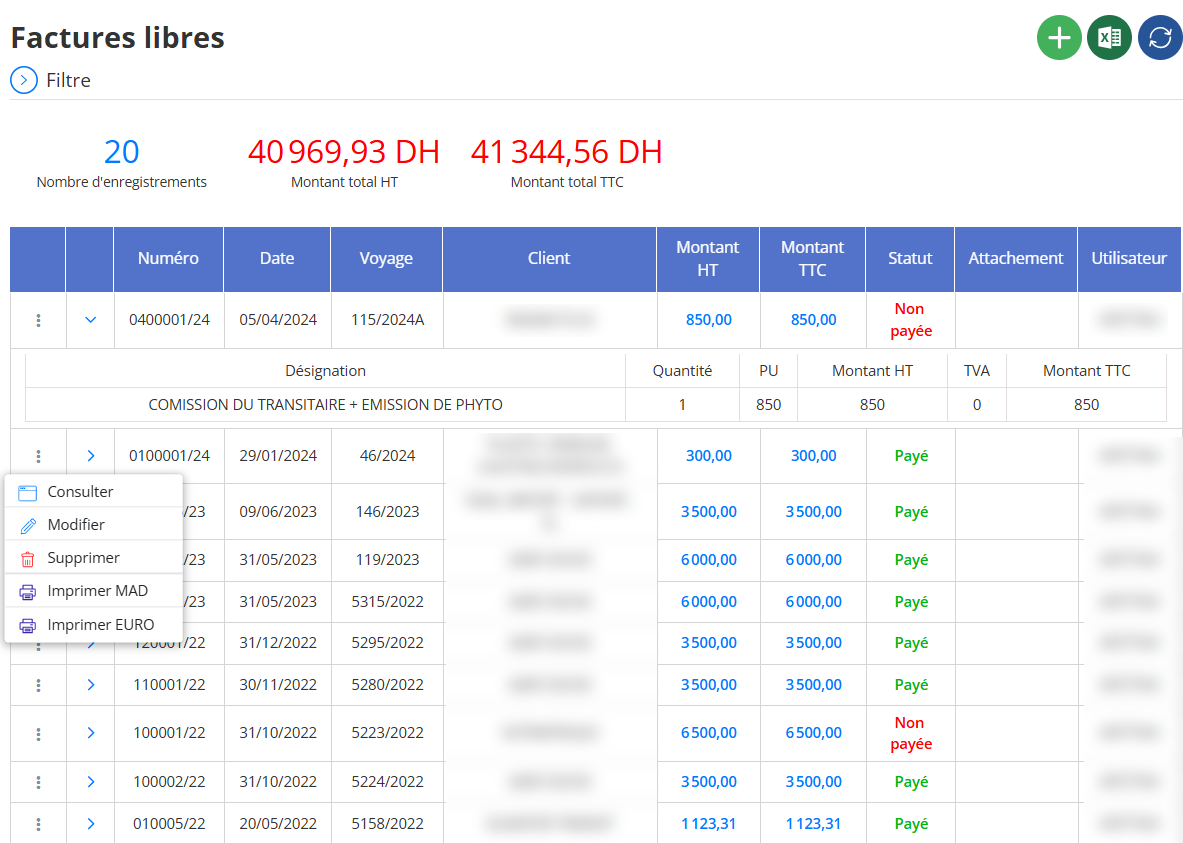
The interface offree invoicesallows you to manage invoices that are not directly linked to items such as trips or pre-recorded contracts. It offers atotal flexibilityto manually create and track any necessary invoices.
Add a free invoice
Addition steps
Access to the form
-
From the interface offree invoices, click on thegreen “+” buttontop right.

-
Aadd formopens to enter information for the new invoice.
Fields to complete in the form
General information:

-
Journey(optional): trip number if it exists.
-
Number(MANDATORY): unique invoice number.
-
Date: date of creation of the invoice.
-
Hour: automatic or manual time.
-
Customer(MANDATORY): choose an existing customer from the drop-down list.
-
Trailer(optional): select a trailer if concerned.
-
Due date(MANDATORY): expected settlement date.
-
Reference / Type(MANDATORY): type of invoice or internal reference.
-
CMR(MANDATORY): transport document reference.
-
Attachment: possibility ofattach a file(e.g. order form, PDF proof, etc.).
-
How: free field to add remarks.
Invoice details
In the section"Detail"down:
Click on thegreen buttonto add invoice lines.

For each line, enter:
-
Designation(MANDATORY): description of the service or product.
-
Quantity(MANDATORY): number of units.
-
Unit price(MANDATORY): price per unit.
-
Amount excluding tax: automatic or manual calculation.
-
VAT: rate applied.
-
Amount including tax(MANDATORY): total all taxes included.
You canadd multiple linesdepending on the content of your invoice.
Finalize the addition
Once all the fields have been completed and the documents have been added:
-
Click on the button“Save”at the bottom or top of the form.
-
The invoice will be saved in the list of free invoices.
Edit a free invoice
Editing steps
Access the list of free invoices
From the main menu, go to the interface“Free invoices”where all invoices already created are displayed.
Find the invoice to modify
-
Locate the line of the desired invoice in the table.
-
Click on thethree small vertical dotsto the left of the line.

Choose the “Modify” option
-
In the drop-down menu that appears, click on“To modify”(pencil icon).
Amendment form
A form similar to the add form opens.
You can now:
-
Edit information likedate, customer, reference, etc.
-
Add or removeattachments.
-
Update theBilling Information: quantities, prices, VAT, etc.
-
Add new lines or delete existing ones.
Save changes
-
Once the changes are complete, click“Save”to validate the invoice update.
Important note:
-
An invoice alreadypaid or validatedmay have certain modification restrictions according to the defined management rules.
View a free invoice
Steps to follow:
Access the “Free invoices” interface
Identify the invoice to consult
-
Parcours la liste des factures.
Tu peux utiliser le filtre(en haut à gauche) pour rechercher par :
-
Customer
-
Société
-
Number
-
Voyage
-
Utilisateur
-
Dates (start and end)
-
Status

Click on the three dots (︙)
-
À gauche de chaque ligne de facture, tu verras une icône ︙.
-
Click on it to display the context menu.
Choose “Consult”
-
Dans le menu qui s'affiche, clique sur "Consulter".
Cela ouvrira une fenêtre de consultationcontenant toutes les informations détailléesde la facture :
-
Header (number, customer, date, reference, etc.)
-
Details of the parts (designation, quantities, prices, VAT, amounts)
-
Attachments, comments, and status.
Bon à savoir:
La consultation permet uniquement la lecturedes informations. Tu ne peux rien modifier à partir de cet affichage.
Delete a free invoice
Steps to follow:
Accéder à l’interface "Factures libres"
Depuis le module de gestion des factures, ouvre l’onglet "Factures libres".
Identifier la facture à supprimer
Repère dans la liste la facture que tu souhaites supprimer.
Cliquer sur les trois points (︙)
À gauche de la ligne de la facture, clique sur l’icône ︙pour faire apparaître le menu d’actions.

Choisir "Supprimer"
Clique sur "Supprimer"dans le menu déroulant.
Confirmer la suppression
Une boîte de dialogue de confirmation apparaîtra. Clique sur "Supprimer" pour finaliser la suppression.

Attention :
-
Une facture déjà marquée comme "Payée" ne peut pas être suppriméedirectement.
-
Dans ce cas, tu dois d’abord aller dans le module Finance > Règlement client, puis annuler (décocher)le paiement.
-
Une fois que le statut redevient "Non payée", la facture pourra alors être supprimée.

