

Module · TMS
Management of credit invoices
Management of credit invoices
Therebill of creditis an accounting document issued by a company to correct, cancel or reimburse all or part of a previously issued customer invoice. It allows you to adjust invoicing in the event of an error, return of goods, commercial discount, or cancellation of services.
It plays an essential role in invoicing management and guarantees total transparency in commercial and accounting relations with clients.
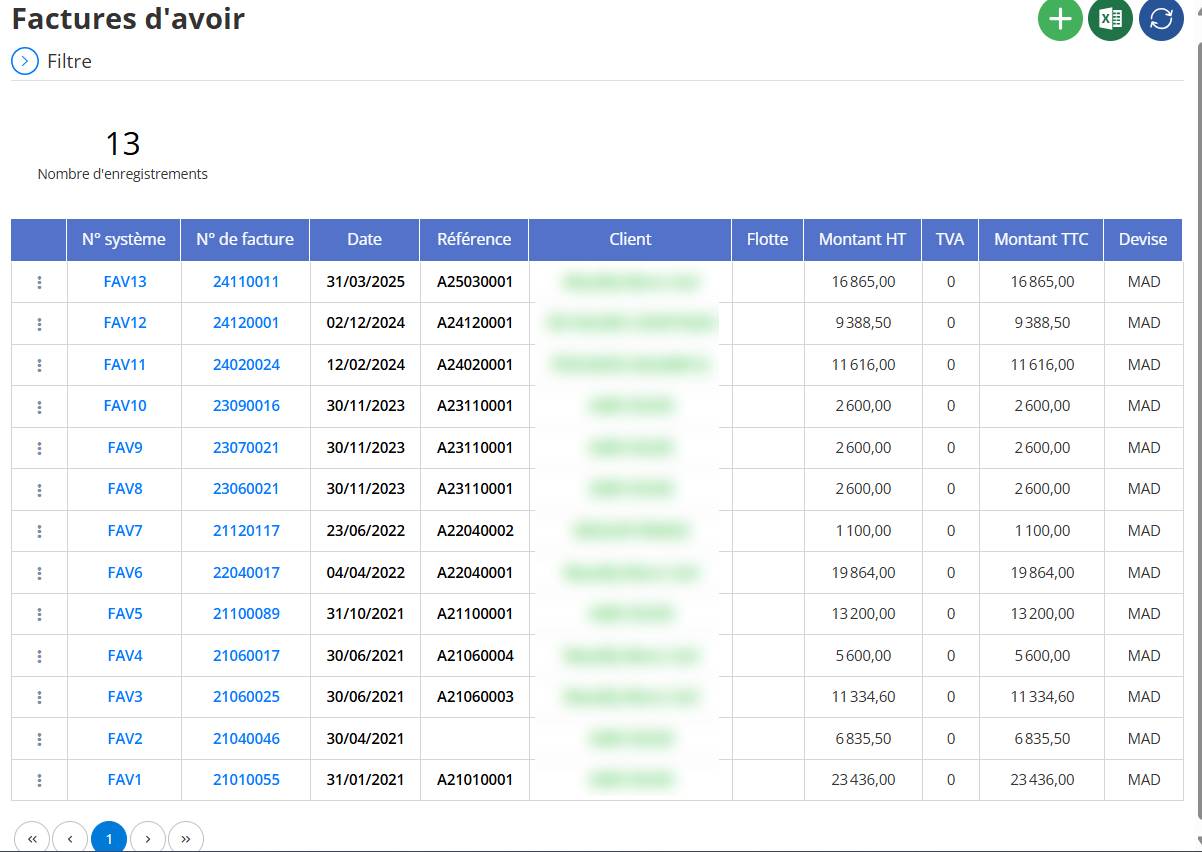
Typical use cases:
-
Correction of a billing error (incorrect amount, wrong quantity, etc.)
-
Return or refusal of goods by the customer
-
Cancellation of a benefit or service
-
Application of a discount or commercial credit
Add a credit invoice
To create a new credit invoice in the system, follow the following steps:
1. Click on the button« + »
From the credit invoice list interface, click on the green button« + »located at the top right.
This will open ainput formto create a new credit invoice.

2. Fill out the form information
The form is divided into two sections:DesignationAndAmount.
“Designation” section:
-
Invoice number: Select thenumber of the invoice concernedby this asset.
Once selected, customer information, fleet, date and related amounts will automatically appear.
-
Date: The date the credit note was issued (automatically pre-filled but modifiable if necessary).
-
Reference: Indicate a reference linked to this credit note invoice.
-
Customer: Retrieved automatically based on the chosen invoice.
-
Fleet: Also recovered according to the original invoice.
-
How: Free field for any additional observation or justification.

“Amount” section:
When you choose an invoice, the systemdisplays a line containing the invoice date and the amount to be paid.
-
You can thenchoose or adjust the amount of the creditfrom this line.
-
The fieldsAmount excluding VAT, VAT and Amount including taxareretrieved automatically, but can be adjusted according to the actual amount to be refunded or corrected.
-
Currency: Select the currency used in the credit note invoice (eg: MAD, EUR...).
3. Save the invoice
Once all the information has been verified or completed, click on“Save”to validate the addition of the credit note invoice.
Delete a credit invoice
Delete a credit invoice
Deleting a credit note invoice can be done easily fromcredit invoice interface.
Filtering and searching
Before deleting an invoice, you canuse the filter systemlocated at the top of the interface to quickly find the desired invoice.
It is possible tosearch by:
-
Invoice number
-
Customer Name
-
Date
-
Amount
This saves time and makes it easy to locate the entry to delete.
Steps to remove:
-
Access the credit invoice interface
From the list of credit note invoices, locate the line of the invoice to delete.
-
Click on the three vertical dots⋮
On the relevant line, clickthe ⋮ iconto open the context menu.

-
Choose the “Delete” option
Click on“DELETE”in the drop-down menu.
Confirm deletion

A confirmation window appears. Click on“DELETE”to validate.
Notes:
-
Once deleted,the invoice cannot be collected.
-
Deletion can beblocked if the invoice is linkedto other elements (e.g.: a trip closure already validated).