

Module · Admin
Import/Export Agréments
Import/Export Agréments
L'importation en masse et l'exportation des données des agréments offrent des solutions pratiques et performantes pour une gestion centralisée et efficace des autorisations administratives liées aux véhicules.
L'importation en masse permet d'ajouter simultanément plusieurs agréments dans le système à l'aide d'un fichier préformaté. Cette méthode simplifie et accélère considérablement le processus de saisie des informations, tout en minimisant les risques d'erreurs. Les gestionnaires peuvent ainsi assurer une mise à jour rapide et précise des données, tout en respectant les exigences du système. Cela permet de consacrer plus de temps à des activités stratégiques, tout en maintenant une gestion conforme et fluide des agréments.
L'exportation des données, quant à elle, fournit un fichier consolidé regroupant toutes les informations clés des agréments, comme les numéros d’autorisation, les dates de validité et les documents associés. Disponible dans des formats standards comme CSV ou Excel, cette fonctionnalité offre une vue d'ensemble structurée, facilitant l’analyse, le suivi et la planification des renouvellements. Elle s'avère particulièrement utile lors de la préparation d'audits ou pour le partage des informations avec les responsables administratifs, les gestionnaires de flottes ou les partenaires externes.
En combinant ces deux outils, les entreprises peuvent non seulement optimiser la gestion des agréments de leurs véhicules, mais également garantir une conformité continue, une meilleure traçabilité et une prise de décision éclairée grâce à des données fiables et centralisées.
Importation en masse des agréments
L'importation en masse des agréments offre aux utilisateurs une méthode efficace pour ajouter plusieurs agréments dans le système en une seule opération, à l'aide d'un fichier préformaté. Cette fonctionnalité est particulièrement utile pour les entreprises ou gestionnaires de flottes de véhicules qui gèrent de nombreux agréments et souhaitent les intégrer rapidement et avec précision.
En permettant de télécharger un fichier contenant toutes les informations nécessaires pour chaque agrément, cette méthode simplifie le processus d’ajout. Elle réduit considérablement le temps de saisie manuelle et garantit une mise à jour rapide et cohérente des données des véhicules. Ainsi, les gestionnaires peuvent se concentrer sur des activités stratégiques tout en assurant une gestion fluide et conforme des agréments.
Cette méthode est intuitive et garantit que les données sont ajoutées de manière uniforme et conforme aux normes du système.
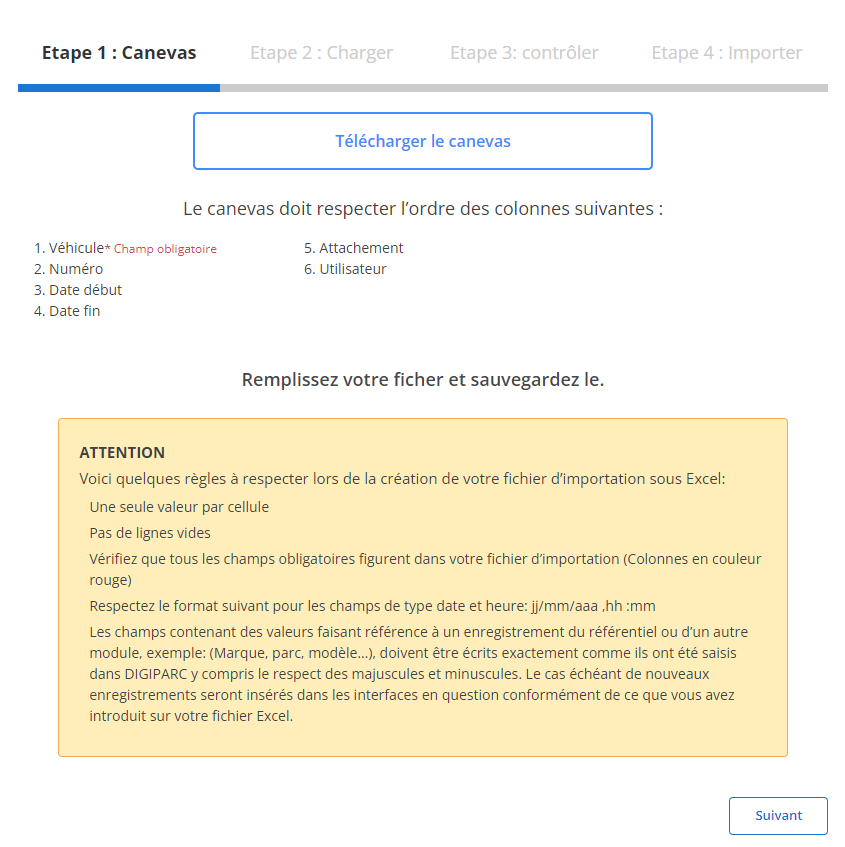
Étape 1 : Télécharger et préparer le fichier modèle
Avant de commencer l'importation, vous devez télécharger un fichier modèle conçu spécifiquement pour faciliter cette tâche. Ce fichier contient des colonnes prédéfinies qu'il est impératif de respecter pour assurer une importation fluide.
-
Téléchargez le modèle:
Le fichier modèle est accessible via l’interface utilisateur. Il inclut des colonnes nécessaires et chaque colonne doit être remplie avec précision.
-
Respectez les exigences des colonnes:
Les champs suivants sont obligatoires :
- Véhicule(obligatoire)
-
Préparez votre fichier:
- Vérifiez qu’il n’y ait qu’une seule valeur par cellule.
- Supprimez les lignes vides pour éviter les erreurs lors du chargement.
- Assurez-vous que les dates sont au format requis (jj/mm/aaaa).
- Remplissez toutes les colonnes obligatoires, car une absence ou une erreur dans ces champs entraînera un échec de l'importation.
Étape 2 : Charger le fichier des agréments
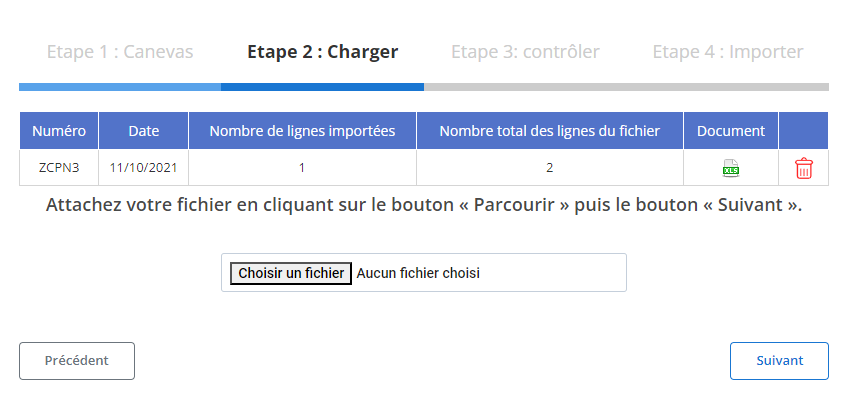
Une fois le fichier préparé, passez à son chargement dans le système.
-
Sélectionnez le fichier:
Cliquez sur le bouton "Parcourir" pour localiser le fichier sur votre appareil et sélectionnez-le.
-
Lancez le processus d'importation:
Une fois le fichier choisi, cliquez sur "Suivant" pour commencer l’analyse et le traitement des données. Le système analysera le fichier et affichera un récapitulatif des informations.
-
Vérifiez le récapitulatif des données:
- Le système affichera le nombre total de lignes contenues dans le fichier.
- Il mettra également en évidence les lignes prêtes pour l’importation et celles qui contiennent des erreurs.
Étape 3 : Vérification des données importées
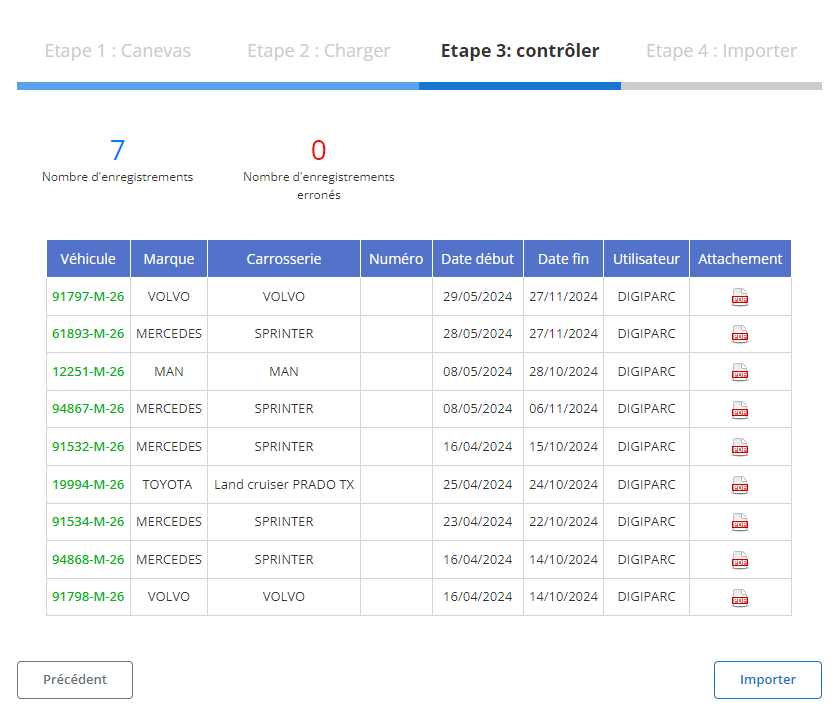
Une fois le fichier chargé, un tableau récapitulatif s’affiche avec les enregistrements extraits. Cette étape est cruciale pour valider les informations avant l’importation finale.
-
Contrôlez les erreurs signalées:
- Le système identifie et met en évidence les erreurs dans les champs obligatoires ou les formats de données.
- Vous pourrez corriger directement les erreurs signalées ou modifier les données dans le fichier source.
-
Validez les enregistrements conformes:
Les lignes sans erreur sont marquées comme prêtes à être importées. Vous pouvez les examiner pour valider les informations telles que :
- Véhicule
- Numéro
- Date débutetDate fin
- AttachementetUtilisateur
Étape 4 : Finaliser l'importation des agréments
Une fois les données vérifiées et corrigées, vous pouvez procéder à l'importation définitive.
-
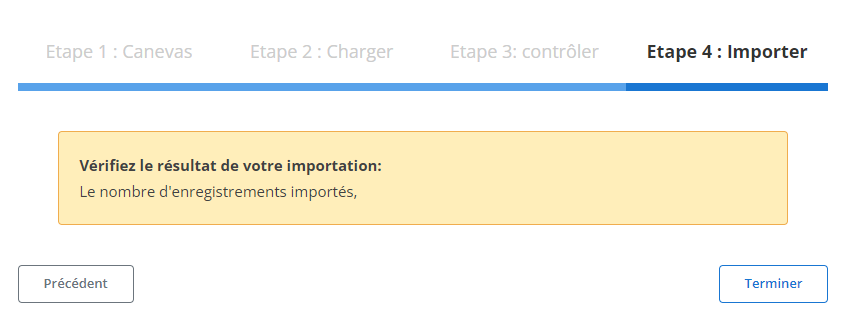
Cliquez sur "Importer":
Cela ajoute toutes les données validées à la base de données.
-
Confirmation d'importation:
Un message s’affiche pour indiquer que l'importation a été effectuée avec succès et que les agréments ont été ajoutés au système.
Grâce à ce processus structuré, l’importation des agréments devient rapide et précise. Les gestionnaires de flottes gagnent un temps précieux et minimisent les risques d’erreurs. Toutes les informations des agréments sont centralisées dans le système, permettant un suivi efficace et une gestion rigoureuse des véhicules et des documents associés.
Exportation des Données des Agréments
L’exportation des données relatives aux agréments offre un outil incontournable pour le suivi et la gestion des autorisations administratives associées aux véhicules. Ce fichier regroupe des informations essentielles, telles que les numéros d’agrément, les dates de validité, et les documents d’attachement, dans un format structuré, compatible avec des outils standards comme CSV ou Excel. Cette capacité d’extraction permet de disposer d’une vue complète et organisée de la gestion des agréments, garantissant une conformité continue et une gestion efficace des flottes de véhicules.
L’intérêt principal de cette fonctionnalité réside dans sa capacité à centraliser et structurer des informations souvent éparpillées. Que ce soit pour planifier les renouvellements, analyser les durées de validité ou préparer des audits internes, l’exportation des données facilite toutes les étapes de gestion des agréments. En rendant ces informations accessibles à différentes parties prenantes, comme les responsables administratifs, les gestionnaires de flottes ou les prestataires externes, elle assure une communication fluide et une prise de décision basée sur des données fiables.
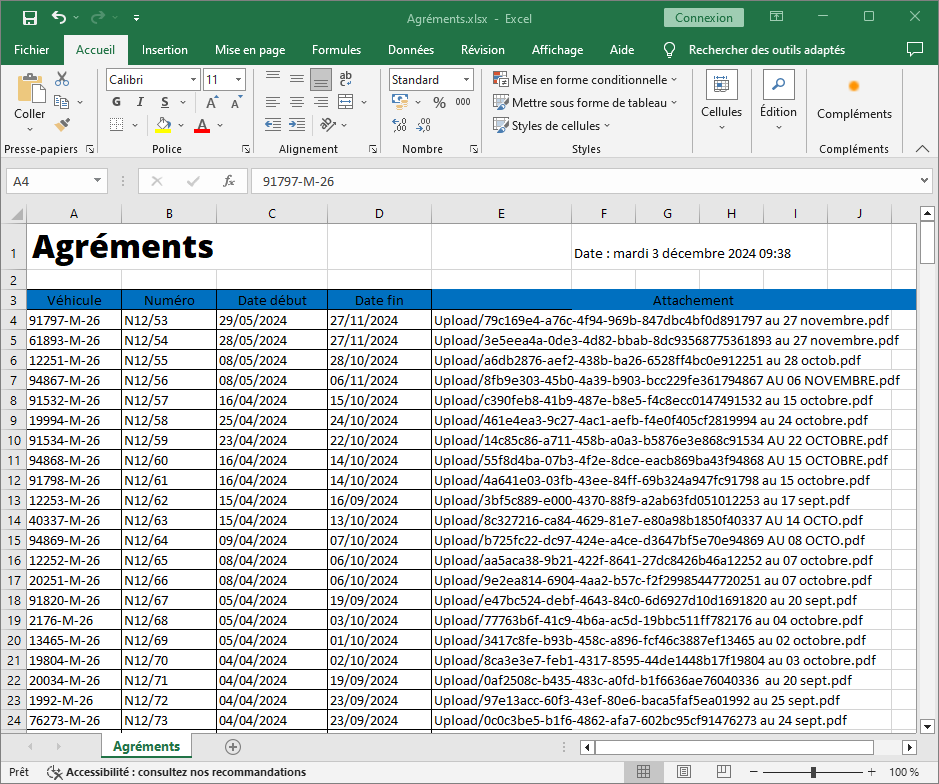
Détails des Données Exportées
Le fichier exporté inclut les colonnes suivantes, qui offrent une vision claire et exhaustive de chaque agrément :
-
Véhicule: Cette colonne recense les véhicules concernés par les agréments, en précisant leurs identifiants uniques ou leurs caractéristiques principales. Cela permet de suivre les autorisations en lien direct avec chaque véhicule, évitant les confusions ou les omissions.
-
Numéro: Le numéro de l’agrément est une information clé, garantissant la traçabilité et l’identification rapide des autorisations, notamment lors des vérifications ou des audits.
-
Date Début: Cette donnée indique le début de la période de validité de chaque agrément, offrant une vue chronologique et facilitant la planification des renouvellements nécessaires.
-
Date Fin: La date d’expiration est un indicateur critique pour gérer efficacement les échéances administratives et prévenir les situations de non-conformité, notamment en matière d’utilisation des véhicules.
-
Attachement: Cette colonne contient les liens ou références aux documents associés à chaque agrément (ex. : fichiers PDF, certificats scannés). Ces pièces jointes permettent d’avoir un accès immédiat aux preuves de conformité ou aux détails complémentaires requis.
L’exportation des données des agréments est un levier puissant pour les entreprises soucieuses de maintenir la conformité de leur flotte tout en rationalisant leurs processus administratifs. En offrant une vue détaillée, organisée et facilement exploitable, cette fonctionnalité permet d’assurer une gestion plus fluide des autorisations et de minimiser les risques liés aux manquements administratifs. De la planification des renouvellements à la préparation des audits, elle constitue un outil essentiel pour une gestion proactive et efficace des agréments.