Module · Admin
Import/Export Notebooks
Import/Export Notebooks
Bulk import and export of metrological notebook data are essential tools to optimize the management of measuring equipment and vehicles within a fleet.
Bulk import allows multiple records to be quickly brought into the system using a preformatted file. This method significantly reduces the time spent on manual entry while minimizing errors. It guarantees accurate and consistent updating of metrological notebooks, allowing managers to focus on strategic tasks and ensuring efficient and compliant data management.
Data export, for its part, offers the possibility of grouping all the essential information from metrological notebooks, such as equipment details, periods of use, users concerned and associated costs, in a structured file. Available in standard formats like CSV or Excel, this functionality facilitates analysis, historical tracking and sharing of data with stakeholders, such as fleet managers, auditors or financial departments. It also supports decision-making processes by providing a consolidated view of performance and needs.
By combining these two features, managers benefit from a comprehensive solution to effectively track, analyze and plan their fleet's metrology activities, while ensuring compliance and data transparency.
Mass import of metrological notebooks
Bulk import of metrology notebooks provides users with an efficient method to add multiple records simultaneously into the system, using a preformatted file. This functionality is particularly useful for companies or fleet managers who manage many vehicles and want to integrate metrological data quickly and without errors.
By allowing you to upload a file containing all the necessary information, this feature simplifies the addition process and significantly reduces manual entry time. It also guarantees consistent and accurate updating of metrological notebooks, allowing managers to focus on strategic tasks while ensuring effective data management.
This method ensures that all information complies with system standards and makes it easier to track and update data regularly.
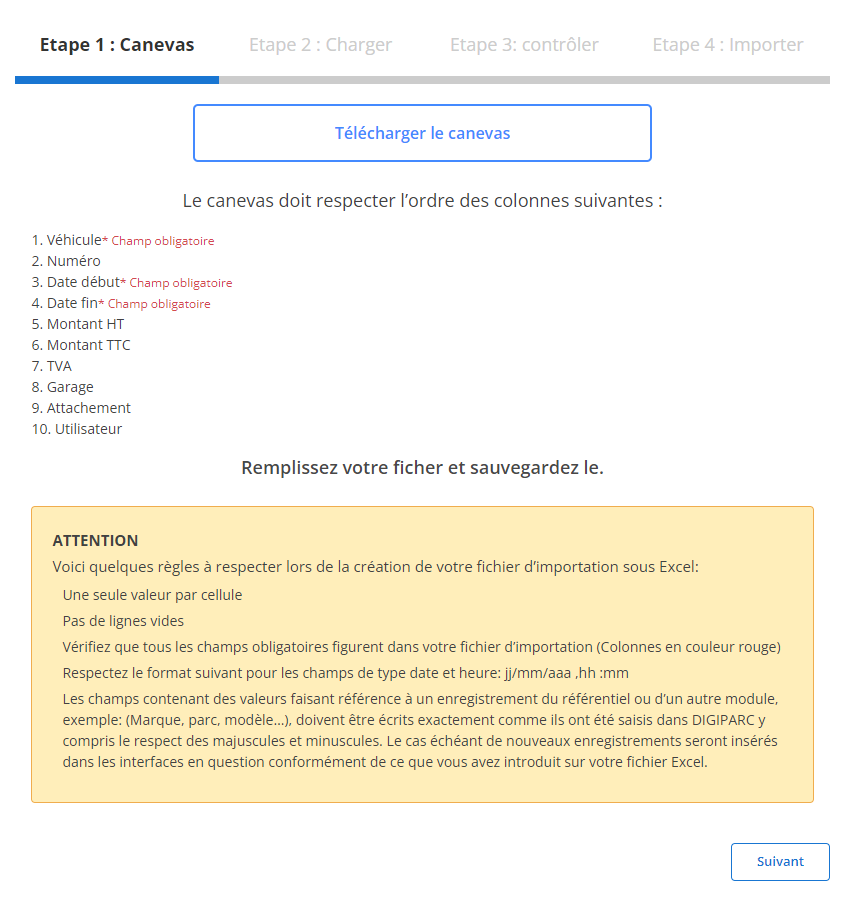
Step 1: Download and prepare the template file
Before starting the import, it is necessary to download a template file designed specifically for this task. This file contains predefined columns that must be respected to ensure a smooth and error-free import.
-
Download the template:
The template file is accessible through the user interface. It includes all necessary columns, and each column must be completed accurately.
-
Meet column requirements:
The required fields are:
- vehicle
- Start date
- End date
-
Prepare your file:
- Make sure there is only one value per cell.
- Remove empty lines to avoid errors during import.
- Verify that the dates are in the required format (dd/mm/yyyy).
- Complete all required fields for each row, as a lack or error in these fields will cause the import to fail.
Step 2: Load the metrological notebooks file
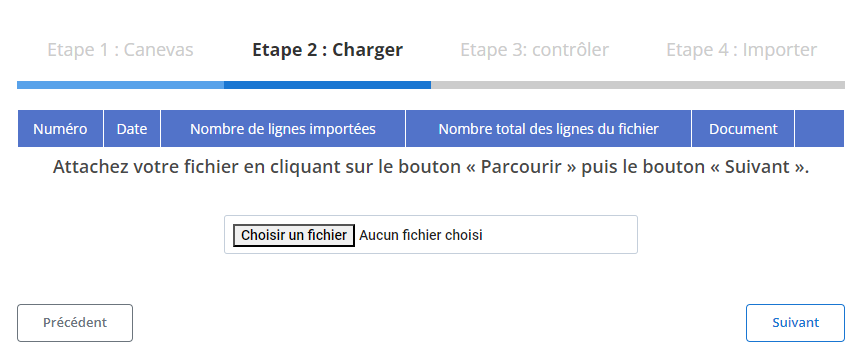
Once the file is properly prepared, proceed to loading it into the system.
-
Select file:
Click the “Browse” button to locate the file on your device and select it.
-
Start loading:
Once the file is chosen, click "Next" to begin analyzing and processing the data. The system will analyze the file and display a summary of the information.
-
Check the data summary:
- The system will display the total number of lines in the file.
- It will also show the number of lines ready for import and those that contain errors requiring correction.
Step 3: Verifying the imported data
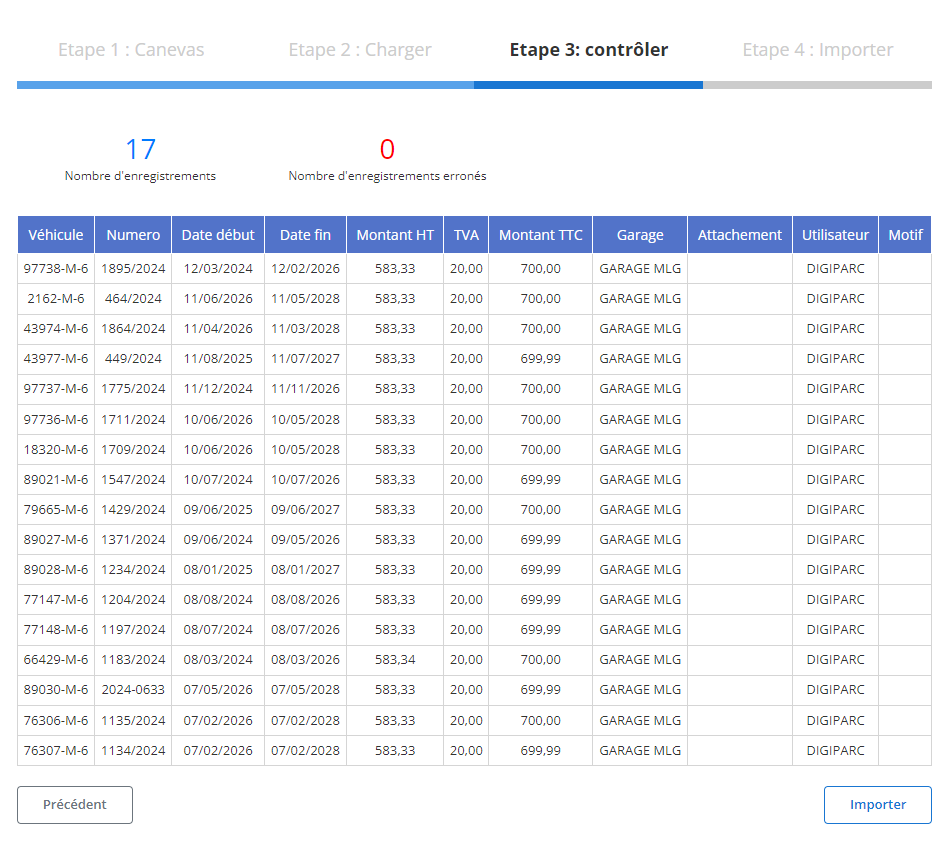
After loading the file, a summary table is displayed with all the extracted records. At this stage, it is crucial to validate the information before final import.
-
Check reported errors:
- The system will highlight missing required fields or incorrect formats (for example, a date in the wrong format or an empty field).
- You can correct errors in the source file or directly in the interface depending on the options available.
-
Validate correct records:
Rows without errors will be marked as ready to import. Review the fields for accuracy, including:
- vehicle
- Start dateAndEnd date
- Amount excluding tax, VAT, AndAmount including tax
- Garage, Attachment, AndUser
Step 4: Finalize the import of metrological notebooks
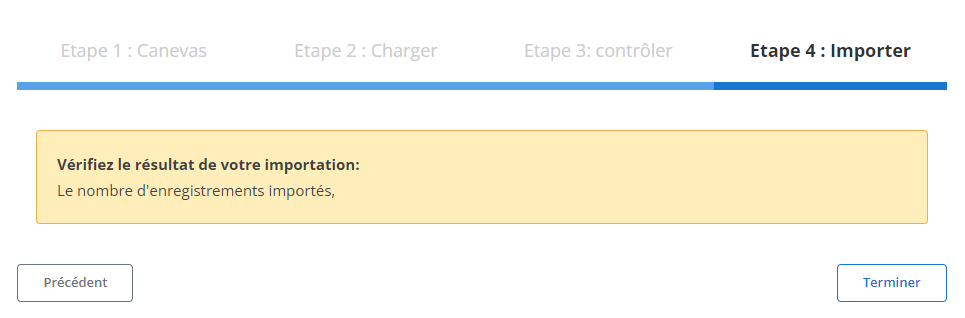
Once the data has been verified and corrected, you can proceed with the final import.
-
Click "Import":
This will validate the addition of data to the system.
-
Import confirmation:
A confirmation message will be displayed to indicate that the import was successful and the records have been added to the metrological notebook.
This structured import process saves managers time and reduces the risk of errors. The information is accurately and consistently integrated into the system, ensuring efficient monitoring of metrological notebooks. The centralized data provides a clear overview and facilitates the management of vehicles and their metrological readings.
Export of metrological notebook data
Exporting data from metrological notebooks is an essential step in the efficient management of measuring equipment and vehicles in a fleet. This functionality makes it possible to generate a complete file bringing together all the key information, such as equipment details, associated amounts, periods of use and the users concerned. Thanks to standard formats such as CSV or Excel, this data can be easily used to analyze and monitor the metrological history of each vehicle or equipment.
This export capacity plays a central role in optimizing administrative processes. It allows managers to have a consolidated view and analyze indicators such as costs, duration of use and changing needs. This exported file becomes a versatile tool that can be shared with various stakeholders, such as fleet managers, auditors or financial departments, to ensure full transparency and informed decision-making.
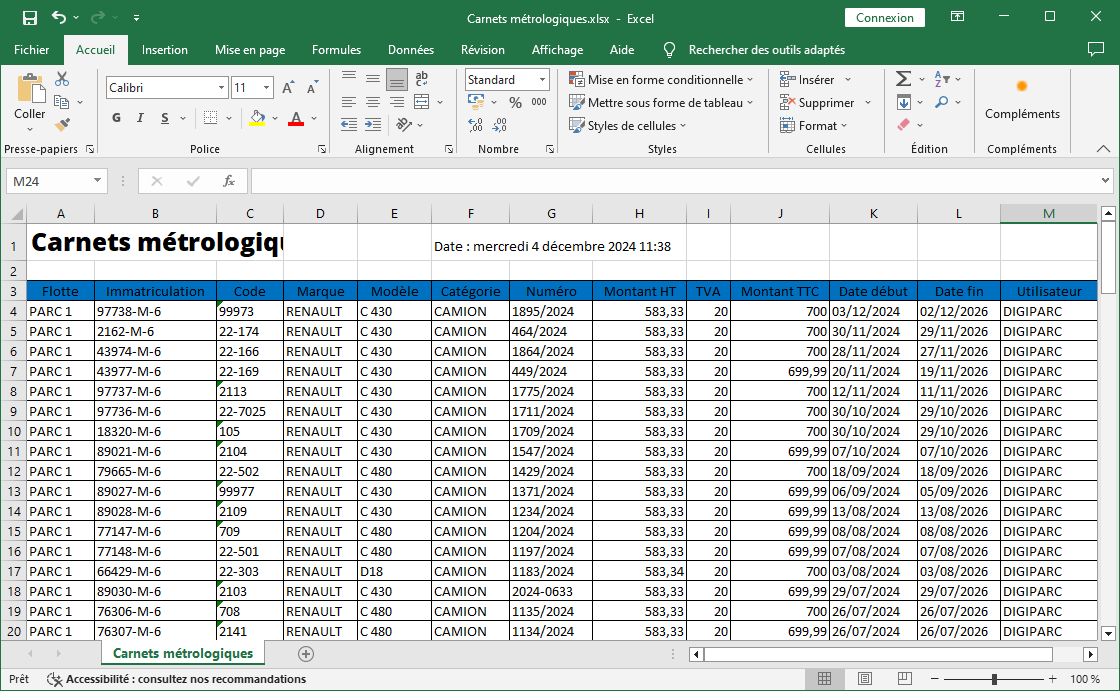
The generated file includes the following columns, providing a clear and structured view of metrological information:
-
Fleet: This column identifies the fleet to which the equipment or vehicle belongs, allowing the data to be classified according to the operational or geographic divisions of the company.
-
Registration: The registration of the vehicle concerned is mentioned to ensure precise traceability and facilitate research on specific vehicles.
-
Code: The unique code associated with each metrological element or equipment is included to ensure rapid identification and avoid duplicates.
-
Brand and Model: These columns detail the make and model of the equipment or vehicle, providing additional clarity on technical or commercial characteristics.
-
Category: This data classifies items according to their type or function (e.g.: utility vehicle, specialized equipment), providing a better organized overview.
-
Number: The specific identification number of the equipment, often linked to metrological inspections or certifications, is added to facilitate audits and verifications.
-
Amount excluding VAT, VAT, and Amount including tax: These columns present the detailed costs, distinguishing the amount excluding taxes, the value added tax and the total amount, for rigorous accounting management.
-
Start Date and End Date: This information makes it possible to monitor the period of use or validity, essential for planning maintenance, renewals or recalibrations.
-
User: This column identifies the user responsible or in charge of the equipment during the relevant period, reinforcing traceability and individual responsibility.
The export of metrological notebooks is an essential asset for companies wishing to efficiently manage their equipment and their fleet. By providing clear, detailed and ready-to-use data, this functionality increases transparency, improves planning and simplifies financial and administrative processes. Whether to ensure metrological compliance, analyze costs or plan interventions, it constitutes an essential pillar of modern resource management.

