Module · Admin
Import/Export Thumbnails
Import/Export Thumbnails
Mass import of stickers and export of sticker data offer fleet managers a complete solution to optimize the administrative and financial management of their vehicles' stickers.
Bulk import allows you to add multiple thumbnails to the system in a single operation, using a preformatted file. This feature greatly simplifies the process of adding thumbnails, reducing manual entry time and minimizing the risk of errors. Managers can thus effectively manage the stickers associated with vehicles, while ensuring rapid and accurate updating of this information.
On the other hand, exporting vignette data allows you to group all important information related to vignettes (amounts, validity dates, users and vehicles) into a consolidated file, in CSV or Excel format. This feature provides a comprehensive overview of sticker coverages, making it easy to track, analyze and share information with different stakeholders, such as fleet managers, accounting departments or external partners. It also allows you to better plan renewals, track expenses and ensure vehicle regulatory compliance.
By combining these two functionalities, fleet managers benefit from smooth and transparent management of vignettes, while simplifying decision-making and ensuring proactive and compliant management of vignettes associated with vehicles.
Bulk import of thumbnails
Bulk thumbnail import provides users with a simple and efficient method to add multiple thumbnails into the system in a single operation, using a preformatted file. This functionality is particularly useful for companies or vehicle fleet managers who have to manage numerous stickers and wish to integrate them quickly and without errors.
With the ability to upload a file containing all the necessary information for each thumbnail, this method greatly simplifies the adding process. It reduces the time spent on manual data entry and ensures rapid and accurate updating of stickers associated with vehicles. This way, managers can focus on higher value-added tasks while ensuring optimal and up-to-date management of vignettes.
This import method is easy to use and ensures that all stickers are added consistently and according to system requirements.
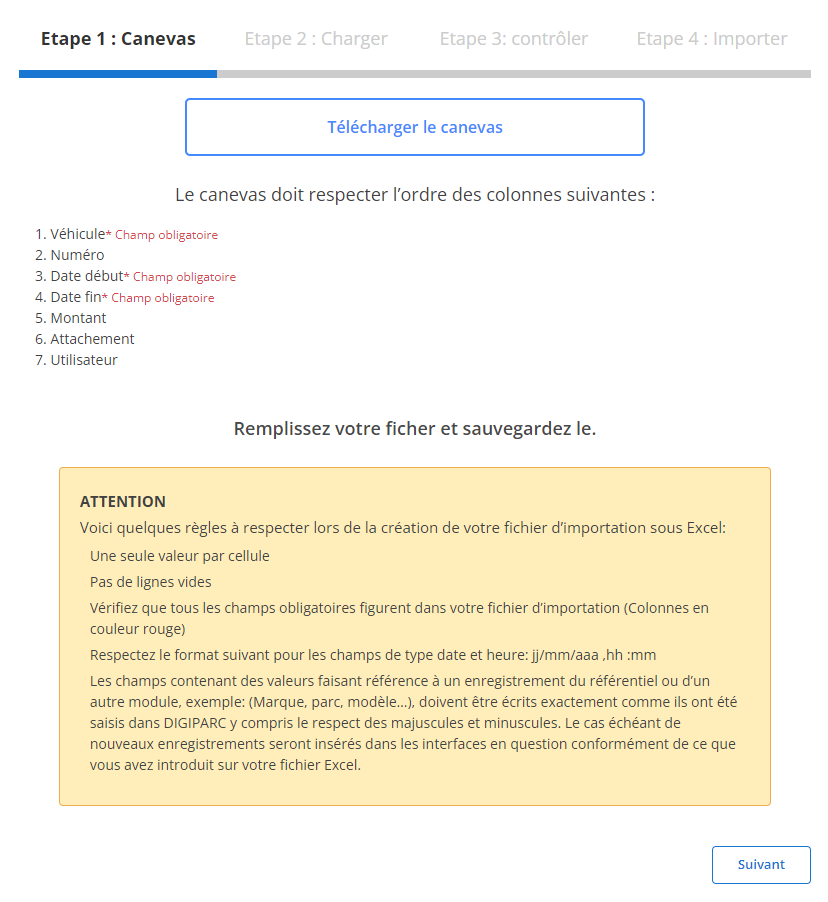
Step 1: Download and prepare the template file
Before you begin importing, you must first download a template file designed specifically for this task. This file contains predefined columns that must be respected to ensure a smooth and error-free import.
-
Download the template:
The model file is easily accessible through the interface. It includes mandatory and optional columns, and each column must be completed in a specific order.
-
Meet column requirements:
The following fields are required for each line:
- vehicle(MANDATORY)
- Start date(MANDATORY)
- End date(MANDATORY)
-
Prepare your file:
- Make sure there is only one value per cell.
- Avoid blank lines in the middle of the file.
- Verify that the dates follow the required format (dd/mm/yyyy).
- Complete all required fields to avoid import errors.
Step 2: Load the thumbnail file
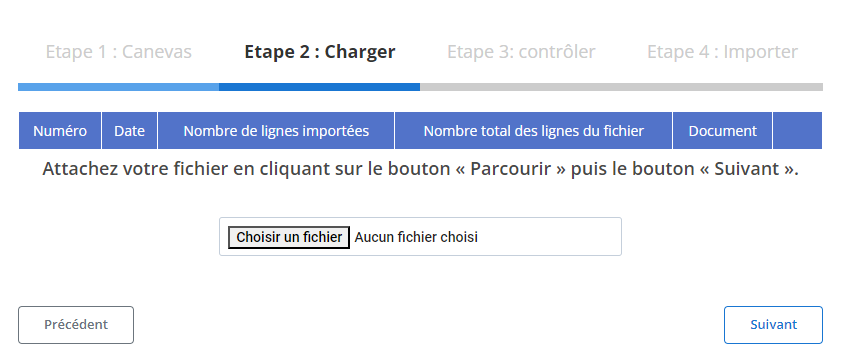
Once the file is properly prepared, you can move on to the next step: loading the file into the system.
-
Select file:
Click the "Browse" button to locate the file on your device, then select it.
-
Start the import process:
After selecting the file, click "Next" to start loading the data. The system will analyze the information contained in the file and display a summary.
-
Check the data summary:
- Total number of lines in the file.
- Number of rows ready to be imported.
- Number of lines with errors to correct.
Step 3: Verifying the imported data
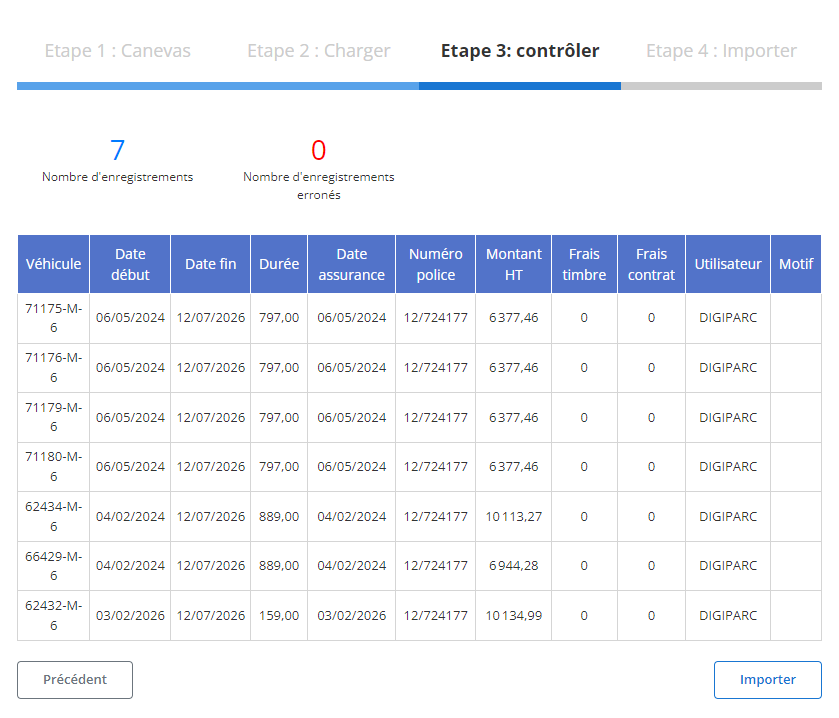
After loading the file, a summary table is displayed with the records extracted from the file. At this stage, it is essential to verify that all data is compliant.
-
Check reported errors:
- The system will highlight any potential errors, such as missing values in required fields or incorrect formats (for example, a missing or incorrectly formatted date).
- You can then modify or complete the data directly.
-
Validate correct records:
Rows without errors will be marked as ready for import. You will be able to review each field to ensure the information is compliant, such as:
- vehicle
- Number
- Amount
- Start date, End date
- Attachment, Utilisateur, Motif
Step 4: Finalize the thumbnail import
Once the data has been verified and corrected, you can proceed to the final import of the stickers into the system.
-
Click "Import":
This will validate the data and add the thumbnails to the database.
-
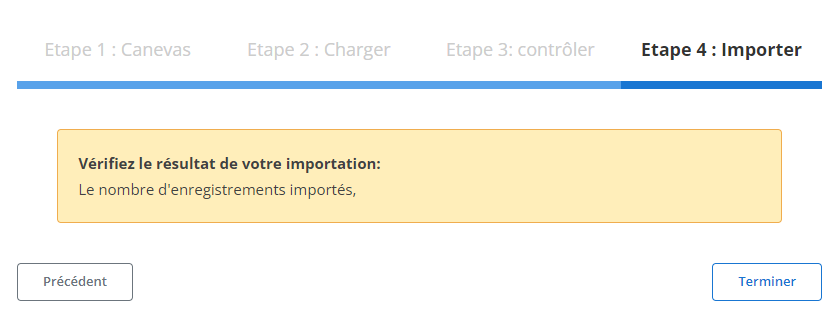
Confirmation d'importation:
A confirmation message will appear to indicate that the import was successful, and that all thumbnails were added correctly.
This structured process allows managers to save time and reduce errors when mass importing stickers. Thanks to this method, information is integrated in a precise and coherent manner, thus ensuring efficient management of vignettes and rigorous monitoring of vehicles and associated payments.
Exporting thumbnail data
The export of data relating to vignettes constitutes an essential tool for the management and monitoring of administrative information linked to vehicles, in particular that relating to their registration and regulatory compliance. This file, available in common formats like CSV or Excel, brings together all the crucial information regarding the stickers, such as fee amounts, validity dates, as well as user and vehicle information. This process allows those responsible for fleet management and administrative teams to have a complete and clear vision of the status of sticker coverage.
This functionality is particularly useful for companies wishing to optimize their cost management and ensure the compliance of their vehicles. With this export, data relating to each sticker can be easily tracked, analyzed and shared with different stakeholders, such as fleet managers, accounting departments or external partners. This simplifies decision-making, allowing for more efficient management and better planning of renewals.
The information extracted from the system also provides increased transparency, making it easier to track sticker spending and identify upcoming expiration or renewal periods. In the event of a check or audit, exporting this data ensures that all necessary documents are available and up to date, simplifying internal and external checks.
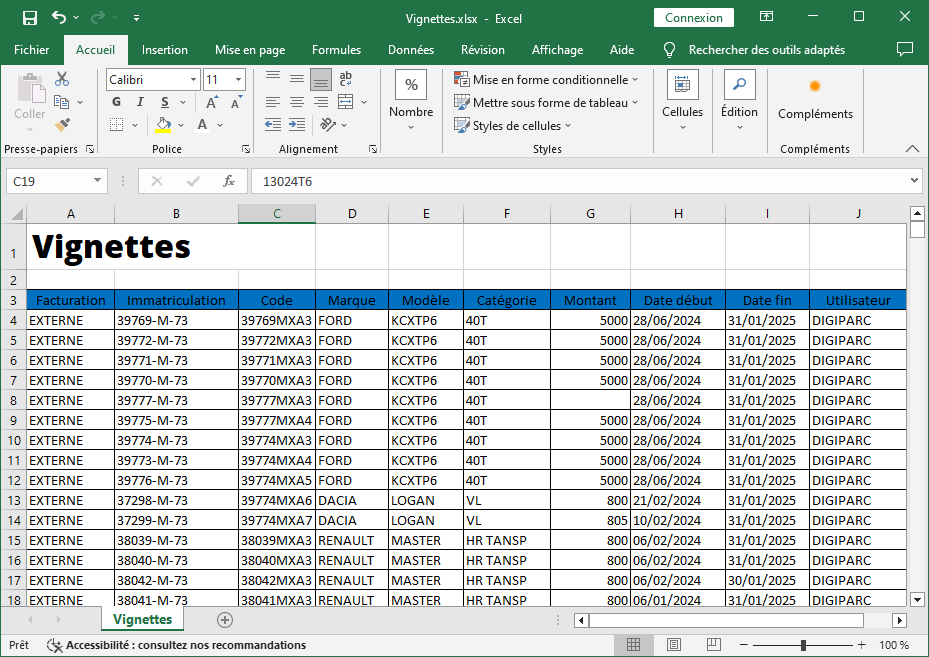
The export columns are organized to provide a detailed and relevant view of thumbnail information:
-
Billing: This column records information relating to the invoicing of vignettes, allowing you to track the amounts paid or payable for each vehicle, thus facilitating cost management.
-
Registration: The registration number of each vehicle is specified here, guaranteeing unique identification and making it possible to link each sticker to its respective vehicle.
-
Code: This is an internal identifier assigned to each sticker, facilitating tracking in management systems.
-
Brand: The brand of the vehicle is mentioned, which makes it possible to analyze the costs and the distribution of stickers according to the types of vehicles present in the fleet.
-
Model: Indicates the vehicle model, adding an additional layer of information for more detailed monitoring and management adapted to different types of vehicles.
-
Category: This column specifies the category of the vehicle (e.g.: utility vehicle, sedan, SUV), allowing the stickers to be categorized according to the specificities of the vehicles and their needs.
-
Amount: The amount associated with each sticker is indicated, making it possible to analyze total sticker costs and track expenses for each vehicle or category.
-
Start Date: This date indicates the start of the validity of the sticker, providing key information for managing coverage periods.
-
End Date: The end of validity date of the sticker is specified here, making it easier to manage renewals and plan future sticker acquisitions.
-
User: This column mentions the user or main driver of the vehicle, ensuring clear traceability of the stickers assigned to each vehicle and facilitating the tracking of information by driver.
In conclusion, exporting sticker data is a powerful tool for businesses looking to effectively manage costs and ensure vehicle compliance. By centralizing all information relating to stickers in an easily usable format, it offers more fluid, transparent and proactive management of administrative documents.

