Module · Fleet
Mileage management
Mileage management
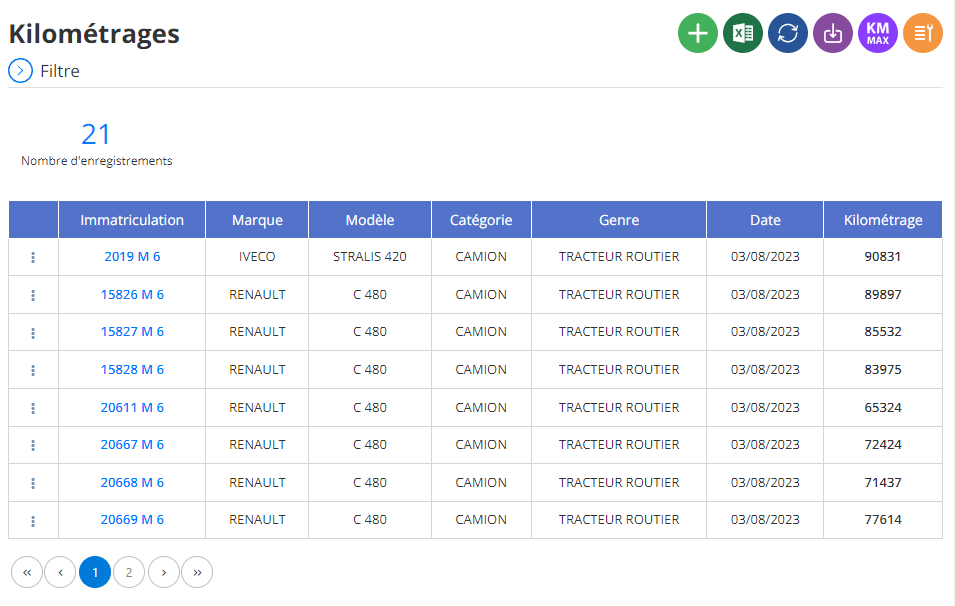
The mileage management interface stands out for its simplicity and accessibility, allowing users to easily navigate through the data management options. Each section is clearly defined, providing clearly visible buttons for adding, editing, or deleting entries. The clean design highlights essential information, with a centralized table where mileage is displayed in a structured and intuitive way. Users can view and update their fleet information in just a few clicks, ensuring accurate, real-time tracking of the distances traveled by each vehicle. This setup maximizes efficiency and minimizes errors, making the management experience smooth and efficient.
Added new miles
Select the “Add” option to bring up the following form:
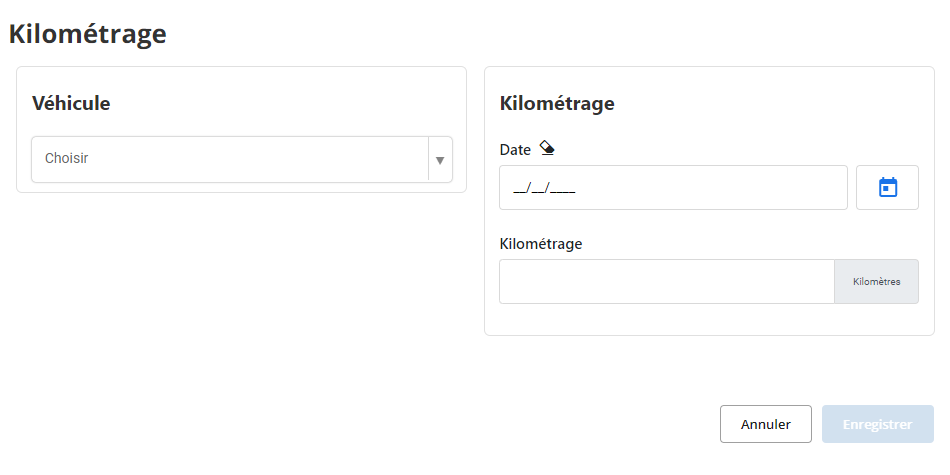
This form is designed to record the mileage of a vehicle as of a given date. It thus makes it possible to monitor the evolution of mileage over time and obtain valuable information for maintenance and fleet management.
Vehicle:This drop-down field allows you to select the vehicle concerned by the mileage recording. The drop-down list contains all vehicles registered in the system.
Date:This field is used to indicate the date the mileage was recorded. You can select a date by clicking the calendar icon to the right of the field.
Mileage:In this field, you must enter the exact value of the mileage recorded on the date indicated. Units are usually kilometers.
Trick:Enter the vehicle's current mileage as of the specified date. The mileage must be greater than the last value entered in the system.
Changing mileage
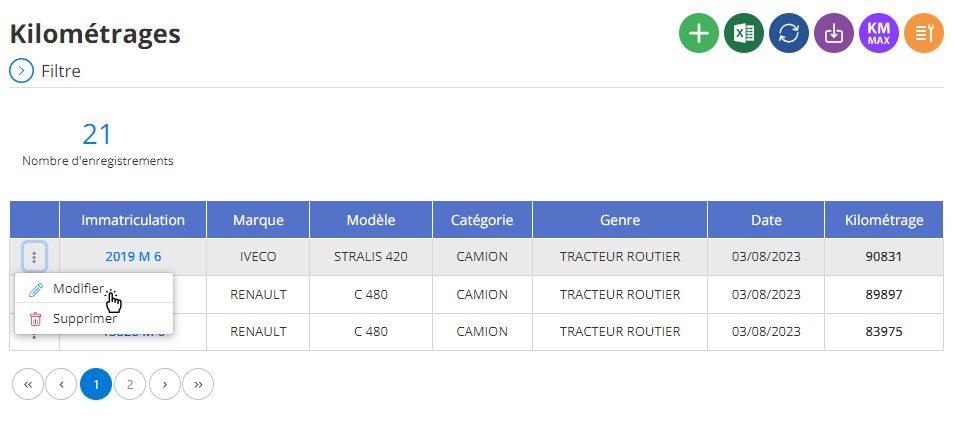
To update the mileage of an existing vehicle, navigate to the vehicle list in the system. Select the desired vehicle, then click on the “Modify” button. You can then adjust the mileage data by entering the new distance traveled. Make sure mileage is accurate and reflects current readings for optimal tracking. Once the update is complete, click “Save” to validate the changes. This feature helps maintain accurate and up-to-date mileage information, essential for effective fleet management.
Deleting a mileage
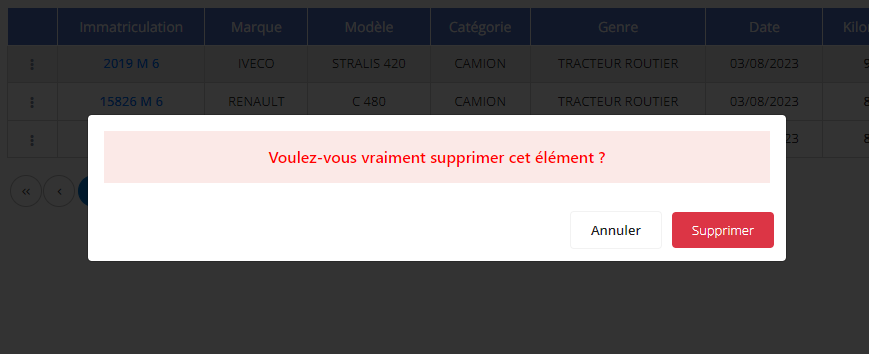
To delete a mileage entry, go to the list of mileage records and select the one you want to remove. Then click on the “Delete” button.
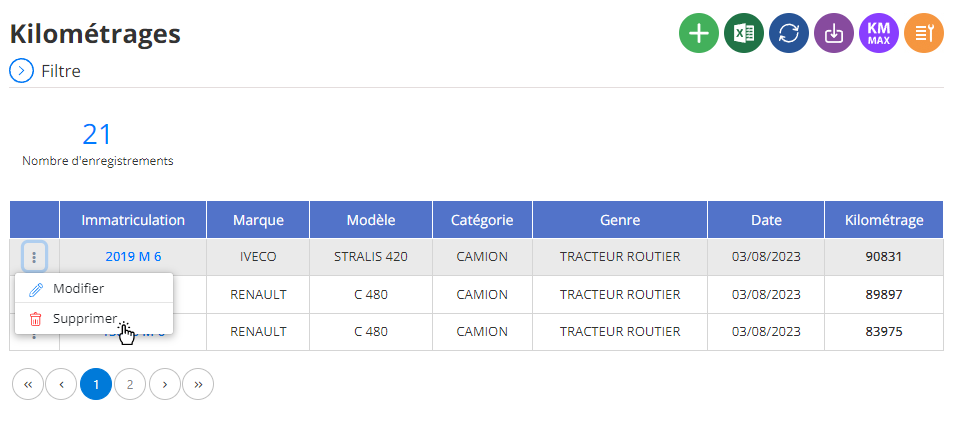
You will be asked for confirmation to validate this definitive deletion. This operation is irreversible and will result in the deletion of the mileage record from the system. Be sure of this decision before proceeding.