Module · Fleet
Importation of vehicles
Importation of vehicles
The functionalityImport of Vehiclesallows you to add multiple vehicles to your database at once by uploading a pre-formatted file, usually in Excel format. This is particularly useful for:
- Initial integrationof a large fleet.
- The massive updateinformation about vehicles.
Step 1: Download and prepare the canvas
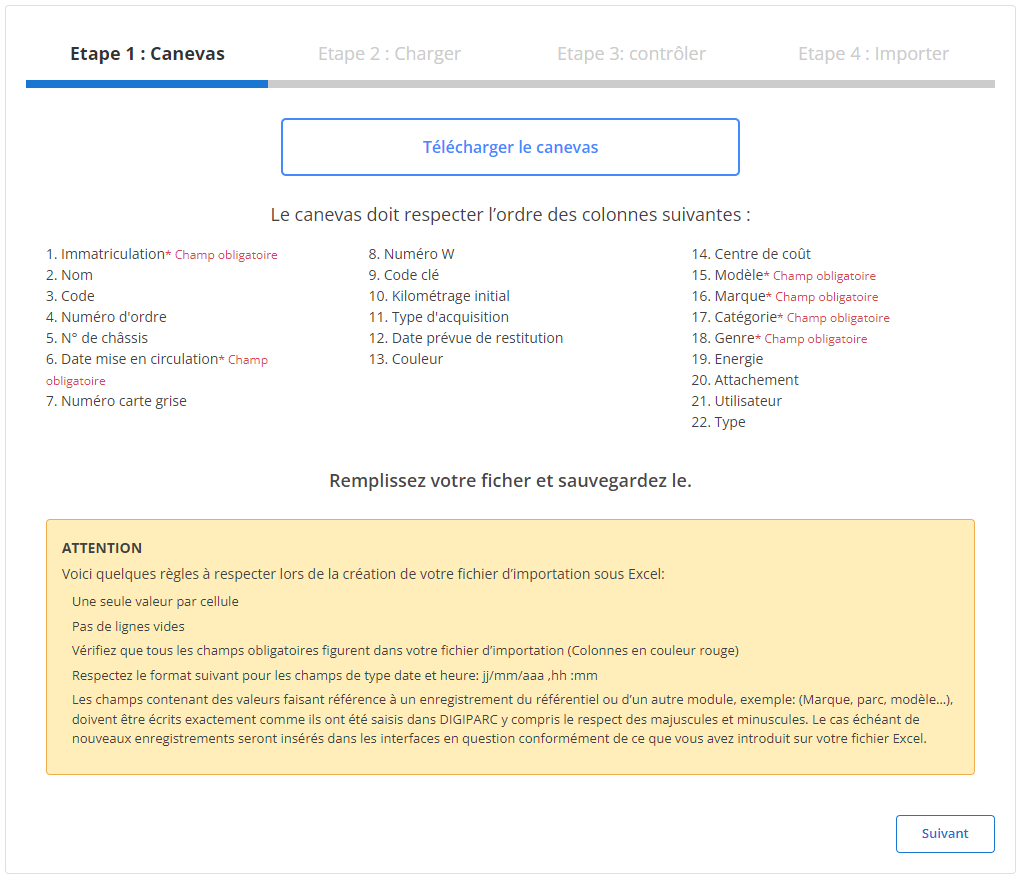
Download the canvas: The template file to fill out is available for download. This file must respect a precise format, with predefined columns (see screenshot).
Respect the order of the columns:
- Mandatory fields are marked in red, such as registration, registration date, make, model, category, and gender.
- The order of the columns in the file must be scrupulously respected, particularly for the mandatory fields (Registration, Date put into circulation, Make, Model, etc.).
Tips for preparing the file:
- Only one value per cell.
- No blank lines.
- Compliance with date and time formats (dd/mm/yyyy hh).
Prerequisites:This file must respect a specific format defined by the system. The columns must contain the required information (registration, serial number, etc.).
Step 2: Load the file
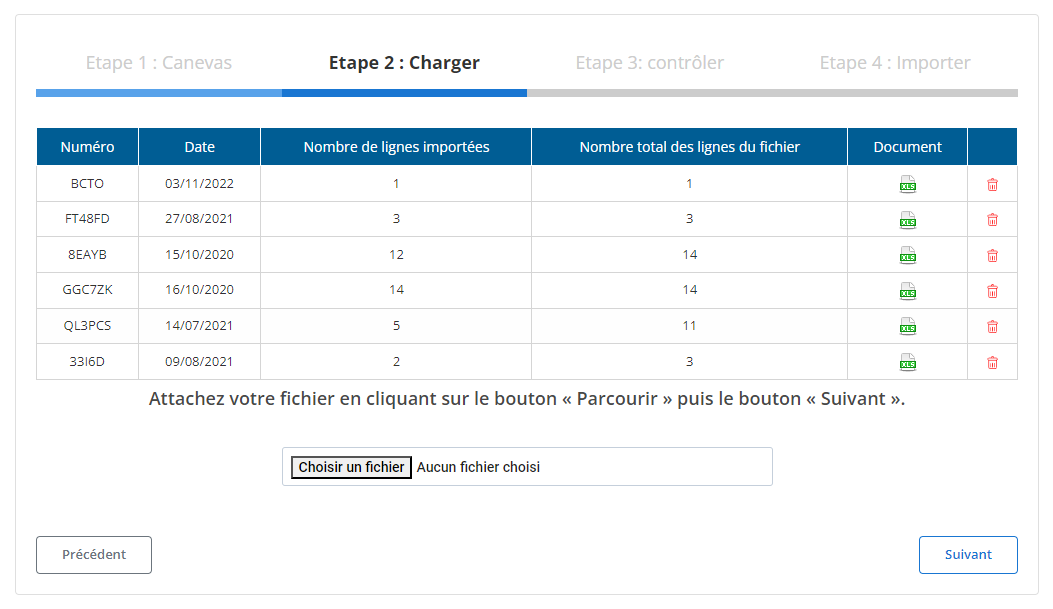
Once the file is completed, follow these steps:
- Click onBrowsepour sélectionner votre fichier.
- PressFollowingto load the file.
- After loading, a summary will display the number of lines imported, as well as the total number of lines contained in the file.
Step 3: Check the imported data
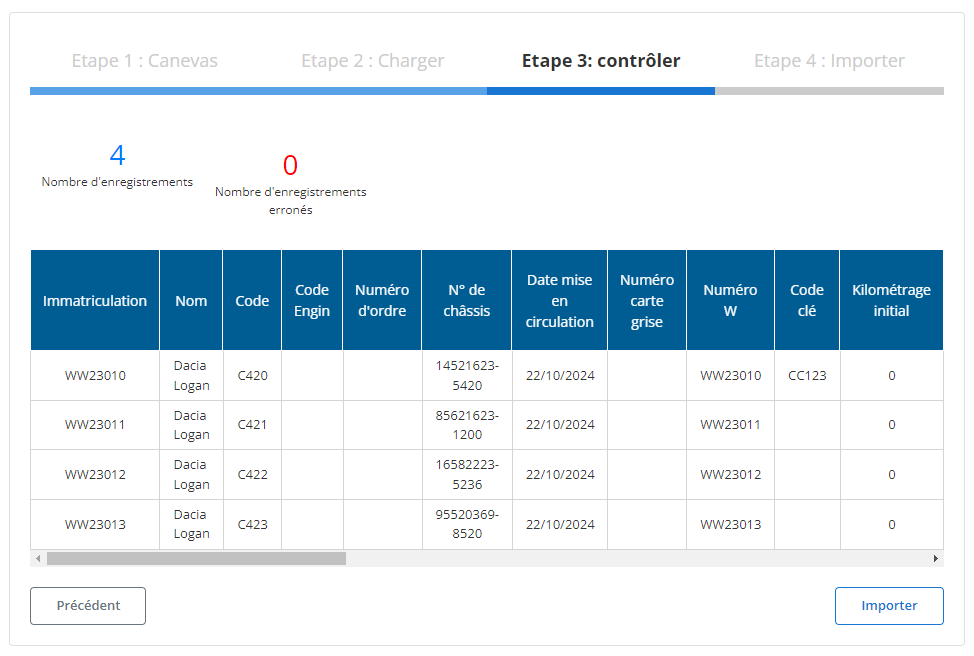
Once the file is loaded:
- A summary table is displayed with the imported records.
- The system also reports the number of errors (if any) and the number of correct records.
- Les détails pour chaque véhicule (Immatriculation, Nom, Code, Numéro de châssis, Date de mise en circulation, etc.) sont visibles, permettant une dernière vérification avant l'importation finale.
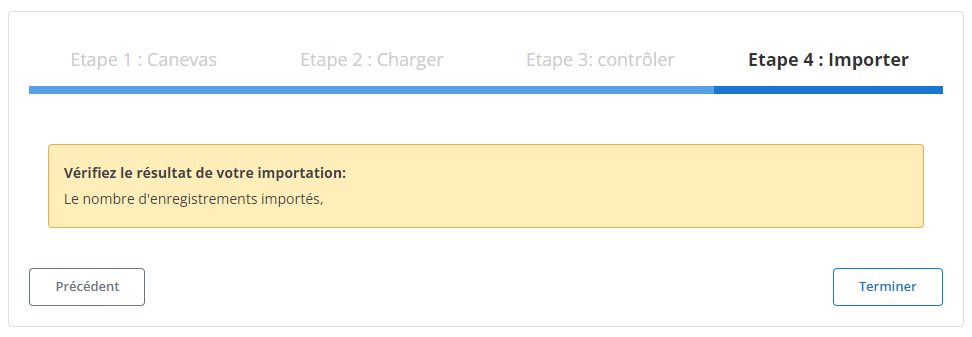
Step 4: Import vehicles
After checking the data:
- Click onImportto validate and add the vehicles to the database.
- A confirmation message tells you that the import was successful.