L'ajout de plusieurs contrats d'achat est grandement simplifié grâce à la possibilité d'importer des données directement depuis un fichier pré-formaté. Ce processus permet de réduire considérablement le temps nécessaire pour intégrer un grand nombre de contrats, en particulier lors de la migration ou de l'intégration de données en masse. En éliminant la saisie manuelle, il facilite l'enregistrement rapide des informations tout en assurant leur précision. Cette approche optimisée permet non seulement de gagner du temps, mais aussi d'éviter les erreurs liées à la saisie individuelle, offrant ainsi un moyen plus efficace et fluide de gérer les contrats d'achat.
Étape 1 : Préparer le Canevas d'Importation
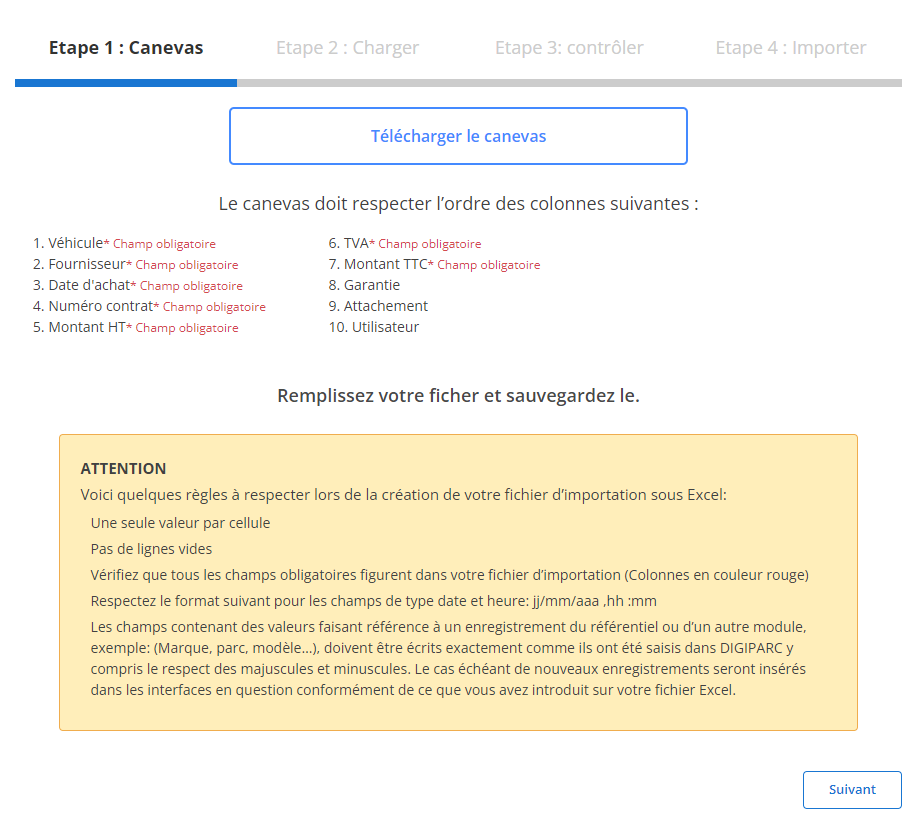
Pour commencer, téléchargez le fichier modèle dédié. Ce canevas est structuré avec des colonnes prédéfinies, organisées pour garantir la cohérence des informations à importer. Les informations obligatoires sont signalées en rouge et incluent des éléments essentiels comme le fournisseur, la date d'achat, le numéro de contrat, ainsi que les montants HT et TTC. Le respect de l’ordre des colonnes est impératif pour que le système reconnaisse et traite correctement chaque champ. Les règles de formatage à suivre incluent l’entrée d’une seule valeur par cellule, l’absence de lignes vides, et le format standardisé des dates et heures (jj/mm/aaaa hh). Ces normes permettent d’assurer une compatibilité totale avec le système et évitent les erreurs de traitement.
Étape 2 : Charger le Fichier Préparé
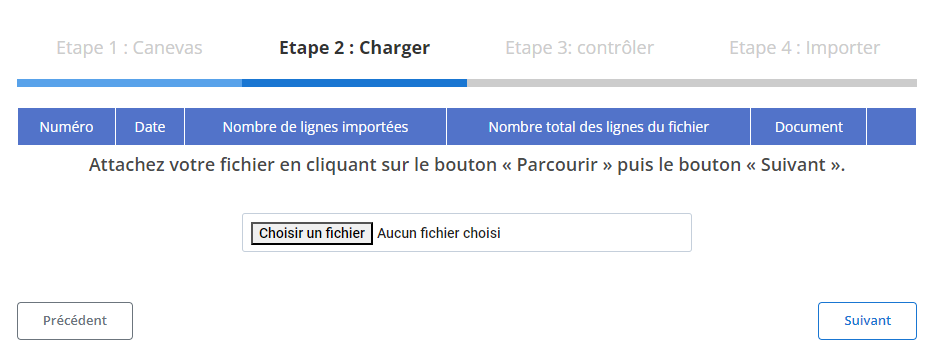
Une fois le fichier complété et vérifié, accédez à l'interface d'importation. Cliquez sur "Parcourir" pour sélectionner votre fichier, puis sur "Suivant" pour le charger. Le système vous fournira un récapitulatif initial avec le nombre de lignes importées et le nombre total de lignes présentes dans le fichier. Ce résumé offre une première indication sur le succès du chargement et permet d’identifier rapidement les éventuels oublis.
Étape 3 : Vérification des Données Importées
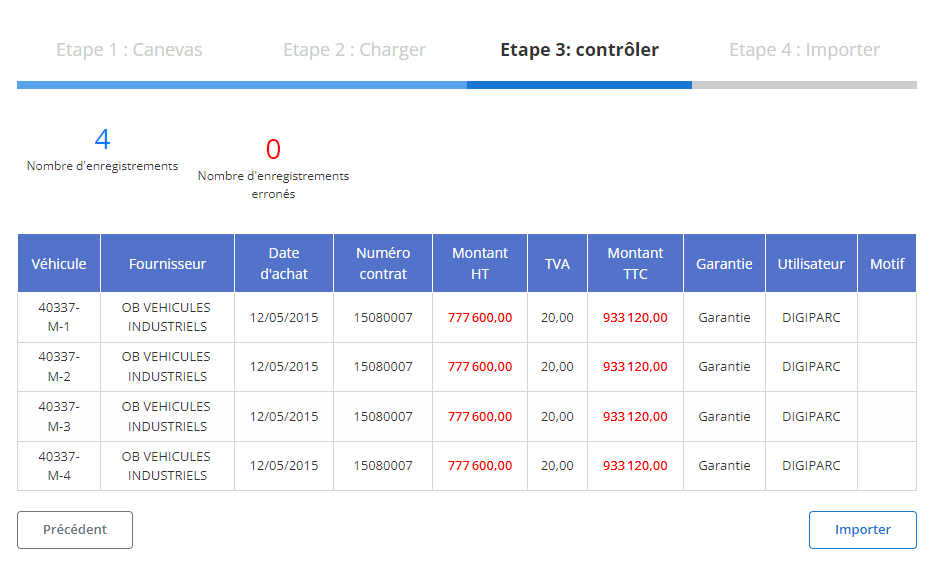
Après le chargement, le système génère un tableau récapitulatif des enregistrements importés. Les données de chaque contrat d'achat, telles que le fournisseur, la date, le numéro de contrat et les montants, sont listées. Les erreurs éventuelles sont également signalées, ce qui permet de corriger les éléments problématiques avant la validation finale. Cette étape de contrôle offre une vue d’ensemble de toutes les données importées et permet de vérifier que chaque contrat d’achat est complet et exact.
Étape 4 : Finaliser l’Importation
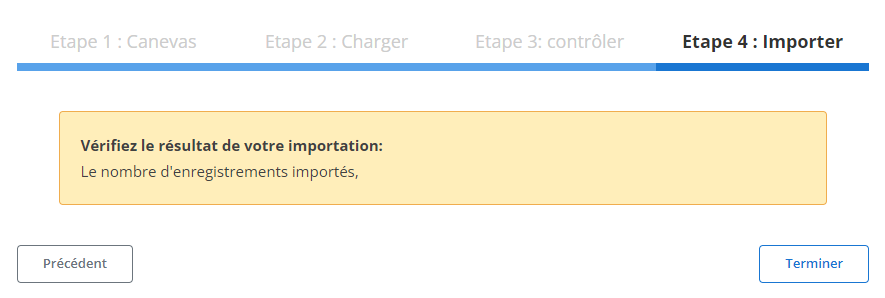
Une fois la vérification terminée, cliquez sur "Importer" pour valider et intégrer les contrats d'achat dans la base de données. Un message de confirmation s'affiche, indiquant que l’importation a été réalisée avec succès. À ce stade, les contrats d'achat sont officiellement enregistrés et disponibles pour être consultés ou modifiés dans la base de données, offrant ainsi une solution rapide et fiable pour la gestion de l'information.