Module · Fleet
Gestion Documents
Gestion Documents
La gestion des documents liés à chaque véhicule est essentielle pour garantir une traçabilité complète et une centralisation des informations. Cette fonctionnalité vous permet d'attacher des documents ou des fichiers (par exemple, certificats d’entretien, factures de réparation, contrats d’assurance, etc.) à un véhicule spécifique dans la liste des véhicules. Cela simplifie l’accès à ces informations pour l’ensemble de votre équipe, facilitant la gestion administrative et opérationnelle de votre flotte.
Étapes pour attacher un document à un véhicule
Accéder à la liste des véhicules :
- Naviguez vers la section où sont listés tous les véhicules de votre flotte.
- Chaque ligne de la liste représente un véhicule avec ses informations principales comme l’immatriculation, le modèle, le kilométrage, etc.
Sélectionner le véhicule à modifier :
- Dans la colonne "Attachment" (Attachement), identifiée par une icône de trombone, localisez le véhicule auquel vous souhaitez ajouter un document.
- Cliquez sur cette icône pour accéder à l'interface de gestion des documents.

Fenêtre de gestion des documents :
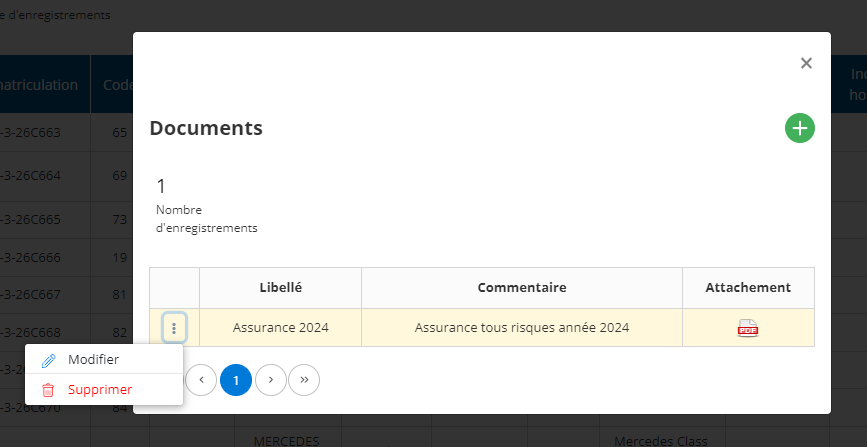
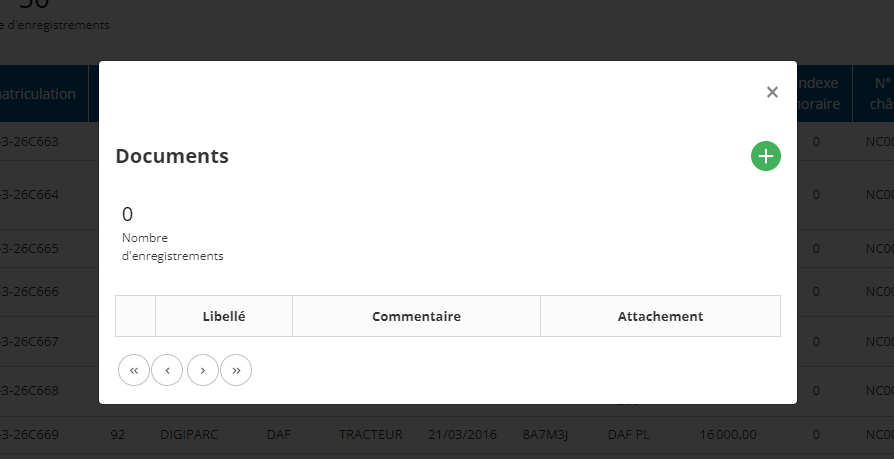
- Une fenêtre s’ouvre, vous présentant la liste des documents déjà associés au véhicule. Si aucun document n’a encore été ajouté, la liste sera vide.
- Cette fenêtre vous permet de visualiser rapidement tous les documents précédemment attachés. Les colonnes indiquent lelibellé(titre), lescommentaireset lefichier attaché.
- Si vous avez déjà des documents, vous pouvez égalementmodifierousupprimerces fichiers à partir de cet écran.
Ajouter un nouveau document :
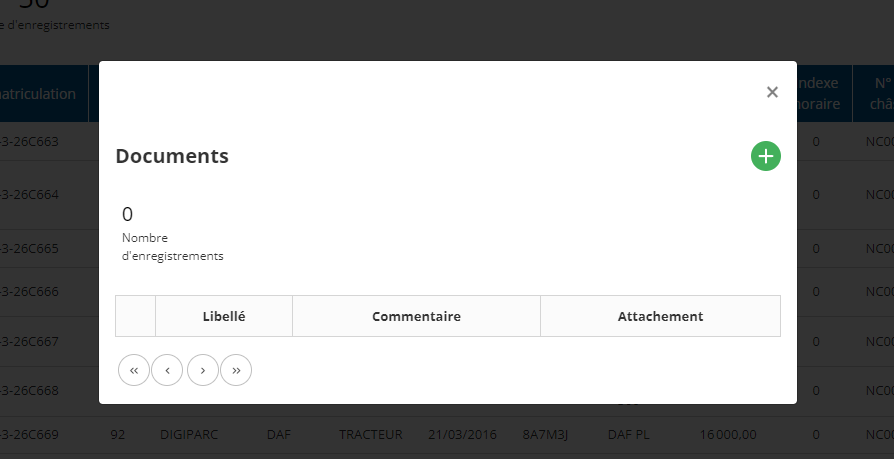
- Pour attacher un nouveau document, cliquez sur l’icône+en haut à droite de la fenêtre de gestion des documents.
- Un formulaire d’attachement s’affiche pour permettre l’ajout du fichier.
Remplir les informations dans le formulaire d'attachement :
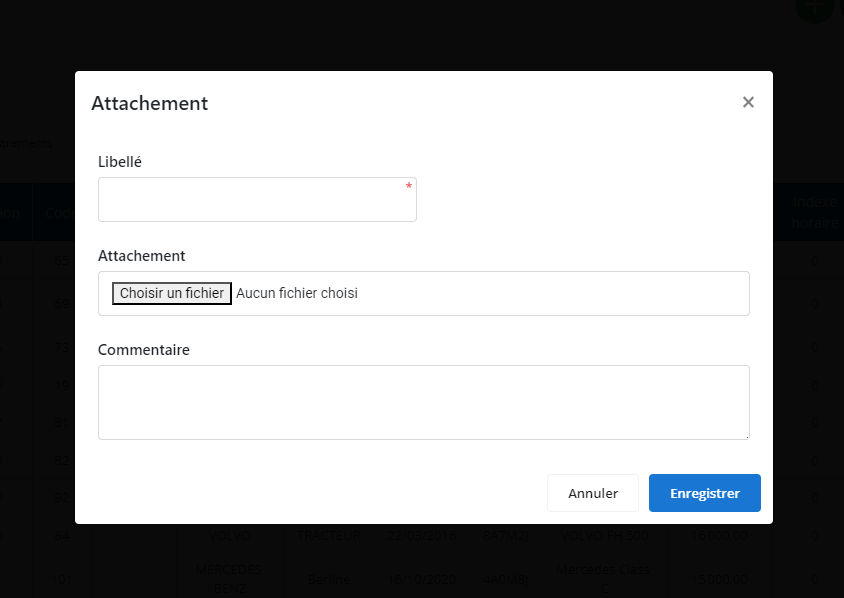
- Libellé: Entrez un titre qui décrira le document (ex. : "Contrat d'assurance - 2023", "Facture de révision - Octobre 2024", etc.).
- Fichier: Cliquez surChoisir un fichierpour sélectionner le document que vous souhaitez joindre depuis votre ordinateur.
- Commentaire(optionnel) : Ajoutez des notes ou des détails supplémentaires si nécessaire (par exemple, la date de validité d’un contrat, la date d’expiration d’un document, etc.).
- Une fois toutes les informations saisies, cliquez surEnregistrer.
Validation de l'attachement :
- Après avoir cliqué surEnregistrer, le document est automatiquement attaché au véhicule sélectionné. Vous pouvez le visualiser, le télécharger ou le supprimer à tout moment en revenant dans cette section.
- Le document est désormais accessible à tous les utilisateurs disposant des droits appropriés pour consulter la fiche du véhicule.