Module · Fleet
Vehicle management
Vehicle management
Vehicle management is an essential functionality in a fleet management system, allowing all information relating to the company's vehicles to be centralized and kept up to date. This functionality includes several important operations:
-
Adding vehicles: You can easily add a new vehicle to your fleet by entering essential information such as make, model, year of manufacture, energy type, and many other specific details. Each vehicle can be linked to specific sub-fleets or categories for better organization.
-
Editing information: Vehicle information can be updated at any time. Whether changing technical data (such as engine capacity or fuel consumption), adjusting vehicle condition (based on wear or maintenance), or changing the assigned manager or driver, this option keeps records always up to date.
-
Removal of vehicles: When a vehicle is removed from the fleet (following a sale, reform or decommissioning), it is possible to delete it from the system. This action makes it possible to maintain a clean database, retaining only active vehicles, while offering options to archive vehicles that have come out of use in order to keep a history if necessary.
These features make it possible to manage the evolution of the vehicle fleet in a precise and fluid manner, ensuring that information is always current and accessible for better decision-making.
Adding a new vehicle
Click on “Add”, the following form is displayed:
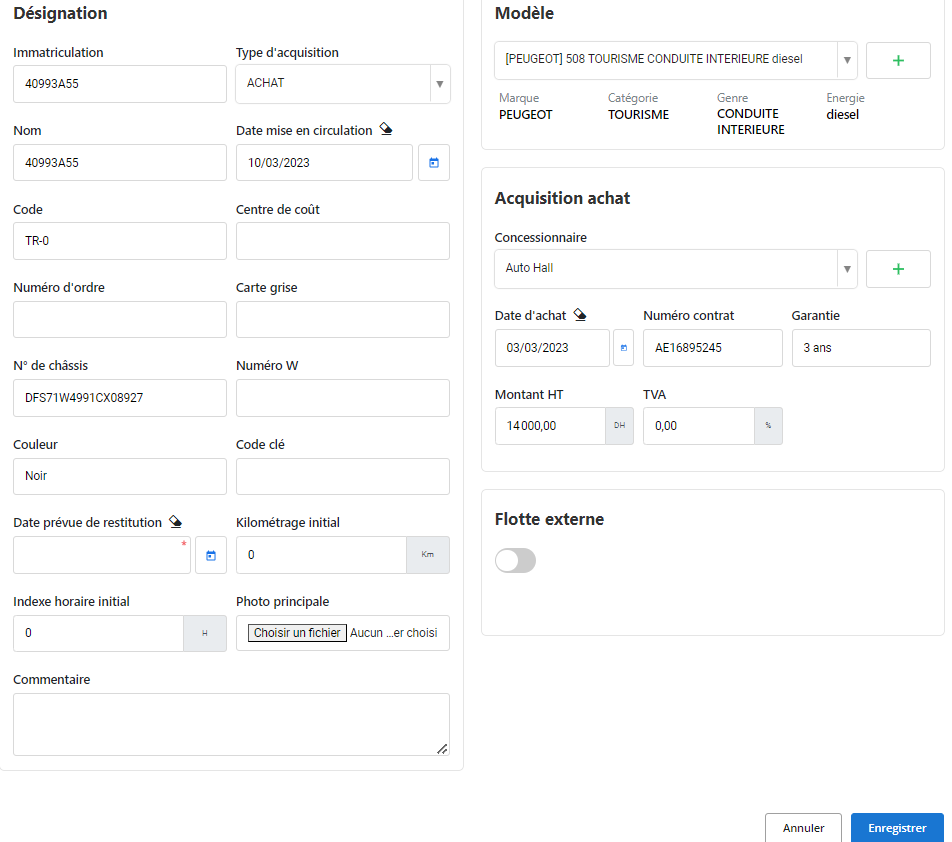
Here is a detailed explanation of the visible sections, taking into account that the "Acquisition" block on the right changes depending on the type of acquisition (purchase, leasing, rental) selected.
Designation
This section contains general information about the vehicle:
- Registration: The vehicle plate number. This field is required.
- Type of acquisition: Currently set to "PURCHASE". The right block will change if another type is selected (for example, leasing or rental).
- Name: Vehicle name or identifier.
- Date of release: The date the vehicle was put into service.
- Code and Cost Center: Used to assign the vehicle to a department or budget unit.
- Order number, Registration document, Chassis number: Specific identification and administrative information of the vehicle.
- W number: May be an additional vehicle identifier.
- Color, Key code: Visual or technical details of the vehicle.
- Expected return date: In case of rental or leasing, this date indicates when the vehicle should be returned.
- Initial mileage: The mileage at the time of acquisition.
- Initial time index: Used to track usage hours for specific equipment.
- Hand photo: Possibility of attaching an image of the vehicle.
- How: An area to add additional notes or observations.
Model
- Model:Select the vehicle model from the drop-down menu.
In the sectionModel, you can select the vehicle model from the drop-down menu. If no matching template is available, it is possible to quickly add a new template by clicking on the “+” button next to the selection field. A pop-up window will appear, allowing you to enter the following information to create the new model:
- Brand: Enter the vehicle brand (e.g. Peugeot, Renault).
- Category: Indicate the vehicle category, such as Touring, Heavy Goods, or Machinery.
- Gender: Select the vehicle type, such as Sedan, Utility, etc.
- Energy: Specify the type of energy used by the vehicle, such as diesel, gasoline, electric, or hybrid.
Once this information is entered, the model will be added to the repository, and immediately available in the drop-down menu for future selection. This feature allows you to quickly add new models without leaving the vehicle addition or modification screen.
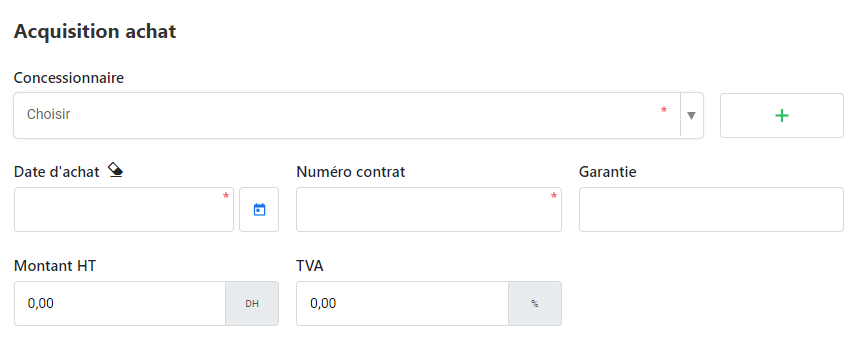
Acquisition
This block is currently visible because thetype of acquisitionis set to "PURCHASE". Information to enter for a purchase includes:
- Dealer: The supplier or reseller..
- Date of purchase: The date of acquisition of the vehicle.
- Contract number: The contract number linked to the purchase.
- Guarantee: Duration of the warranty associated with the vehicle.
- Amount excluding tax: The price excluding taxes of the vehicle.
- VAT: The applicable VAT.
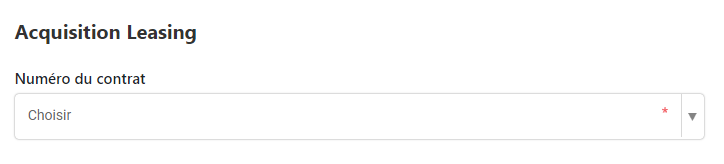
To register a leasing acquisition, the following information must be entered:
- Contract number: Indicate the number of the leasing contract associated with the vehicle.
The information to be entered for a rental acquisition includes:
- Lessor: The supplier or rental company.
- Contract number: The rental contract number.
- Type of contract: Type of contract (for example, short term).
- Start date: The date the rental begins.
- Expected end date: The date the rental is expected to end.
- Kilometer ceiling: The maximum number of kilometers authorized.
- Pneumatic ceiling: Tire limit, if applicable.
- Monthly rent excluding tax: The amount of the monthly rent excluding taxes.
- VAT: The VAT applicable on the rent.
- Monthly rent including tax: The total amount of the monthly rent all taxes included.
- Attachment: Downloading associated files, such as the rental agreement.
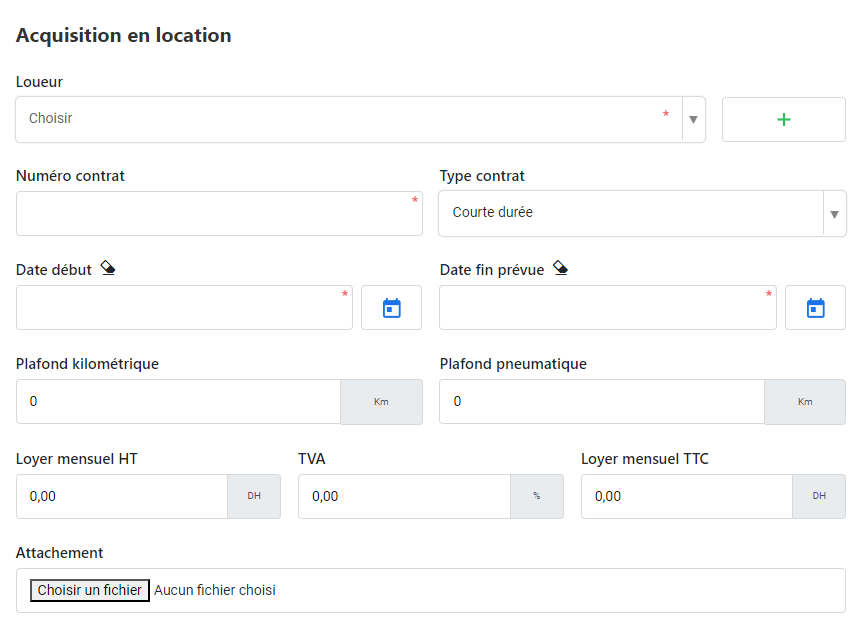
Noted:If the type of acquisition changes, as forleasingGoldrental, this block will change to include fields adapted to these types of acquisition (e.g.: rental duration, monthly leasing payments, etc.).
External fleet
- External fleet:Enable or disable this feature. This could be useful if the vehicle is part of a fleet managed by another entity or is under another special status.
Note :It is essential to click on the buttonSaveonce all information is entered to ensure the vehicle is correctly added to the fleet.
Modification of a vehicle
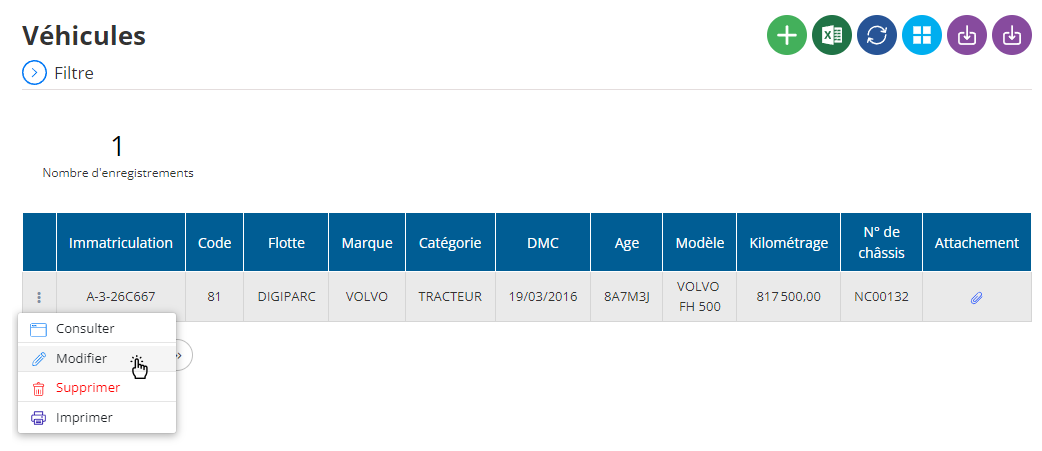
To edit an already added vehicle, navigate to the vehicle list in the system.
Select the vehicle you want to modify, then click the buttonTo modify. You can then adjust the vehicle information, such as registration, registration date, type of acquisition, and other details. If necessary, it is also possible to change the model or add a new one using the same procedure as for the initial addition. After making the changes, clickSaveto save the changes.
Deleting a vehicle
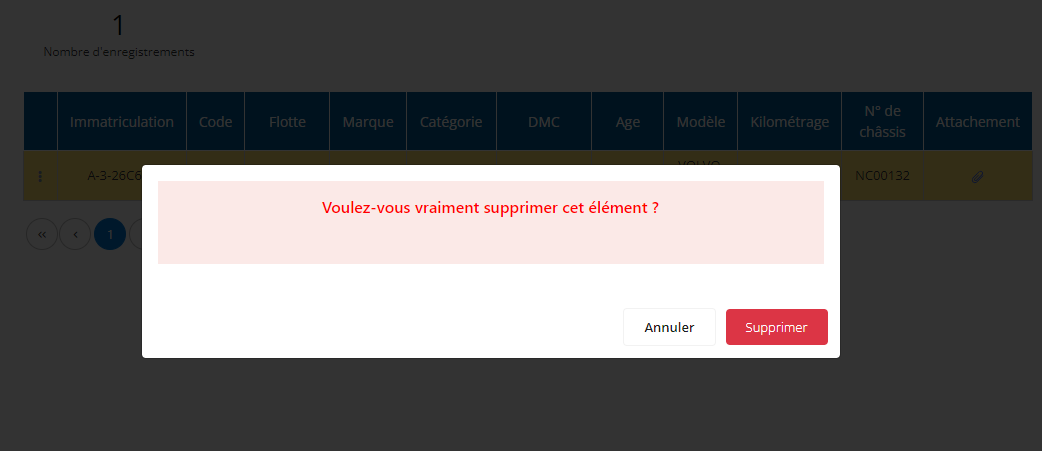
If you want to delete a vehicle from the fleet, go to the list of vehicles, select the vehicle to delete, then click on the buttonDELETE.
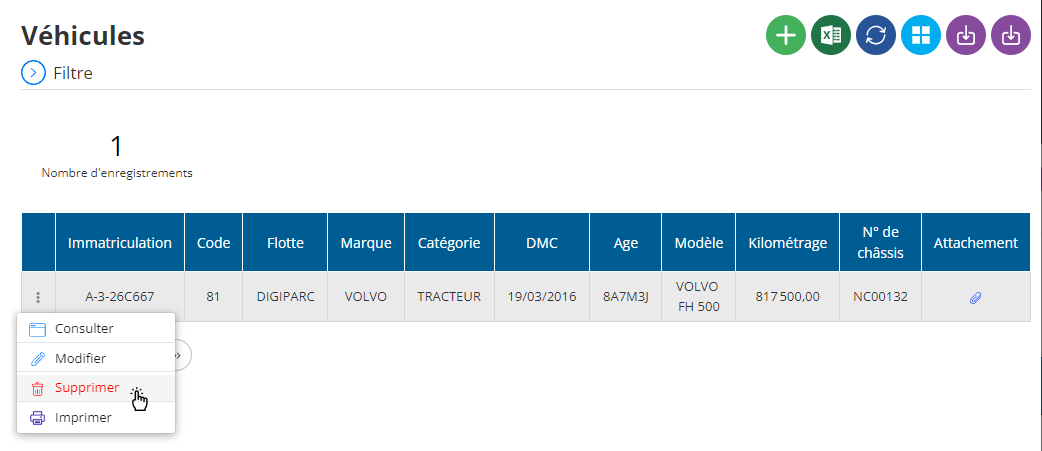
You will be asked for confirmation to validate the definitive deletion of the vehicle. This action is irreversible, and the vehicle will be deleted from the system, along with all associated data.