Module · Fleet
Gestion Achat
Gestion Achat
Organisez et contrôlez aisément l'ensemble de vos contrats d'achat pour maintenir un historique de transactions précis avec vos fournisseurs. Ce module offre une gestion complète des contrats, vous permettant de :
- Créer de nouveaux contrats d'achat: Enregistrez chaque nouvel accord avec vos fournisseurs en incluant tous les détails nécessaires pour une référence rapide et un suivi clair.
- Mettre à jour les contrats existants: Modifiez les termes ou informations d’un contrat au fur et à mesure des changements, pour garantir que toutes les données restent actuelles et conformes aux accords en cours.
- Supprimer les contrats obsolètes: Retirez les contrats qui ne sont plus valides, assurant ainsi une base de données organisée et pertinente.
Avec ce module, la gestion des contrats d'achat devient fluide et centralisée, offrant une vue d'ensemble claire de chaque engagement pris avec vos fournisseurs et permettant un contrôle rigoureux des relations commerciales et des conditions contractuelles.
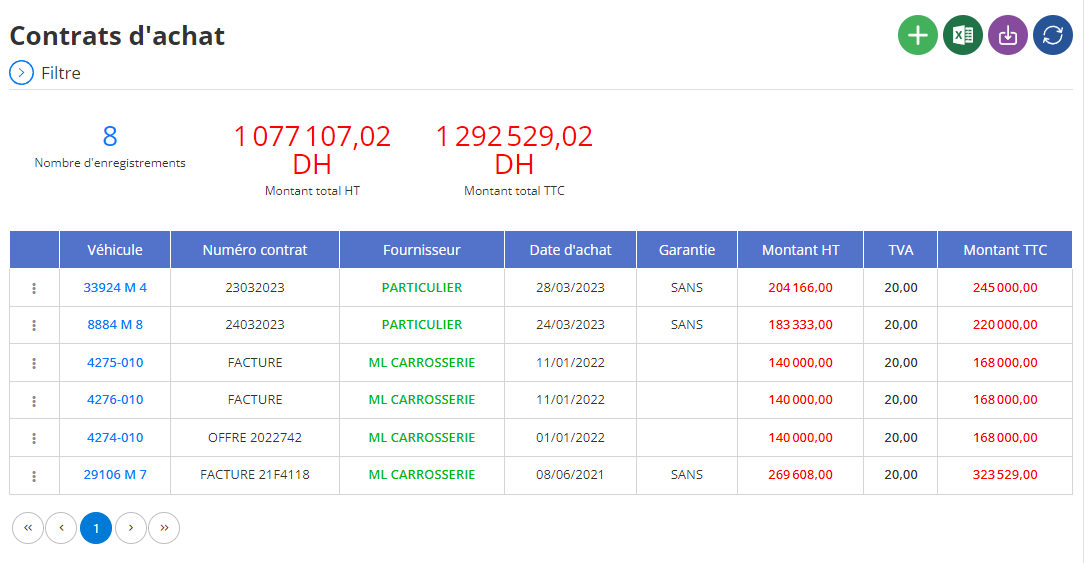
Ajouter un nouveau contrat d'achat
Pour enregistrer un nouveau contrat d'achat dans le système, suivez les étapes ci-dessous. Cette procédure vous permettra de documenter précisément vos engagements financiers et d’assurer un suivi rigoureux des transactions d'achat de véhicules.
Dans le module des contrats d'achat, localisez et sélectionnez le bouton d’ajout (symbole « + »). Cette action ouvrira un formulaire de saisie, illustré dans l'image ci-dessus, où vous pourrez renseigner les informations nécessaires pour créer un contrat d'achat complet et précis.
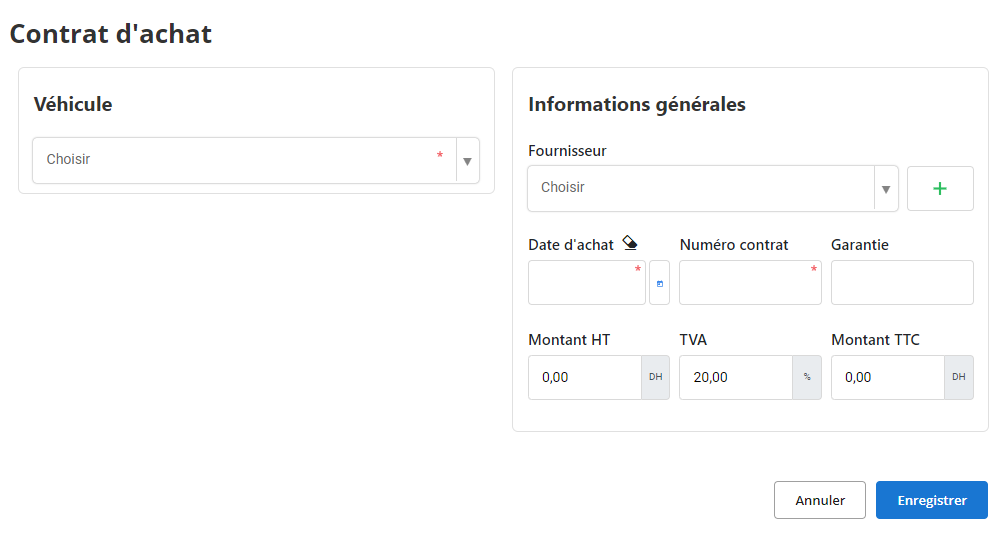
Le formulaire de création d'un contrat d'achat est divisé en deux sections principales :VéhiculeetInformations générales.
Section « Véhicule »
- Véhicule: Sélectionnez le véhicule concerné par le contrat d'achat dans la liste déroulante. Cette étape est essentielle pour associer correctement le contrat à un véhicule spécifique.*
Section « Informations générales »
-
Fournisseur: Sélectionnez le fournisseur de ce contrat d'achat dans le menu déroulant. Si le fournisseur n’est pas encore répertorié dans le système, cliquez sur le bouton « + » pour ajouter un nouveau fournisseur directement depuis cette interface.
-
Date d'achat: Indiquez la date exacte d'achat du véhicule. Cette information est cruciale pour les suivis financiers et la gestion de l'historique des transactions.
-
Numéro contrat: Entrez un numéro unique pour le contrat d'achat. Ce numéro sert d'identifiant pour faciliter la gestion et la consultation ultérieure des contrats.
-
Garantie: Indiquez les conditions de garantie, si elles sont applicables à cet achat. Ce champ peut contenir des informations sur la durée de la garantie ou sur les types de réparations couvertes.
-
Montant HT: Saisissez le montant hors taxes (HT) pour cet achat. Ce champ permet de documenter le coût de base du contrat avant l'application des taxes.
-
TVA: Renseignez le taux de TVA applicable. Le système calculera automatiquement le montant total en incluant les taxes.
-
Montant TTC: Ce champ est calculé automatiquement et affiche le montant total du contrat, toutes taxes comprises (TTC), sur la base du montant HT et du taux de TVA.
Modification d'un contrat d'achat
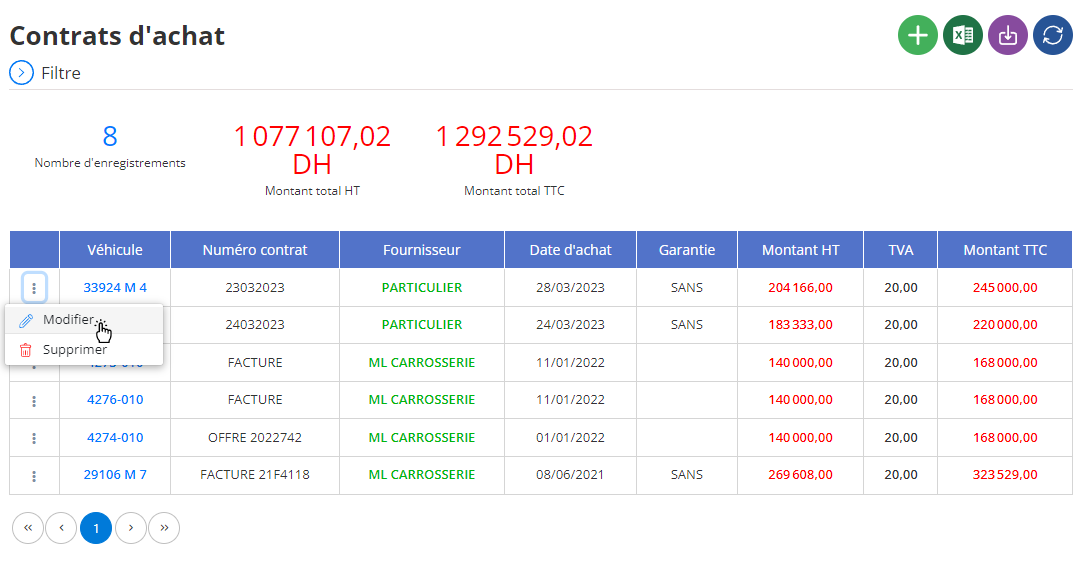
Pour mettre à jour un contrat d'achat déjà enregistré, commencez par accéder à la liste des contrats d'achat dans le système de gestion. Une fois dans la liste, sélectionnez le contrat que vous souhaitez modifier, puis cliquez sur l’optionModifierpour ouvrir le formulaire de mise à jour. Vous aurez alors accès aux informations principales du contrat, telles que lenuméro de contrat, ladate d'achat, lefournisseur, et lemontant(HT, TVA, et TTC). Ces champs peuvent être ajustés en fonction des nouvelles données ou des révisions convenues avec le fournisseur. En plus de ces informations de base, il est possible d’ajuster des détails complémentaires, comme lagarantieou lesconditions de paiement, assurant ainsi une vue complète et actualisée du contrat.
Après avoir vérifié chaque champ et apporté les modifications nécessaires, cliquez surEnregistrerpour sauvegarder les changements. Ce processus de modification est essentiel pour garantir que le suivi des contrats d'achat reste précis et conforme aux engagements en cours. En permettant des mises à jour fréquentes, cette fonctionnalité optimise la gestion des contrats et assure que les informations disponibles reflètent fidèlement l’état actuel des transactions.
Suppression d’un contrat d’achat
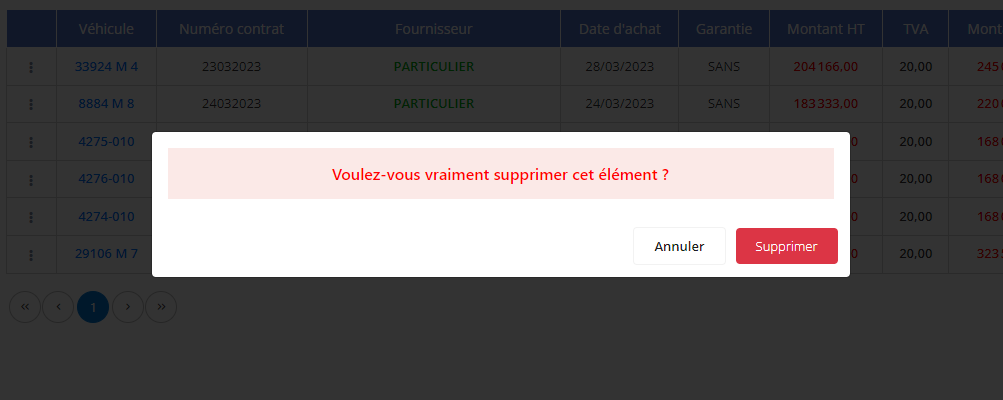
Si vous souhaitez supprimer un contrat d'achat de votre système, commencez par naviguer vers la liste des contrats d'achat. Une fois dans cette section, identifiez le contrat que vous souhaitez retirer en le sélectionnant dans la liste affichée. Ensuite, cliquez sur le boutonSupprimerpour initier le processus de suppression.
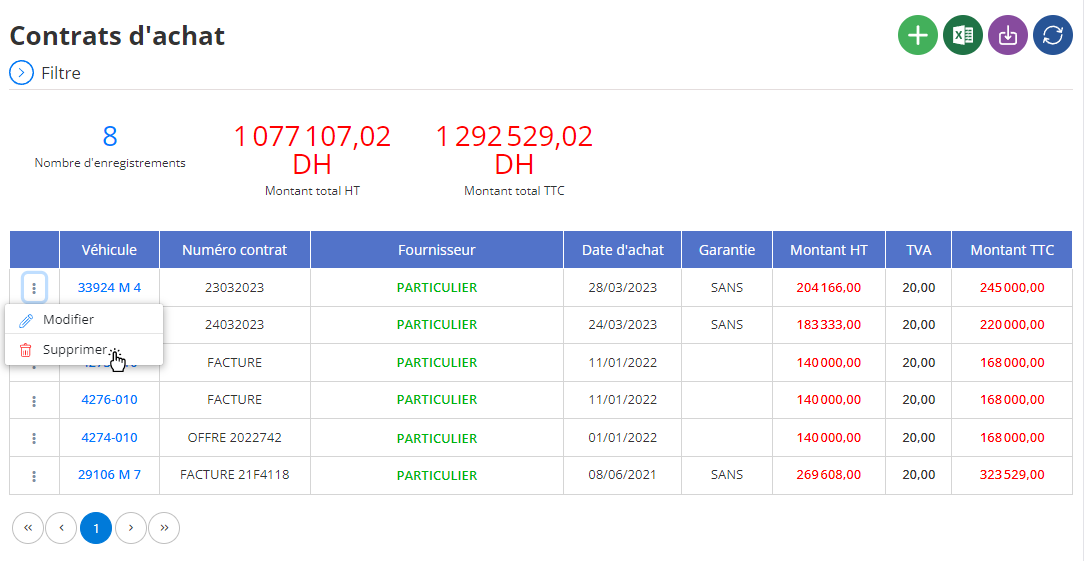
Une fenêtre de confirmation apparaîtra afin de valider cette action. Il est essentiel de noter que cette suppression est définitive et irréversible ; le contrat d'achat ainsi que toutes les données associées seront définitivement effacés du système. Avant de procéder, assurez-vous d'avoir vérifié que la suppression est nécessaire et qu'aucune information critique ne sera perdue. Cette démarche garantit la mise à jour et la précision de votre base de données, en éliminant les contrats obsolètes ou incorrects. En maintenant une liste de contrats d'achat propre et à jour, vous facilitez la gestion efficace de vos transactions et assurez une meilleure organisation de vos engagements financiers.