Module · Fleet
Importation Leasing
Importation Leasing
L’importation massive de contrats de leasing vous permet d’ajouter plusieurs contrats en une seule opération à partir d’un fichier pré-formaté, optimisant ainsi le processus de mise à jour de la base de données. En téléchargeant un fichier standardisé contenant les informations nécessaires, cette méthode vous évite de saisir chaque détail manuellement, minimisant ainsi les erreurs potentielles et économisant un temps précieux.
Ce processus est particulièrement utile lors de l’intégration de nouveaux contrats ou pour une mise à jour collective. Le fichier pré-formaté, généralement au format Excel, suit une structure claire avec des colonnes prédéfinies (montants, dates, conditions, partenaires, etc.) pour assurer que chaque information est correctement classée et prête à être importée.
L'importation massive offre ainsi une solution rapide et précise pour maintenir les données contractuelles à jour, facilitant une gestion plus efficace de la flotte et de ses engagements financiers.
Il existe deux options d'importation pour simplifier la gestion des contrats de leasing. La première,Importation des contrats de leasing, permet d'ajouter plusieurs contrats en une seule fois via un fichier pré-formaté. La seconde,Canevas des affectations des contrats de leasing aux véhicules, vous aide à associer facilement chaque contrat au véhicule correspondant, en suivant un modèle précis pour une intégration rapide et précise dans le système.
Étape 1 : Télécharger et préparer le canevas
Commencez par télécharger lecanevas de contrat de leasing: un fichier modèle est disponible et doit être complété en respectant un format précis, avec des colonnes prédéfinies (voir l'exemple en capture d'écran). Ce fichier inclut deschamps obligatoires marqués en rouge, tels que :
- Numéro du contrat (obligatoire),
- Concessionnaire (obligatoire),
- Société de leasing (obligatoire),
- Date du contrat (obligatoire),
- Date de début de prélèvement (obligatoire),
- Date de fin de prélèvement (obligatoire),
- Montant du prélèvement HT (obligatoire),
- Montant du prélèvement TTC (obligatoire).
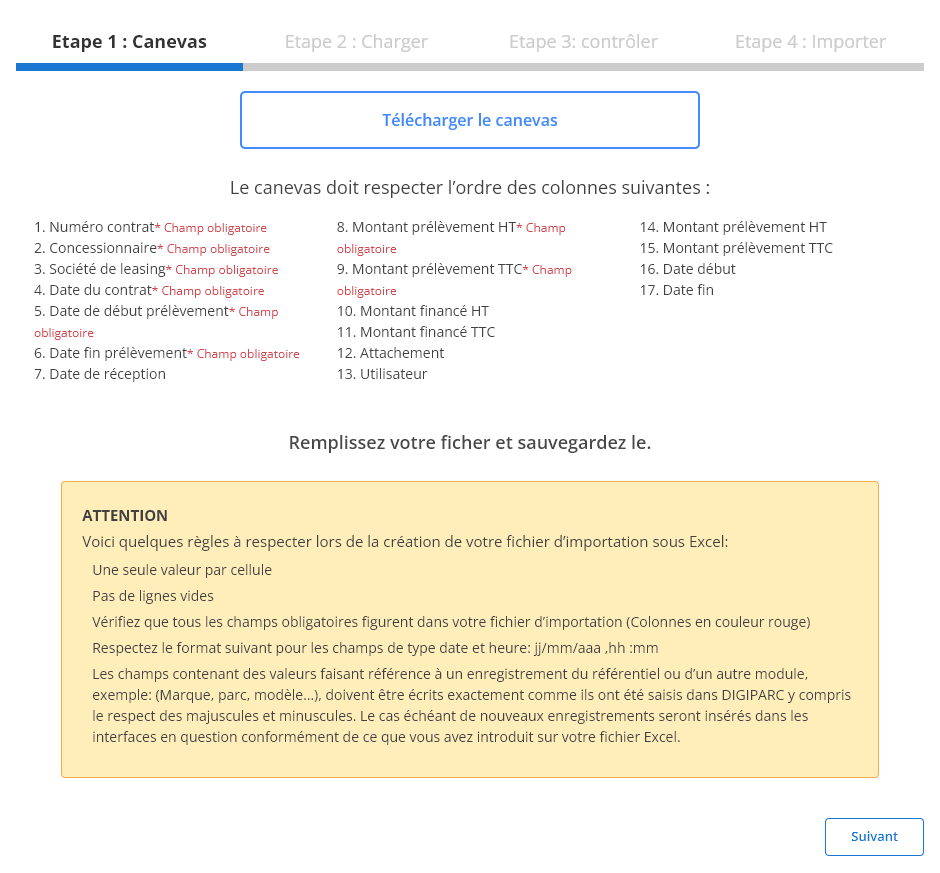
Important: L'ordre des colonnes doit être scrupuleusement respecté, notamment pour les champs obligatoires. Toute modification dans l'ordre des colonnes peut entraîner des erreurs lors de l'importation.
Étape 2 : Charger le fichier
Une fois le fichier complété et vérifié, procédez au chargement en suivant ces étapes :
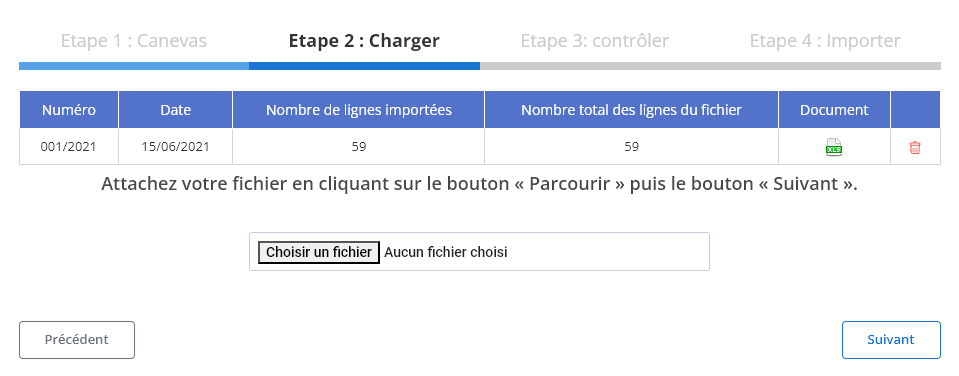
- Cliquez surParcourirpour sélectionner votre fichier à importer.
- Appuyez surSuivantpour lancer le chargement.
- Unrécapitulatif du chargements'affiche, indiquant le nombre de lignes importées et le nombre total de lignes présentes dans le fichier. Ce récapitulatif permet de vérifier si toutes les informations ont été prises en compte.
Étape 3 : Contrôler les données importées
Après le chargement du fichier :
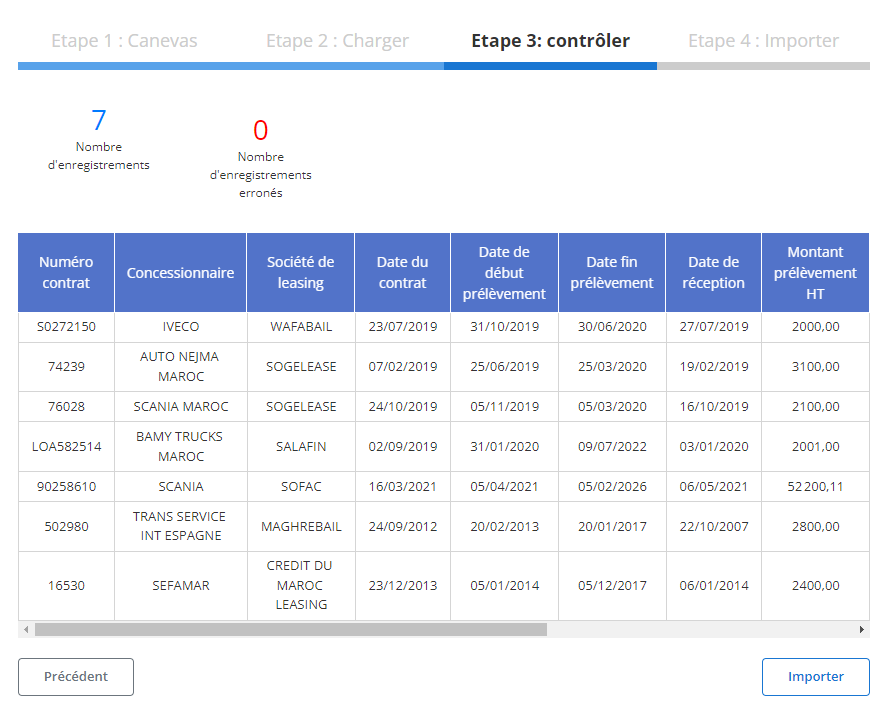
- Untableau récapitulatifaffiche tous les enregistrements de contrats de leasing importés.
- Le système indique lenombre d'erreurs détectées, le cas échéant, et lenombre d'enregistrements corrects.
- Les détails de chaque contrat, tels que le Numéro de contrat, Concessionnaire, Société de leasing, Dates de contrat et de prélèvement, ainsi que les Montants HT et TTC, sont visibles. Cela permet une dernière vérification avant l'importation finale pour éviter les incohérences.
Étape 4 : Importer les contrats de leasing
Une fois les données vérifiées et les éventuelles erreurs corrigées :
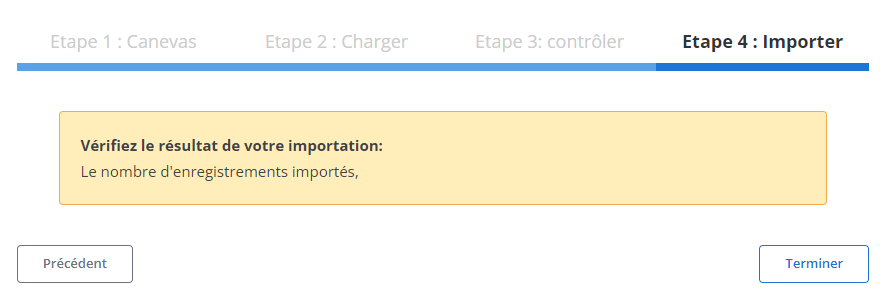
- Cliquez surImporterpour valider et ajouter les contrats de leasing dans la base de données.
- Uneconfirmation de succèsvous informe que l'importation s'est déroulée sans problème.
En suivant ces étapes, vous assurez une intégration rapide et précise des contrats de leasing, simplifiant ainsi la gestion et le suivi de vos engagements contractuels.