Module · Fleet
Importation Kilométrages
Importation Kilométrages
La fonctionnalité d'Importation des Kilométrages permet d'ajouter plusieurs enregistrements de kilométrage à votre base de données en une seule fois, en téléchargeant un fichier pré-formaté, généralement au format Excel. Cette option est particulièrement utile pour :
- L'intégration initiale des données kilométriques pour une flotte complète.
- La mise à jour massive des informations de kilométrage.
Étape 1 : Télécharger et préparer le canevas
Téléchargement du canevas: Un fichier modèle est disponible en téléchargement pour saisir les données. Ce fichier suit un format précis avec des colonnes prédéfinies (voir capture d'écran) pour garantir une intégration correcte.
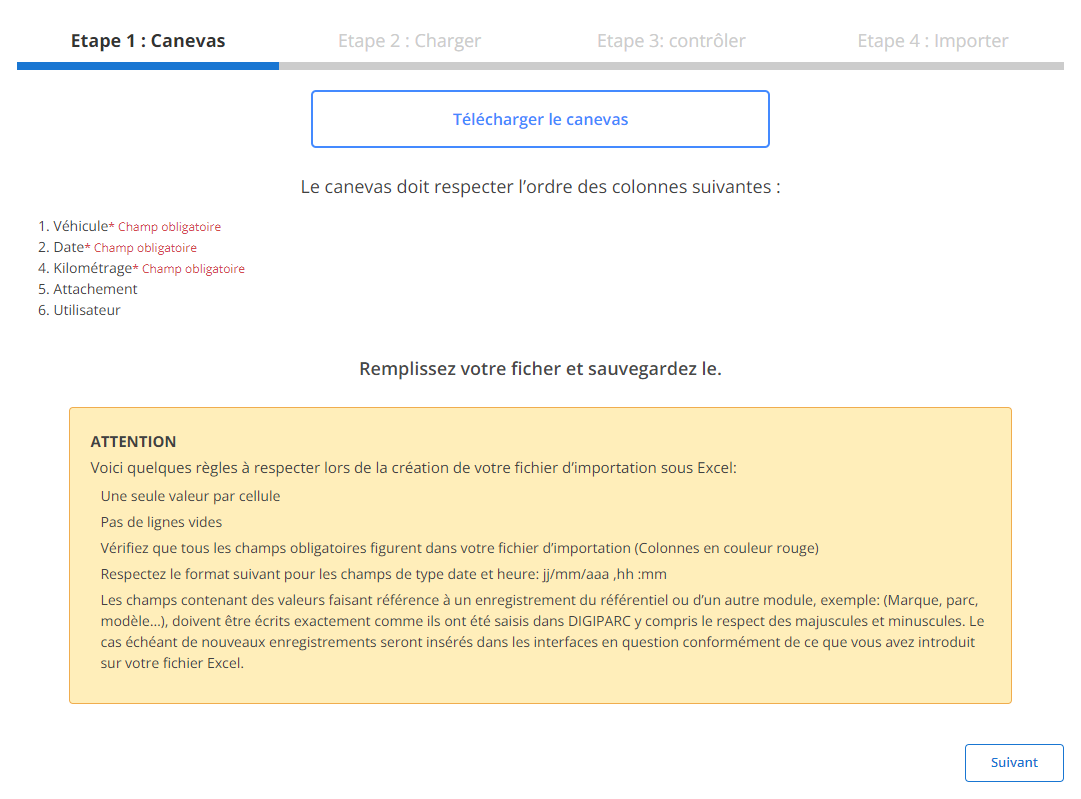
- Respect de l'ordre des colonnes: Les champs obligatoires, comme le véhicule, la date et le kilométrage, sont indiqués en rouge dans le canevas. L’ordre de ces colonnes doit être respecté strictement pour que le système traite les informations sans erreur.
Conseils pour la préparation du fichier :
- Saisir une seule valeur par cellule.
- S'assurer qu'il n'y a pas de lignes vides.
- Respecter les formats de date et d’heure (jj/mm/aaaa hh).
Prérequis :Le fichier doit respecter le format spécifique défini par le système, incluant des colonnes essentielles comme le numéro d'immatriculation et le kilométrage.
Étape 2 : Charger le fichier
Une fois le fichier complété, procédez comme suit :
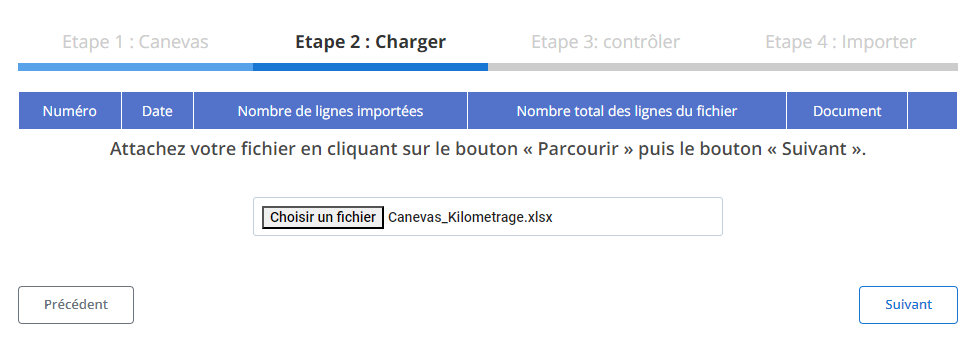
- Cliquez surParcourirpour sélectionner le fichier de kilométrage.
- Appuyez surSuivantpour charger les données.
Après le chargement, un récapitulatif s'affiche, montrant le nombre de lignes importées ainsi que le nombre total de lignes dans le fichier.
Étape 3 : Contrôler les données importées
Une fois le fichier chargé :
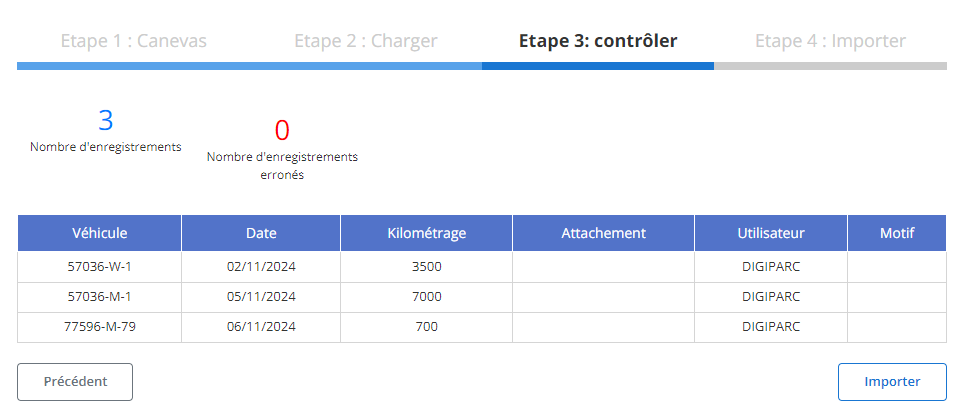
- Un tableau récapitulatif présente les enregistrements de kilométrage importés.
- Le système indique le nombre d'erreurs éventuelles et le nombre d'enregistrements valides.
- Les détails de chaque kilométrage, tels que le véhicule, la date, le kilométrage, l'utilisateur et le motif, sont visibles pour une vérification finale.
Étape 4 : Importer les kilométrages
Après vérification des données :
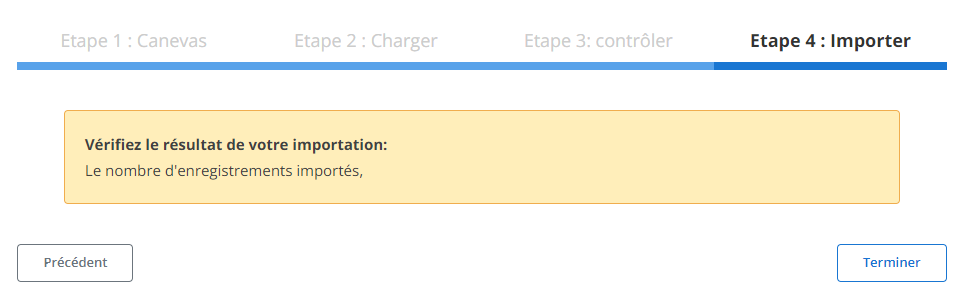
- Cliquez surImporterpour valider et ajouter les enregistrements de kilométrage dans la base de données.
- Un message de confirmation vous indiquera que l'importation a été effectuée avec succès.
Cette fonctionnalité garantit un gain de temps considérable dans la gestion des données kilométriques et facilite une intégration rapide et sans erreur.

