Module · HR
Leave Management
Leave Management
Leave management is an essential element in ensuring a balance between the operational needs of the company and the expectations of employees. This system offers a centralized and efficient solution for supervising absences while maintaining a fluid organization and in compliance with internal and legal policies.
Employees can submit their leave requests in a few clicks, consult their balance of available days and follow the progress of their requests in real time. For their part, managers benefit from an overview of schedules, allowing them to make informed decisions on the approval or rejection of requests based on priorities and availability.
With effective monitoring tools, it becomes possible to anticipate critical periods, plan absences strategically and limit imbalances in teams. This approach guarantees transparent and fair management, thus strengthening employee satisfaction while meeting the imperatives of the organization.
By integrating these management practices, the company promotes a balanced and engaging work environment, where the well-being of employees aligns with collective objectives.
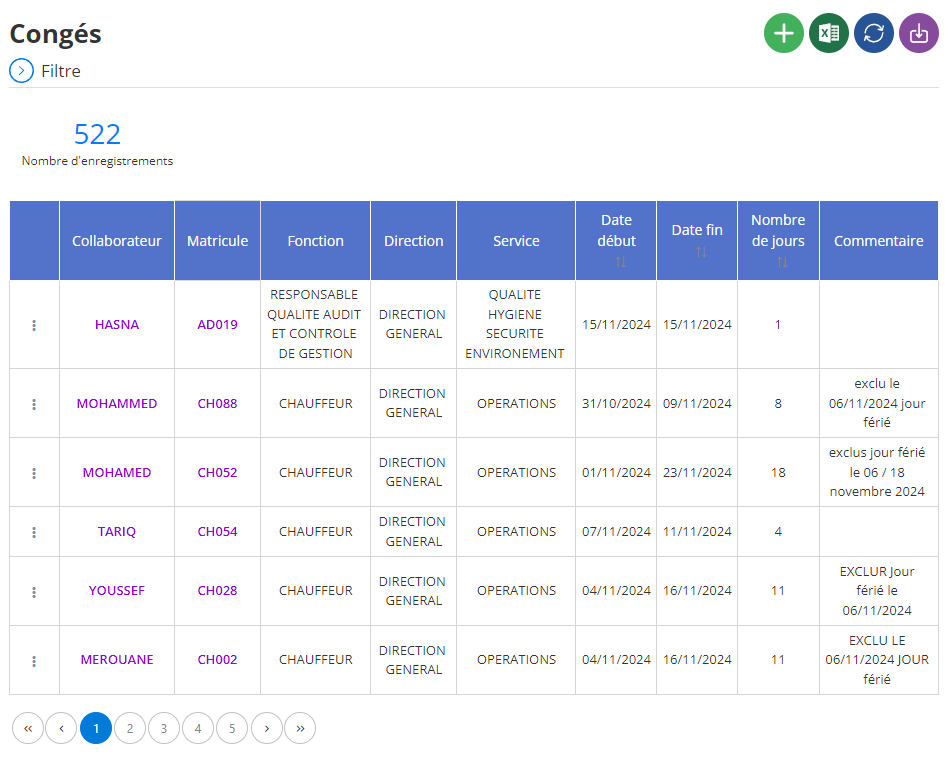
Adding a leave
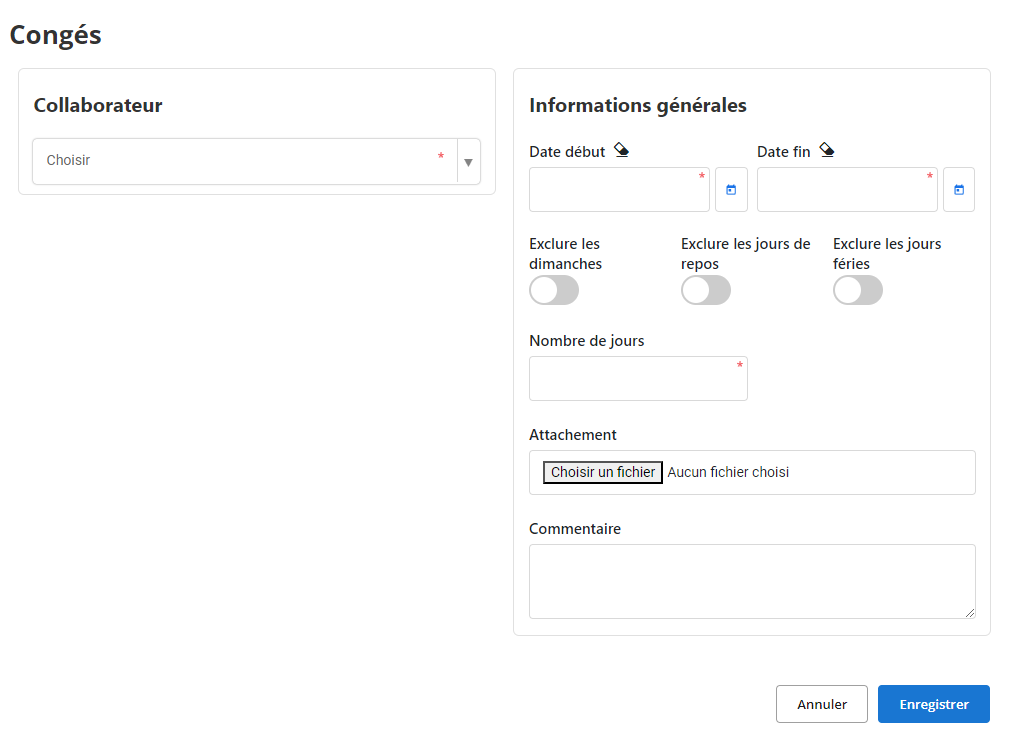
This interface allows you to enter all the information necessary to register a leave request. It offers a clear and structured solution to effectively manage employee absences while ensuring compliance with company policies.
-
Collaborator: Select the employee concerned from the drop-down list. This allows the request to be associated directly with the employee’s file.
-
Start date and End date: Indicate the start and end dates of the leave. This information makes it possible to automatically calculate the duration of the absence and check the employee’s availability.
-
Exclusions:
- Exclude Sundays: If activated, Sundays are not counted in the duration of the leave.
- Exclude rest days: Allows you not to include regular rest days in the calculation.
- Exclusive holidays: Public holidays are not taken into account if this option is activated.
-
Number of days: Automatic or manual field to indicate the total duration of the leave depending on the dates selected and the exclusions applied.
-
Attachment: Allows you to attach a file (for example, medical proof or a written request). This option ensures that all necessary documents are centralized and accessible.
-
How: Free space to add details or specific remarks regarding the leave request. This may include information such as the reason for the absence or additional notes for the manager.
Using this interface, managers can track and organize leave requests accurately, thereby reducing scheduling conflicts and optimizing human resources management.
Modification of a leave
To update information relating to a leave request, start by accessing the leave management section in the system. Use the search filters to locate the request to modify, based on the employee, the leave period, or any other relevant criteria. Once the request has been identified, select the option“To modify”to access the modification interface.
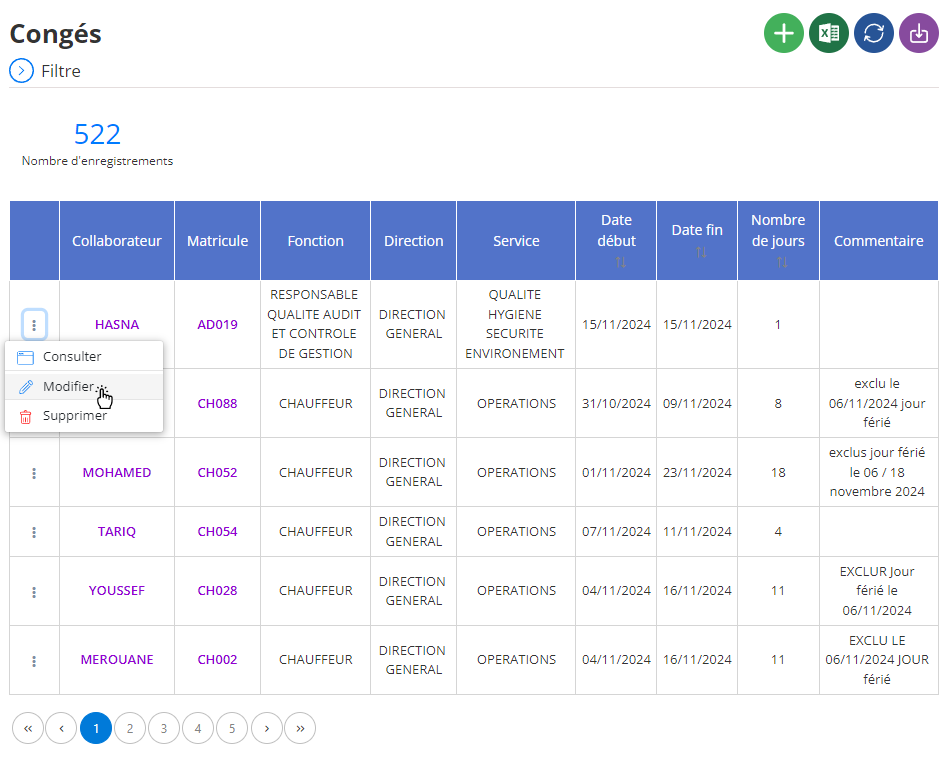
In this interface, you will be able to adjust several essential information, such as:
- The start and end dates of the leave.
- Applicable exclusions (Sundays, public holidays or days of rest).
- Comments or supporting documents attached to the request.
It is important to ensure the consistency of the data entered to guarantee accurate management of absences. Once you have made the changes, click“Save”to validate and save the changes. This updated information makes it possible to maintain rigorous monitoring of employee absences and facilitates human resources planning.
Deleting a leave
To delete a leave request, go to the list of requests saved in the system. Use the search tools to locate the request to delete by filtering by employee, date or other criteria. Once identified, select the request and click on“DELETE”to initiate the process.
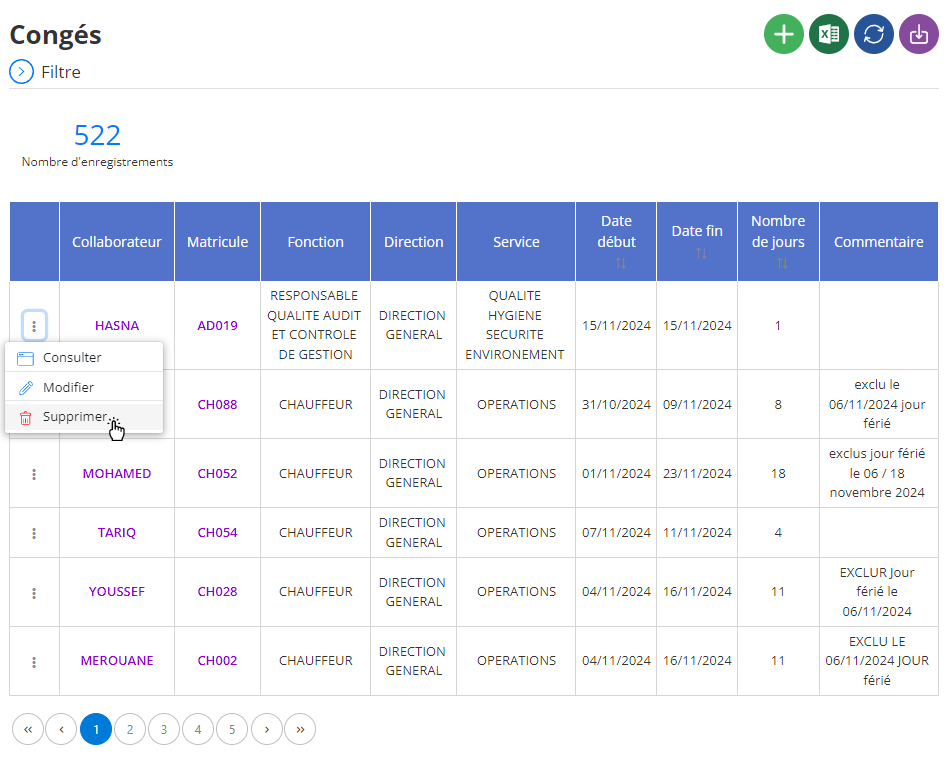
A confirmation window will appear to validate this action. It is essential to note that deletion isdefinitiveAndirreversible, which means that all data associated with this request, such as dates and supporting documents, will be deleted from the system. Before confirming, make sure the deletion is intentional and that the information will not be needed for future analytics or reporting.
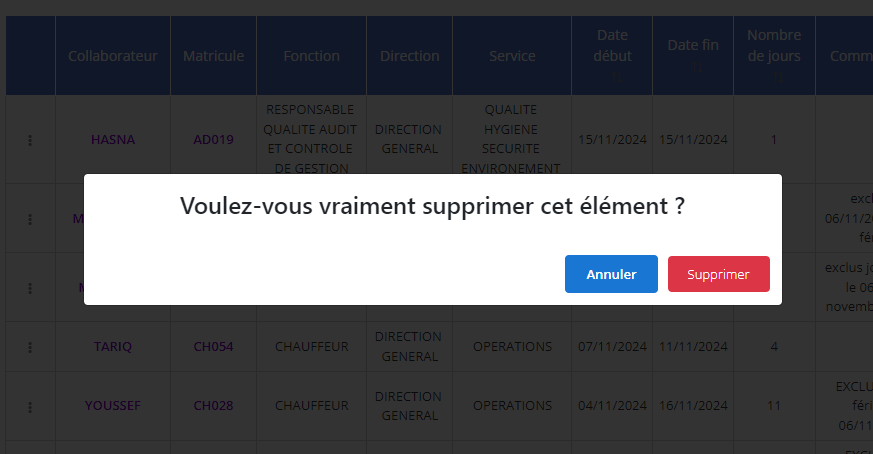
If the request data may have long-term value (for example, for annual reviews or audits), it is recommended to archive it before permanently deleting it. This precaution ensures that only truly obsolete requests are removed from the system.
Consultation of a leave
The leave request consultation interface provides access to all the information recorded regarding an absence. This tool offers a detailed and centralized view of the elements relating to each request, thus simplifying access to essential data.
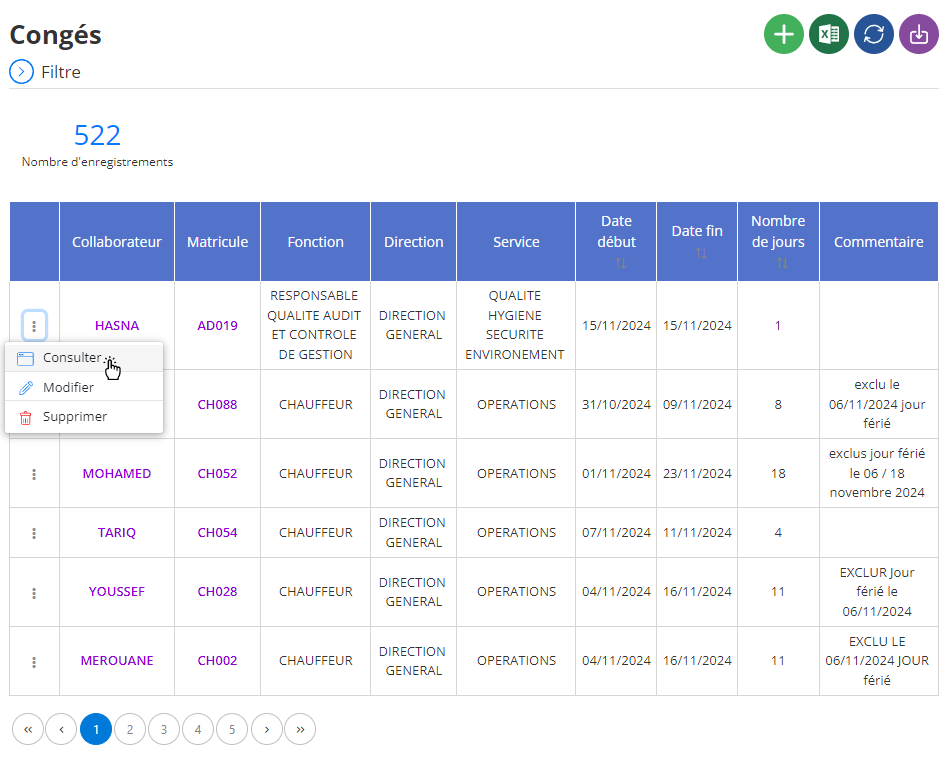
When selecting a specific request, the following information is available:
- Collaborator concerned: The name and position of the employee who made the request, allowing you to quickly know who it is.
- Leave dates: The start and end dates of the leave, as well as the total duration, are displayed, making it easier to monitor periods of absence.
- Exclusions: The parameters applied (Sundays, public holidays, or rest days excluded) are indicated for total transparency in the calculation of days of absence.
- Supporting documents attached: All documents related to the request, such as medical or administrative supporting documents, are accessible directly from the interface.
- Comments: Specific remarks or notes regarding the request (for example, reasons for absence or special observations) are visible here.
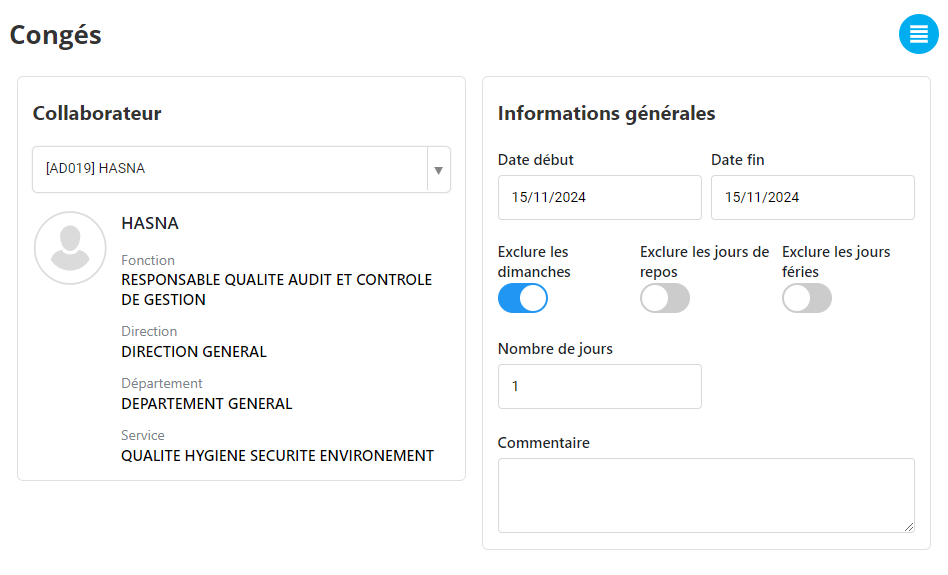
Using this tool, managers can quickly review the details of an absence, validate requests or identify possible anomalies in leave tracking. This centralization of information facilitates transparent and effective management of absences, while optimizing human resources planning.

