

Module · HR
Absence Management
Absence Management
Absence management is an essential component to ensure smooth and efficient administration of human resources. This system makes it possible to centralize all data relating to employee absences, whether due to annual leave, illness, personal obligations, or other reasons.
Using this tool, managers can:
- Add new absences to document each situation as it arises.
- Edit information in case of change or error, ensuring data accuracy.
- Delete obsolete or erroneous records to maintain up-to-date records.
This approach allows rigorous monitoring of absences, facilitating team planning and replacement management. It also provides a global view of absence trends, a key element for anticipating needs and improving the organization's productivity.
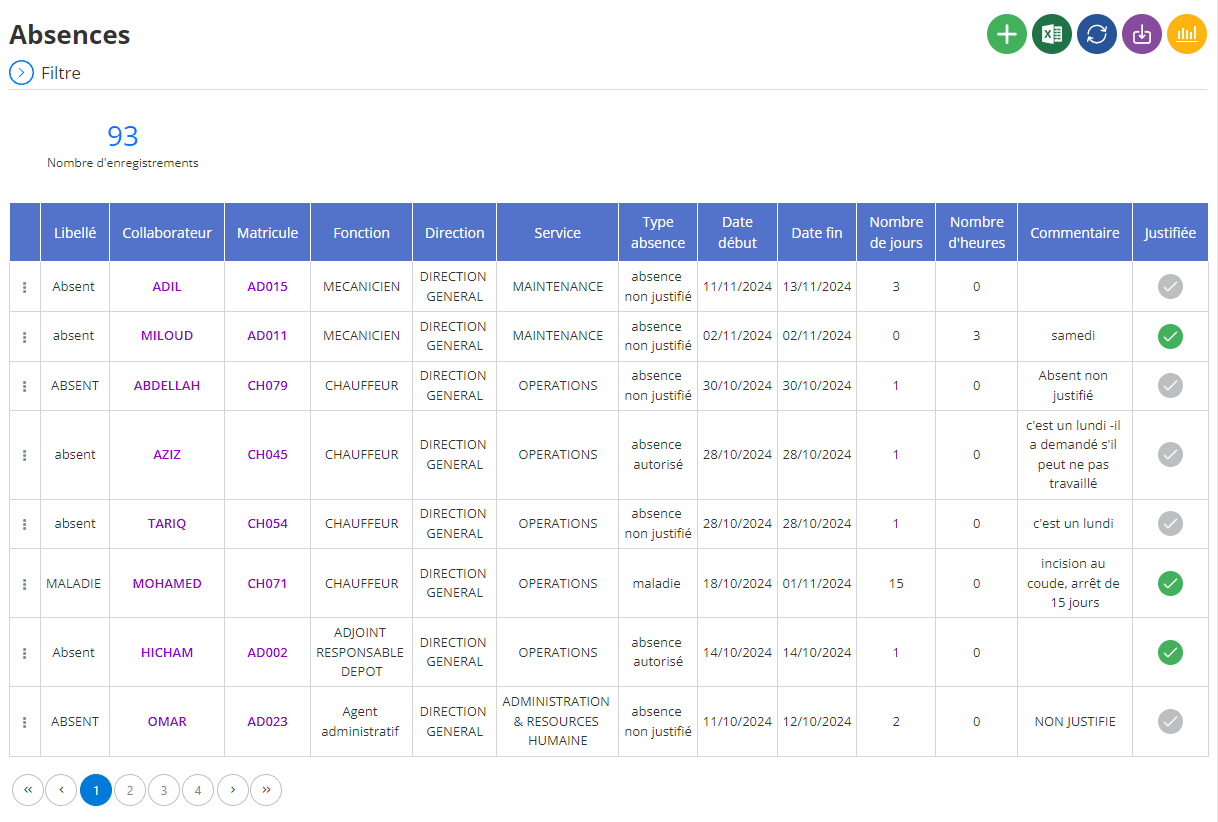
Adding a new absence
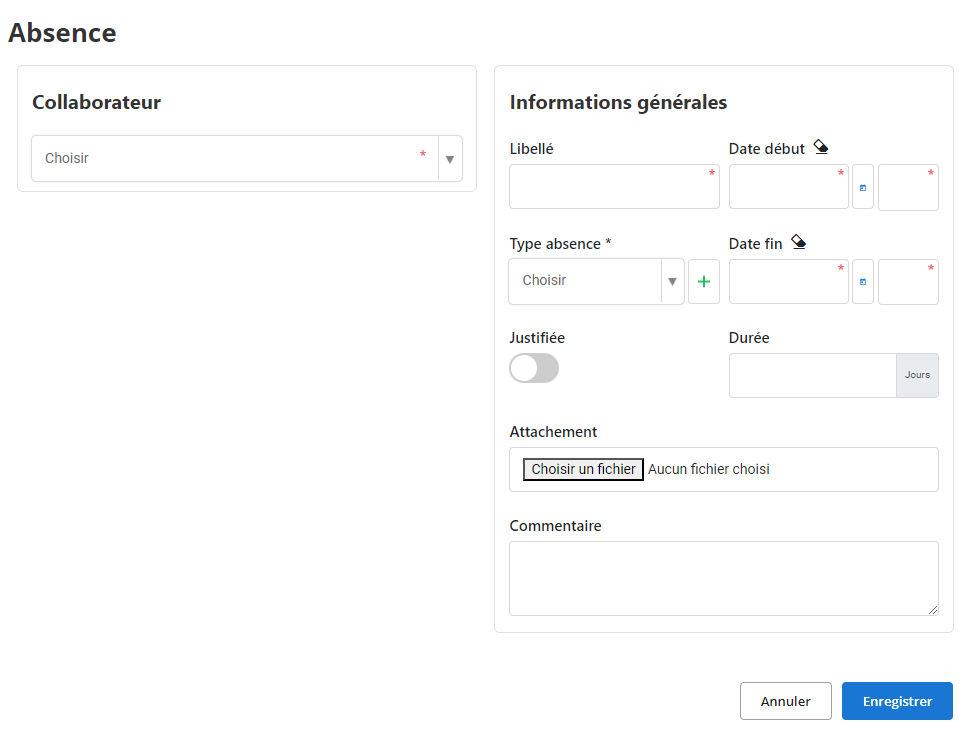
This interface allows you to provide all the information necessary to record an absence within the organization. It facilitates the centralization of data, guaranteeing rigorous monitoring and effective management of employee absences.
-
Collaborator: Select the employee affected by the absence from the drop-down list. This direct association allows the absence to be recorded in the employee's personal file.
-
Wording: Indicate a brief description of the absence (examples: “Annual leave”, “Sick leave”, “Exceptional absence”).
-
Start date and End date: Specify the start and end dates of the absence to determine the exact period concerned. These fields also allow you to calculate the total duration of the absence.
-
Type of absence: Choose the category of absence from the options offered (examples: “Illness”, “Leave”, “Unjustified absence”). This field facilitates the classification and analysis of absences. A new category can be added using the “+” button, ensuring the available options are constantly updated.
-
Justified: Activate this option if the absence is accompanied by proof, such as a medical certificate or authorization.
-
Duration: Indicate the duration of the absence in days. This field is calculated automatically if the start and end dates are entered.
-
Attachment: Allows you to attach relevant files, such as proof of absence or an authorization document. This feature ensures that all the necessary information is gathered in one place.
-
How: A free space to add remarks or details concerning the absence (examples: “Recommendation of teleworking during the period” or “Validation pending”).
By centralizing this information, the tool optimizes absence management while ensuring increased traceability and transparency within the organization.
Modification of an absence
To update information relating to an absence, start by accessing the absences section in the system. Use the available search filters to locate the absence in question, whether by searching by the name of the employee, the date of the absence, or any other relevant criterion. Once the record is found, select the "Edit" option to open the editing interface.
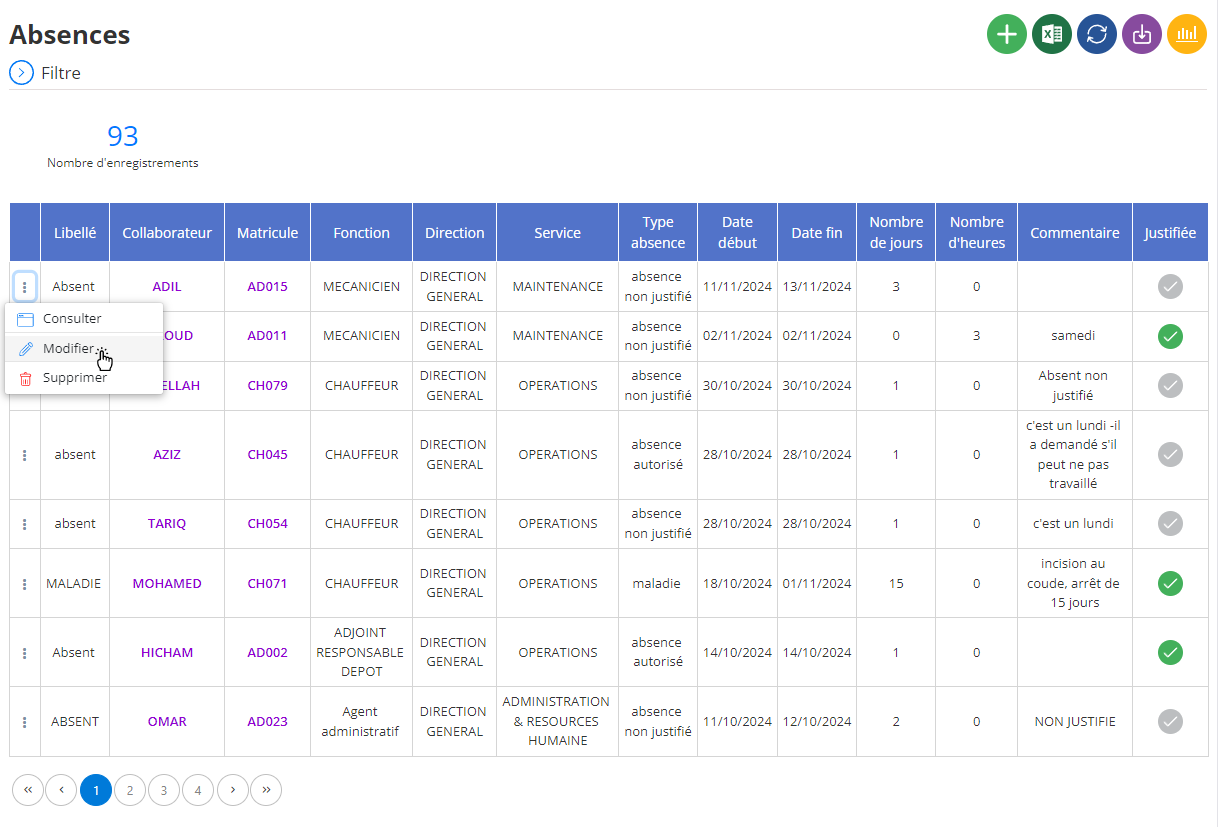
In this interface, several aspects of the absence can be updated:
- Collaborator: Check or modify the association with the employee concerned.
- Wording: Edit the description of the absence if necessary, so that it accurately corresponds to the reason or the actual situation.
- Start and end dates: Adjust the dates if the period of absence has changed or was initially entered incorrectly.
- Type of absence: Update the absence category based on the reason or new proof received.
- Justification: Activate or deactivate the "Justified" option based on receipt of valid proof (example: medical certificate or written authorization).
- Duration: Check or correct the total duration of the absence so that it corresponds to the new dates entered.
- Attachments: Add, edit, or delete associated files, such as supporting documents.
- Comments: Complete or adjust the notes to clarify the changes made or clarify the circumstances.
Once all necessary changes have been made, click "Save" to validate and save the updates.
Thanks to this functionality, it is possible to guarantee the accuracy of information on employee absences, ensuring rigorous monitoring and transparent management. Up-to-date data allows human resources managers to analyze absence trends, anticipate resource needs, and make informed decisions to improve the overall management of the organization.
Deleting an absence
To delete an absence from the database, first access the list of absences recorded in the system. Use the available search tools to identify the absence you want to delete, filtering by employee name, date, or other relevant criteria. Once the recording is located, select it and then click on the "Delete" option to initiate the deletion process.
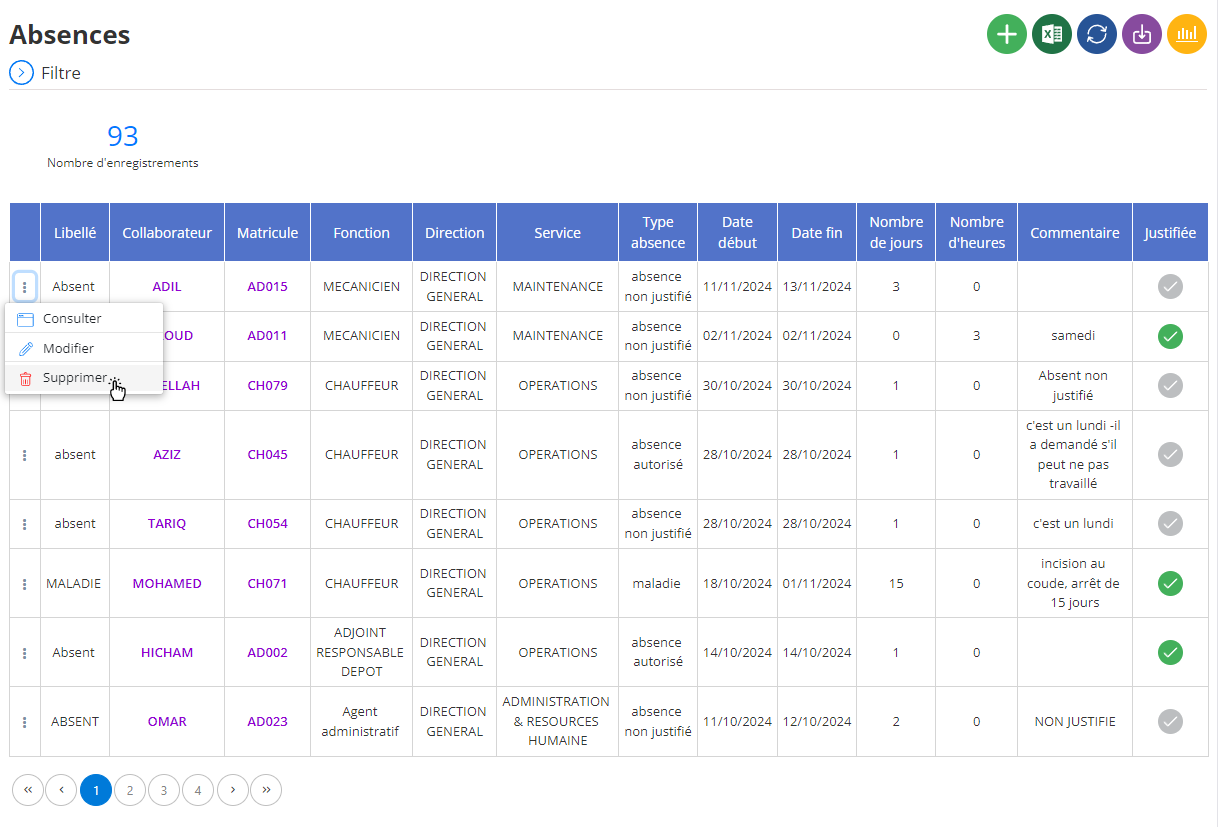
A confirmation window will appear to validate this action. It is important to note that deleting an absence is an operationdefinitive and irreversible. This means that all data associated with this absence, such as dates, supporting documents and comments, will be permanently deleted. Before confirming, make sure that this deletion is necessary and that no important information will be lost by mistake.
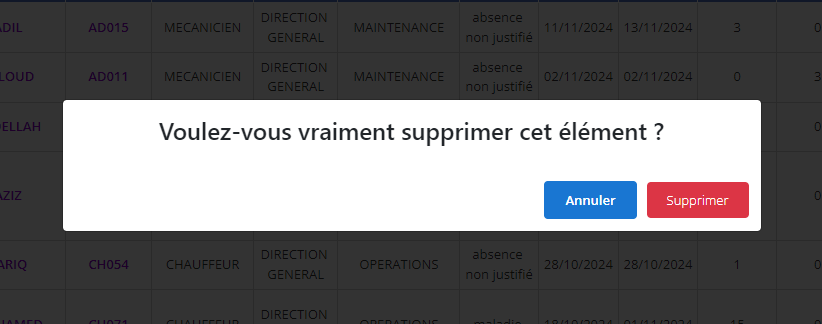
Deleting an absence should be done with caution, particularly if this data may be useful for future analyzes or reviews, such as identifying absence trends or assessing organizational needs. If the information related to this absence may be of value for future reports or evaluations, it may be useful to archive it before proceeding with the deletion.
By adopting this thoughtful approach, you ensure that only truly obsolete or irrelevant data is deleted, while preserving the integrity and traceability of the organization's administrative records.
Consultation of an absence
The absence consultation interface provides access to all information recorded regarding a specific absence within the organization. This tool offers a detailed view of absence-related data, making it easier to verify and manage.
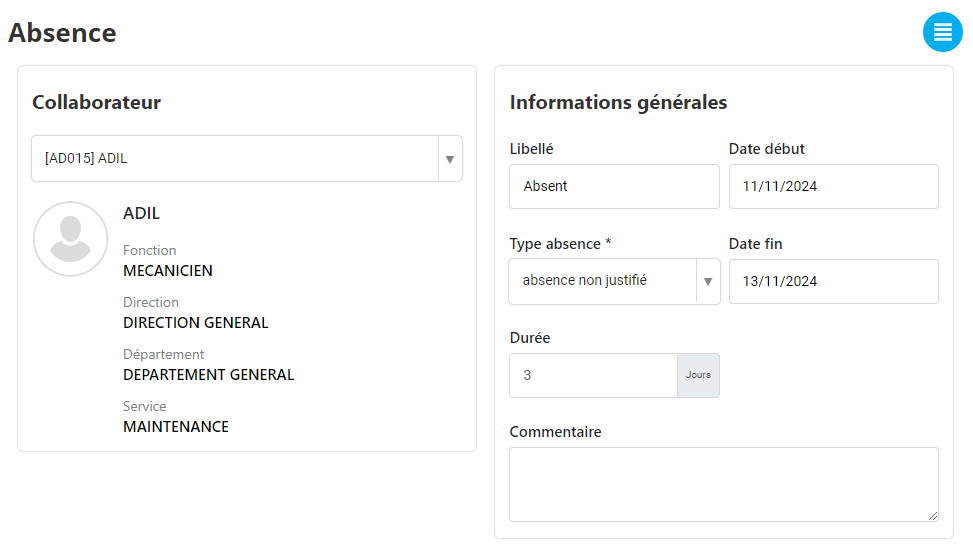
When you select an absence in the system, all the details relating to it are displayed on the screen. You can view the following information:
-
Collaborator concerned: Display of the name and, if necessary, the position of the employee concerned by the absence. This information allows you to immediately check to whom the absence is attributed.
-
Type of absence: This section specifies the category of absence, such as annual leave, sick leave, exceptional absence, or unjustified absence. This allows you to quickly understand the reason for the absence.
-
Dates of absence: The start and end dates of the absence are displayed, allowing you to precisely check the period concerned.
-
Duration: The total duration of the absence, calculated in days, is shown to give a clear idea of the impact on resource planning.
-
Justification: This field specifies whether the absence is justified or not, in particular by documents such as a medical certificate or written authorization.
-
Attached documents: All files related to the absence, such as supporting documents, certificates or letters of authorization, are accessible directly from this section, guaranteeing complete traceability.
-
Comments: This section contains additional remarks, such as details on the reason for the absence or useful contextual information for human resources management.
By centralizing this information in a single interface, the system allows simplified monitoring and rigorous management of absences. Managers can therefore consult the data at any time to analyze trends, plan replacements and ensure optimal team management.