

Module · HR
Medical Imports
Medical Imports
The purchase contract import functionality allows you to load several contracts into your database in a single operation, using a pre-formatted file, often in Excel format. This option is particularly valuable for:
- Initial integration of a large number of purchasing contracts.
- Mass updating of information relating to already existing contracts.
Step 1: Download and prepare the template file
To get started, you need to download a template file designed to make the import process easier. This file contains predefined columns and must be populated according to certain strict rules. Here are the steps to prepare this file:
-
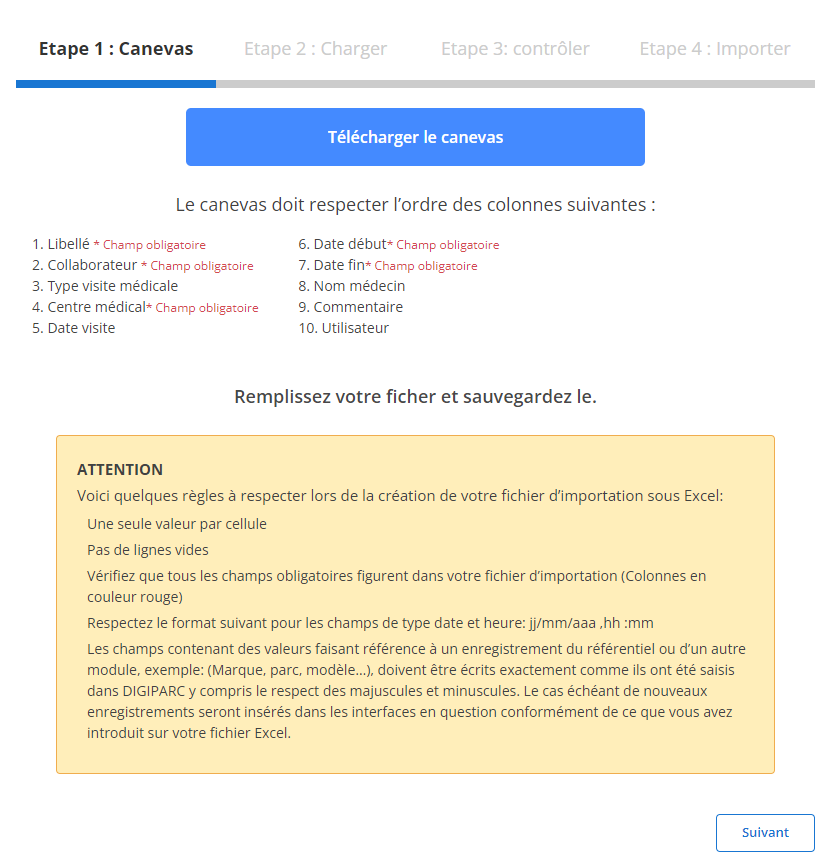
Download the template file: The template to fill out is available directly on the interface. This file contains the columns essential for the import, which must respect a precise order.
-
Respect the order of the columns: Each column of the file corresponds to specific data and certain fields are mandatory. For example :
- Wording(Required fields)
- Collaborator(Required fields)
- Type of contract(Purchase contract or other)
- Distribution center(Required fields)
- Start date(Required fields)
- End date(Required fields)
These mandatory fields must be completed for each line to ensure error-free import. Respecting the order of the columns is essential to avoid inconsistencies during import.
-
Preparing the file:
- Make sure there is only one value per cell.
- Avoid empty rows in the middle of the table.
- Follow the date format (dd/mm/yyyy) for all dates.
Step 2: Load the contracts file
Once the file is prepared and completed, you can proceed to upload it by following the following steps:
-
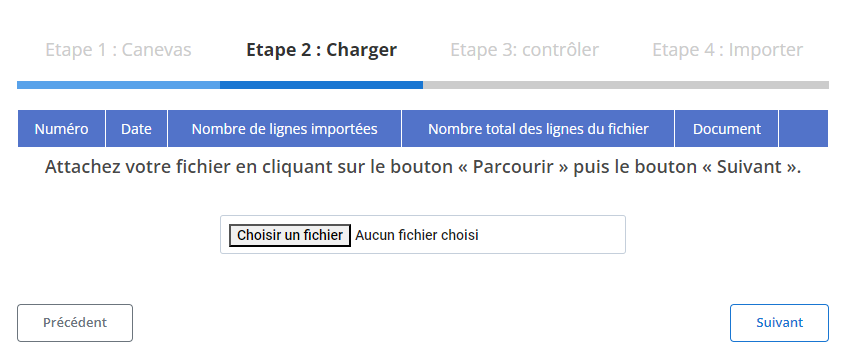
Select file: Click “Browse” to locate the file on your computer, then choose the file to import.
-
Start loading: After selecting the file, click “Next” to start loading the data.
A summary is displayed on the screen indicating the total number of lines contained in the file as well as the number of lines ready for import. This summary allows you to have a first check of the content.
Step 3: Verify the imported data
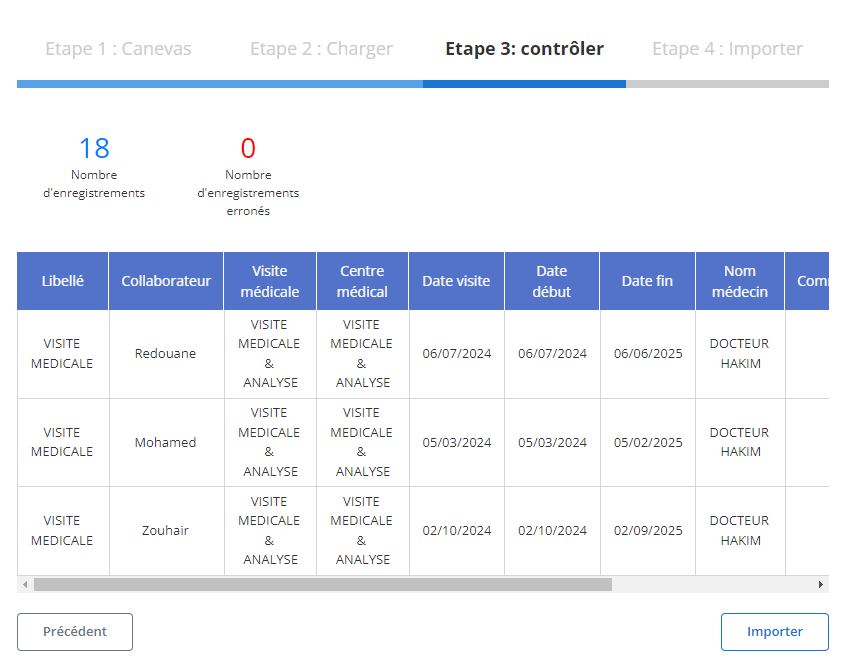
After loading, a summary table is displayed with all the records from the file. At this point:
- Error checking: The system alerts you to potential errors, such as missing values in required fields or incorrect formats.
- Verifying correct records: Rows without errors are ready for final import. You can review them in the summary table.
Each contract (with details such as wording, employee, contract type, distribution center, start and end dates, etc.) is visible in this table. This makes it possible to ensure the conformity of the information before proceeding.
Step 4: Import purchase contracts
Once the data has been verified, you can start the final import:
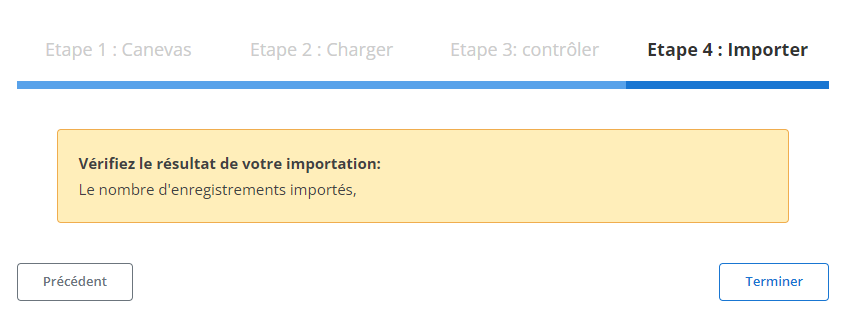
- Finalize the import: Click on the “Import” button to validate and add the contracts to your database.
- Confirmation: A confirmation message appears to indicate that the import was successful.
This structured process for importing purchasing contracts ensures you manage them quickly and efficiently, ensuring that crucial information is integrated into the system accurately and consistently. This functionality simplifies contract management and promotes rigorous monitoring of purchasing commitments within the company.