Module · HR
Gestion Formations
Gestion Formations
The training program management system allows users to maintain a comprehensive and up-to-date database of all available training courses. Thanks to an intuitive interface, they can easily administer essential information for each training, thus ensuring precise monitoring and simplified management of skills development activities.
This solution allows you to add new training courses to the catalog by including details such as dates, times, names of trainers and the content of each session. Information about existing training courses may also be updated to reflect changes in content, schedules or instructors. Users can delete training that has become obsolete to ensure that only relevant and current offerings are available.
By ensuring rigorous organization of training programs, this system contributes to continuous improvement of skills and professional development aligned with the needs of the organization. With information always accessible and up to date, teams can plan and adapt training courses according to the company's objectives, thus strengthening overall performance and employee engagement.
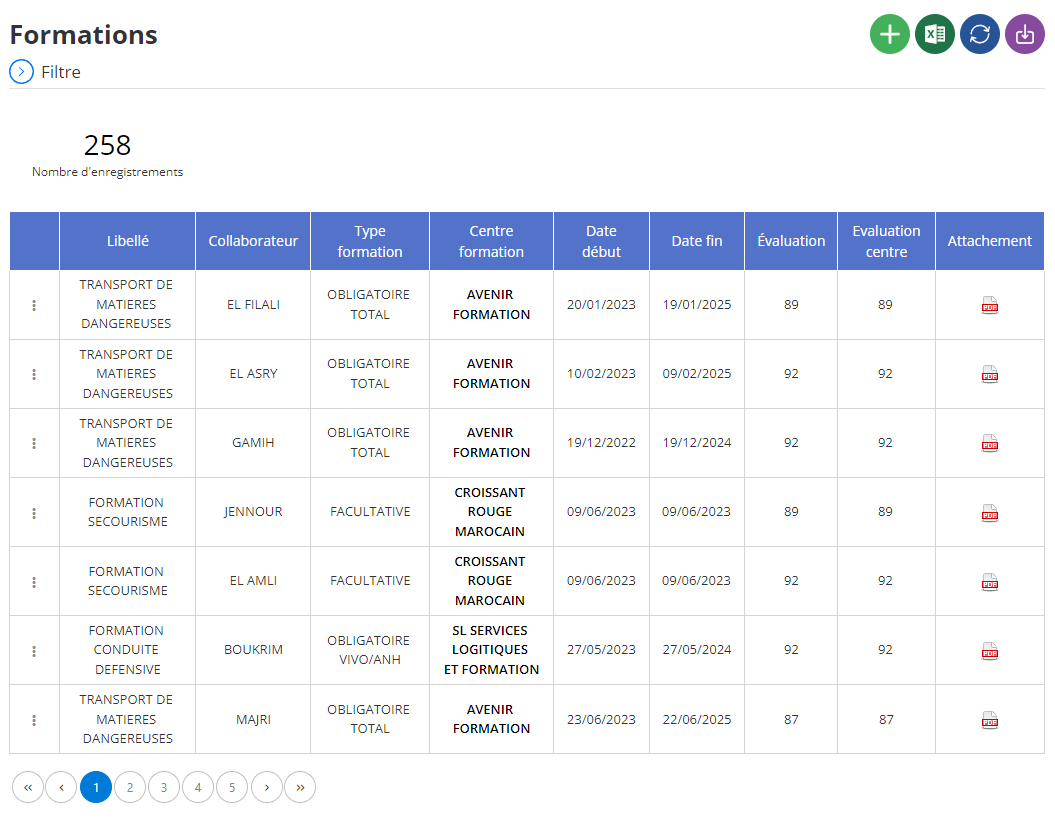
Adding a new training
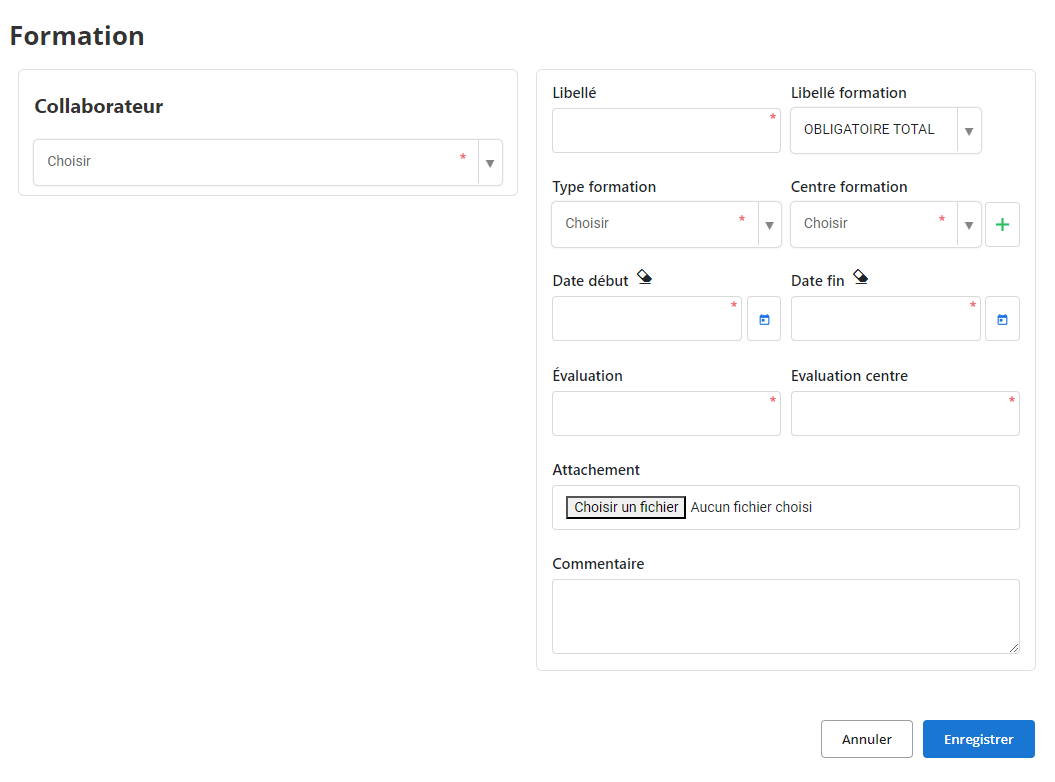
This interface allows you to enter all the information necessary to add new training for employees. The objective is to record each training program precisely and in detail in order to ensure optimal monitoring of skills development within the organization.
-
Collaborator:Select the employee who will follow the training from the drop-down list. This makes it possible to associate the training directly with the employee’s profile.
-
Wording:Indicate a brief description of the training (examples: “Leadership training”, “Mastery of office tools”).
-
Training wording:This field is sometimes pre-populated with options, such as "Total Mandatory," to indicate whether the training is a mandatory requirement for all employees.
-
Type of training:Select the type of training from the categories offered (examples: “Technical”, “Soft skills”, “Safety”). This field allows you to classify training courses to facilitate future research and analysis.
-
Training center:Indicate the location or training organization providing the session. This field can include predefined options or allow new centers to be added via the “+” button, ensuring an up-to-date database of training providers.
-
Start date and End date:Enter the start and end dates of the training. This allows the session to be planned according to the employee's availability and the company's requirements.
-
Assessment:This field collects a grade or rating for the employee's performance during the training, thus facilitating the evaluation of the impact of the session on their skills.
-
Center assessment:This field allows you to evaluate the training center, noting the quality of supervision and teaching, which is useful for selecting the best providers in the future.
-
Attachment:Allows you to attach relevant documents, such as course materials, certificates or certificates. This functionality ensures the centralization of information and facilitates its subsequent access.
-
How:Free space to add specific comments or observations, such as recommendations for additional training or areas for reinforcement.
By using this interface, managers can record and structure all the necessary information, which contributes to smooth and organized management of training courses.
Editing a training
To update training information, start by going to the training section in the system. Use the search filters to locate the training you wish to modify, whether by the name of the trainer, the date of the training, or any other relevant criteria. Once the training is searched, select the "Edit" option to access the modification interface.
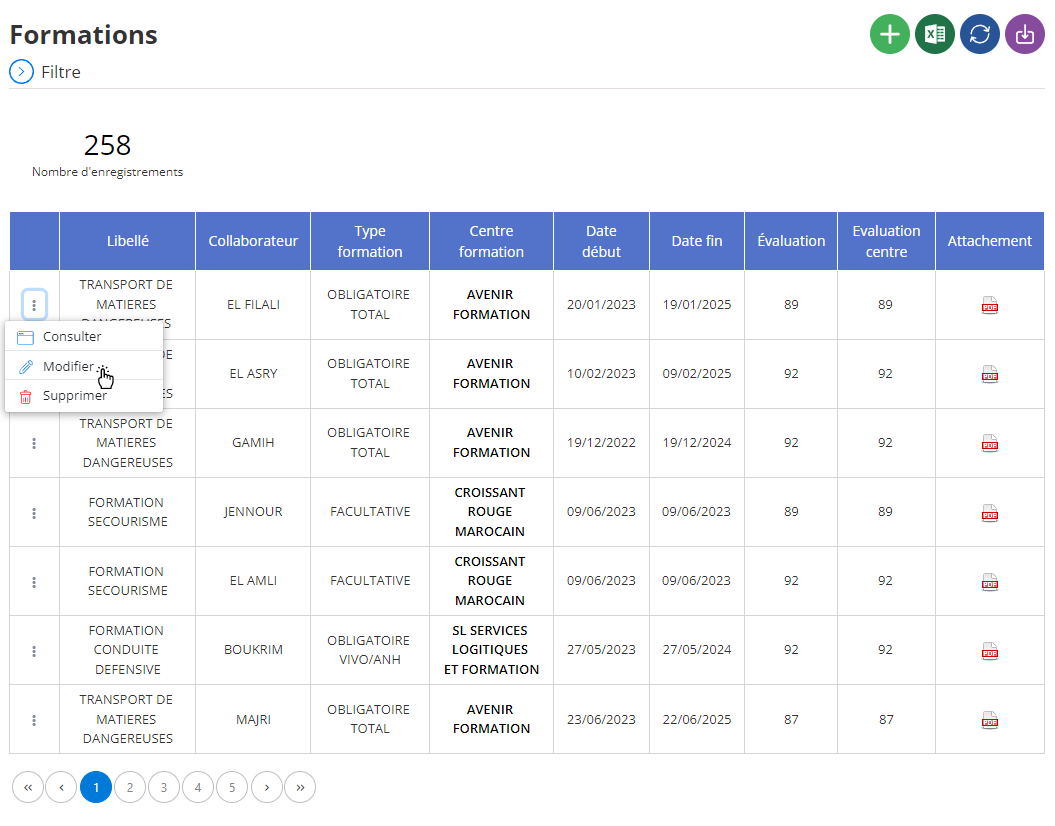
In this interface, you will be able to modify several essential aspects of the training. This includes information such as training date, type of content covered, participant evaluation results, trainer feedback, and recommendations for future sessions. Ensuring the accuracy of the data entered is crucial, as well-documented training helps ensure quality monitoring for employee skills development.
Once the necessary modifications have been made, click on "Save" to validate and save the changes. This step makes it possible to maintain an accurate history of the training followed by each employee, thus facilitating the monitoring of their professional development. With up-to-date information, HR managers can make informed decisions on future training, optimize the training program and adapt development plans based on business needs.
Deleting a training
To delete a training course from the database, first access the list of training courses saved in the system. Use the search tools to locate the training you want to remove, filtering by instructor name, date, or other criteria. Once the training has been identified, select it, then click on the "Delete" option to initiate the process.
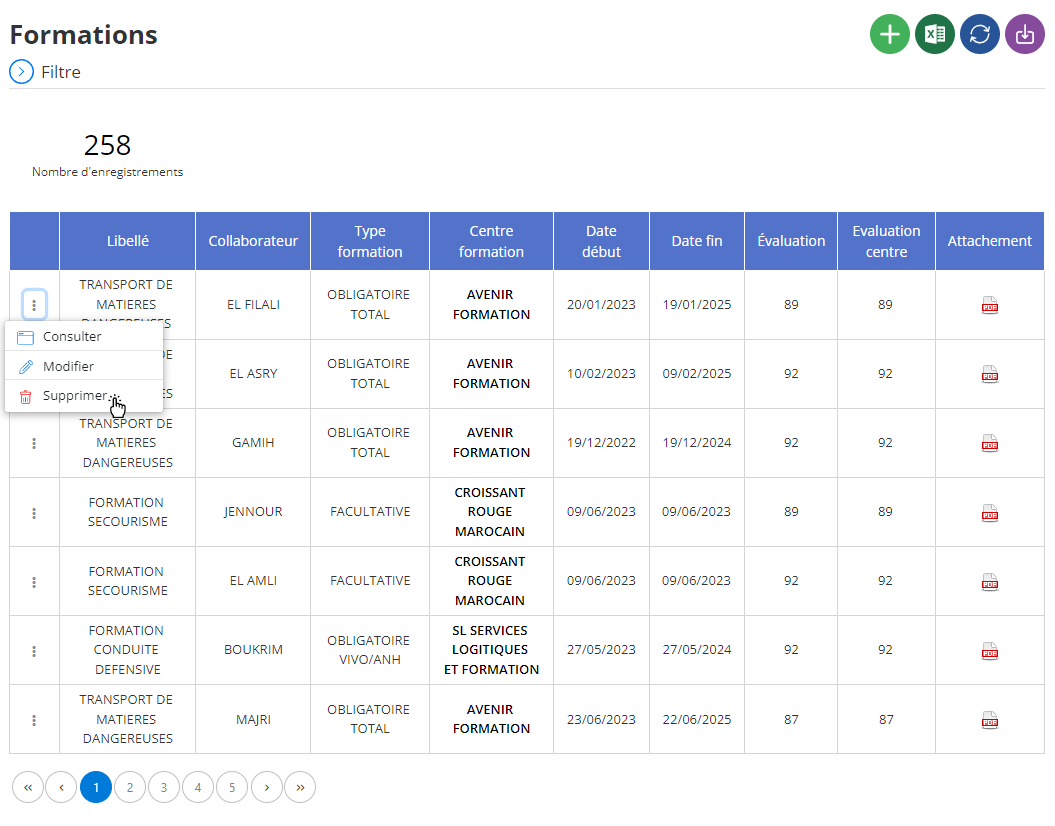
A confirmation window will appear, asking you to validate this action. It is essential to understand that the deletion of a training course is permanent and irreversible, which means that all information related to that training, such as participant details, evaluations and feedback, will be permanently lost. Before confirming this action, take care to verify that the deletion is intentional and that no important data will be deleted by mistake.
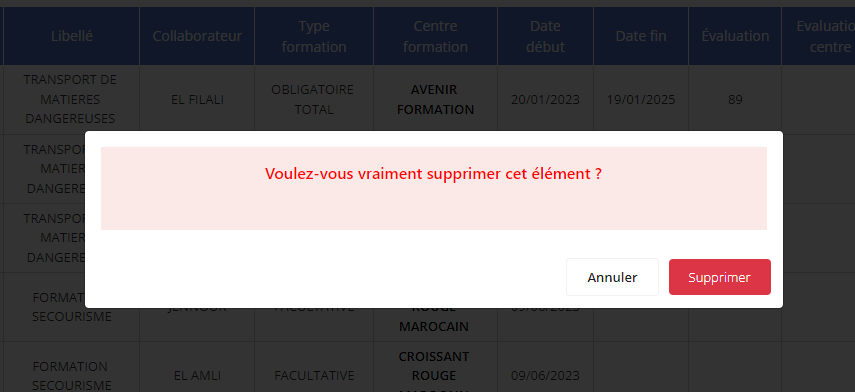
Deleting training should be done with great caution, especially if this data may have value for future analytics or for tracking employee progress. Before proceeding with this deletion, it may be wise to archive relevant information, particularly that which could be used for annual reviews or long-term performance evaluations. This ensures that only truly obsolete or irrelevant information is removed from the system.
Consultation of a training
The training consultation interface allows access to all the information recorded concerning a professional training session. This tool gives you a detailed view of training-related elements, making it easier to access and manage essential data.
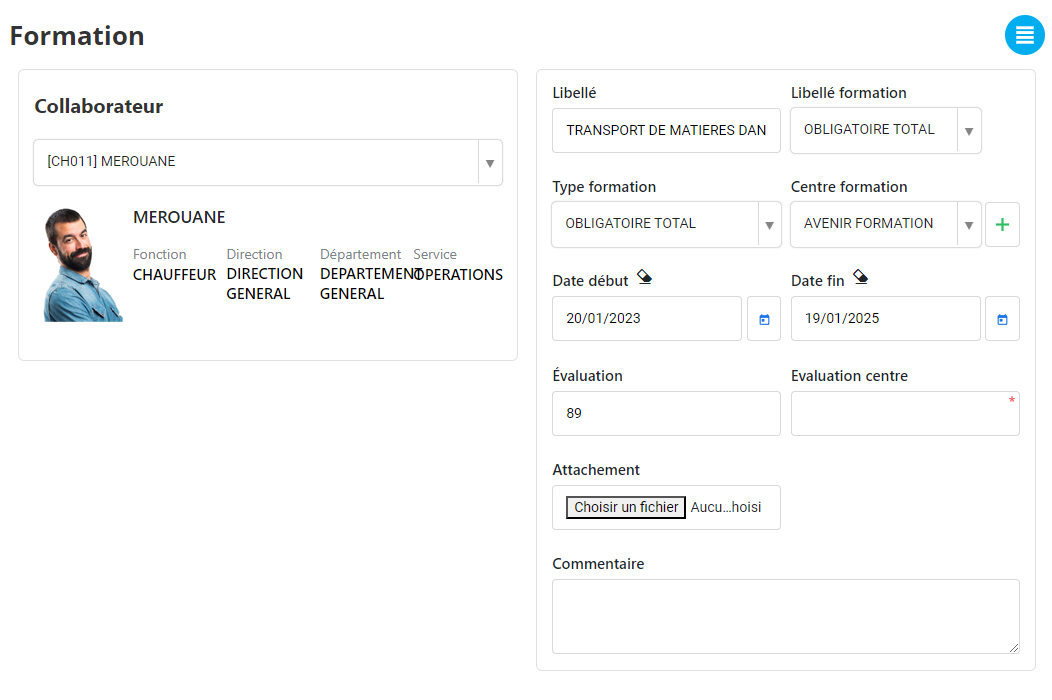
When you select a specific training, all the details relating to this session are displayed on the screen. You can then consult the following information:
-
Collaborator concerned: Display of the name and position of the employee participating in the training, allowing you to immediately check who attended the session.
-
Type of training: This section specifies the type of training provided, whether it is training inleadership, office automation, technical, or even insecurity, etc. This allows you to categorize the training and better understand its objective.
-
Training date: Display of the exact dates of the training, indicating both thestart dateand theend date, which ensures that the session took place according to schedule.
-
Training center: The name and information regarding the center or organization that provided the training are listed here, which allows you to know where the expertise comes from.
-
Training evaluation: This section presents the notes and comments on the employee's performance during the training. Assessments may include feedback on understanding of concepts, active participation, and application of skills learned.
-
Attached documents: All relevant documents relating to the training, such as course materials, certificates of participation or success, and other certificates, are accessible. This ensures complete traceability of the training followed.
-
Comments: Additional comments on the training are indicated here. This includes comments on the session itself, suggestions for improvement, or recommendations regarding the employee's future progression in their training journey.
By centralizing this information, the training management process becomes more fluid, offering better traceability and more precise planning of employee development paths.

